Users can submit handover checklist in Offline Mode. Before going offline, users must navigate to Appointment then click Submit Checklist and open the handover checklist to save it to the device. If multiple units need to be completed offline, users must open and load the checklist for each unit individually while an internet connection is available. Once all required checklists have been loaded, users can enable Offline Mode or disconnect from the internet and continue to view and submit the previously loaded handover checklists.
IMPORTANT NOTE: Please ensure to view (with Internet) the Checklist before going to site where there is no internet connection available.
1. No Internet Connection
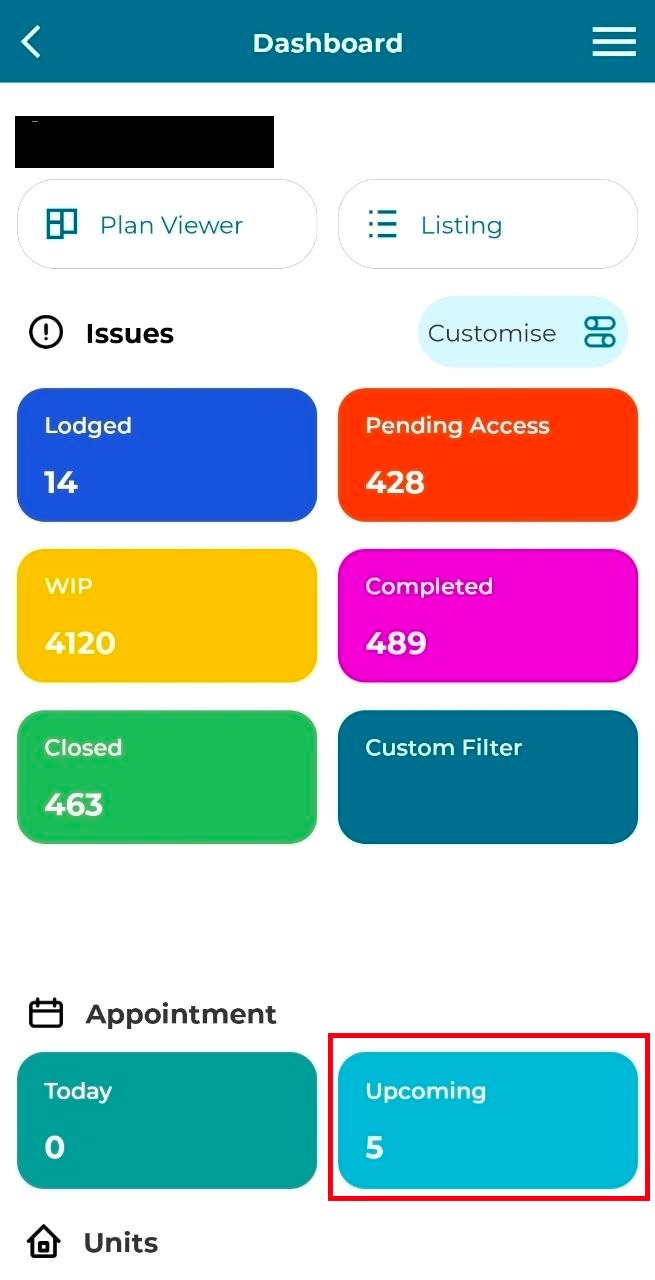
Step 1: Select a project and go to the project ‘Dashboard’.
Step 2: Click on ‘Upcoming’ on the Appointment section.
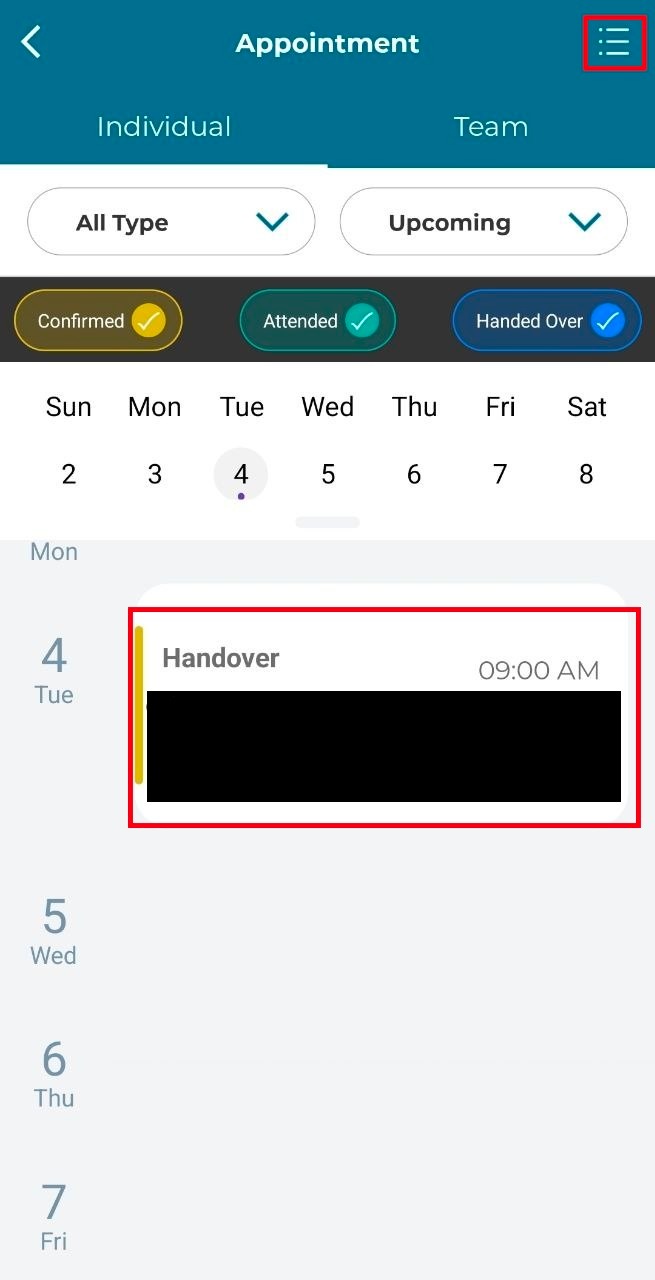
Step 3: Click on the appointment or on the top-right side to view upcoming appointment
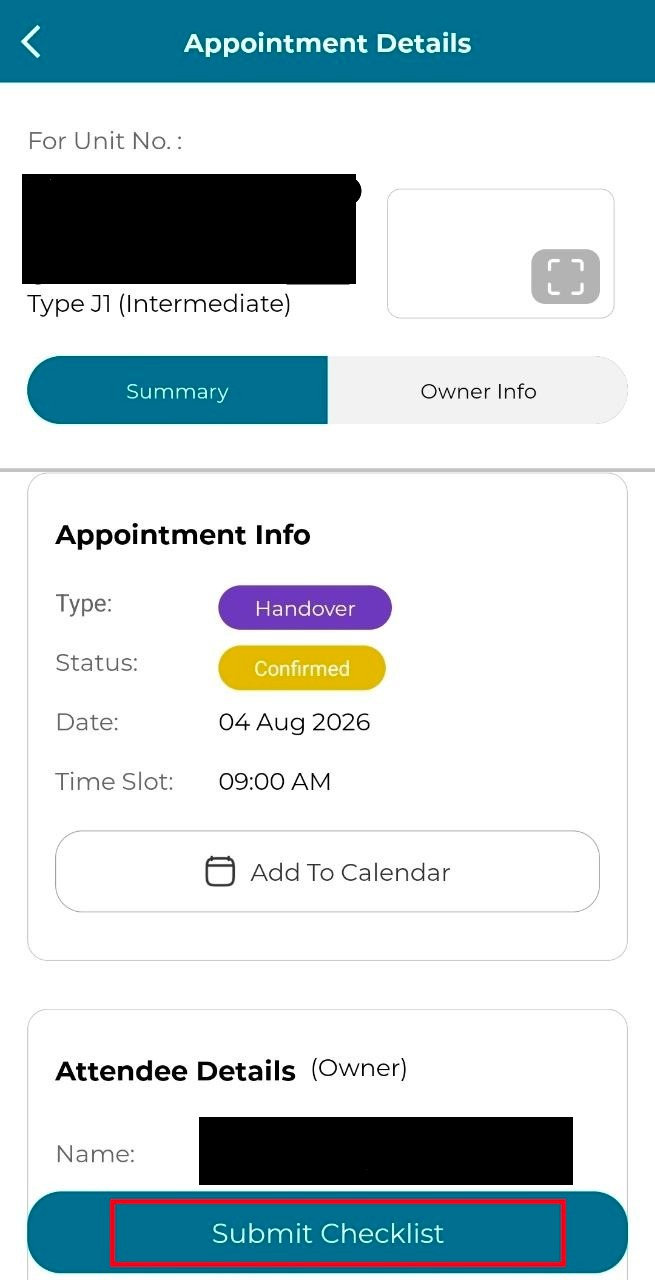
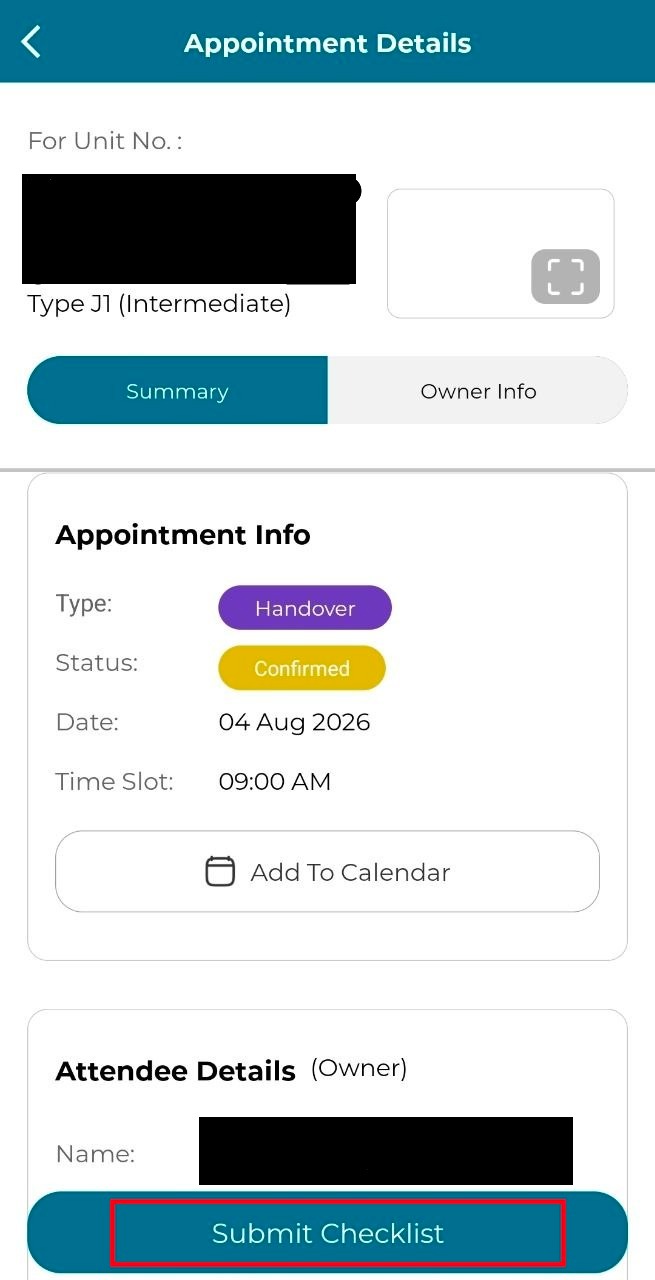
Step 4: Click on ‘Submit Checklist’
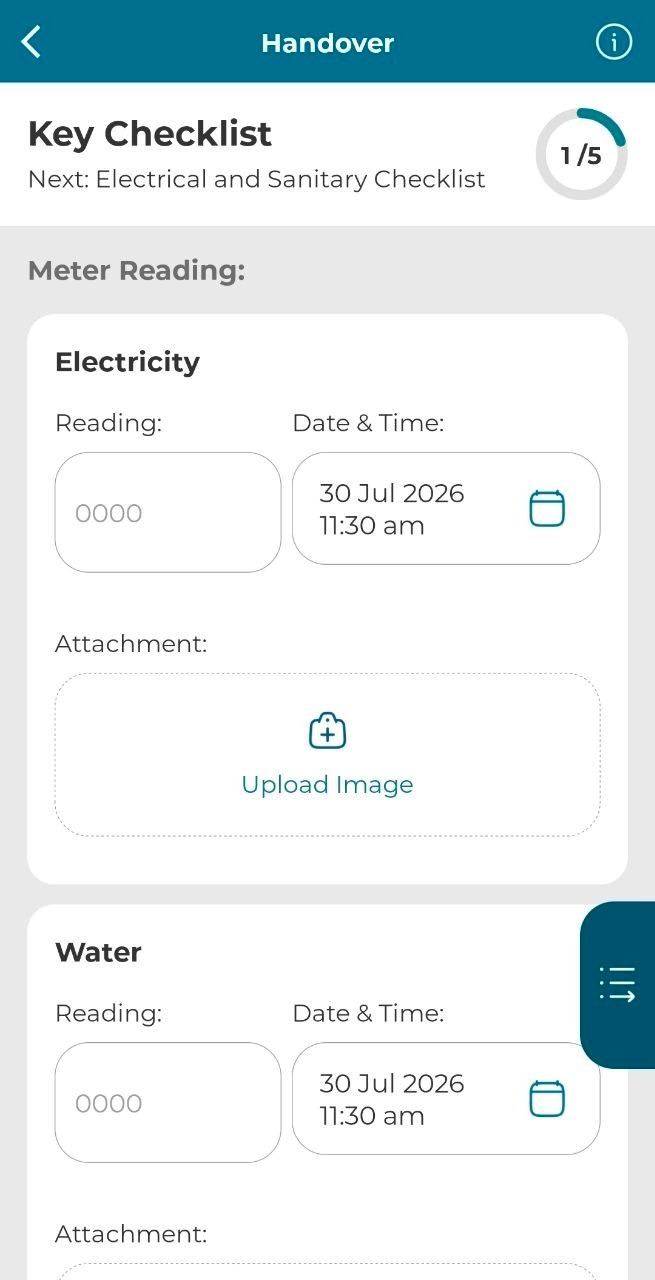
Step 5: Fill in the checklist. On the right-side, a sidebar can be viewed. Users can navigate through the checklist.
*During this step, if the user has no internet connection user, can continue filling the rest of the handover checklist in offline mode.
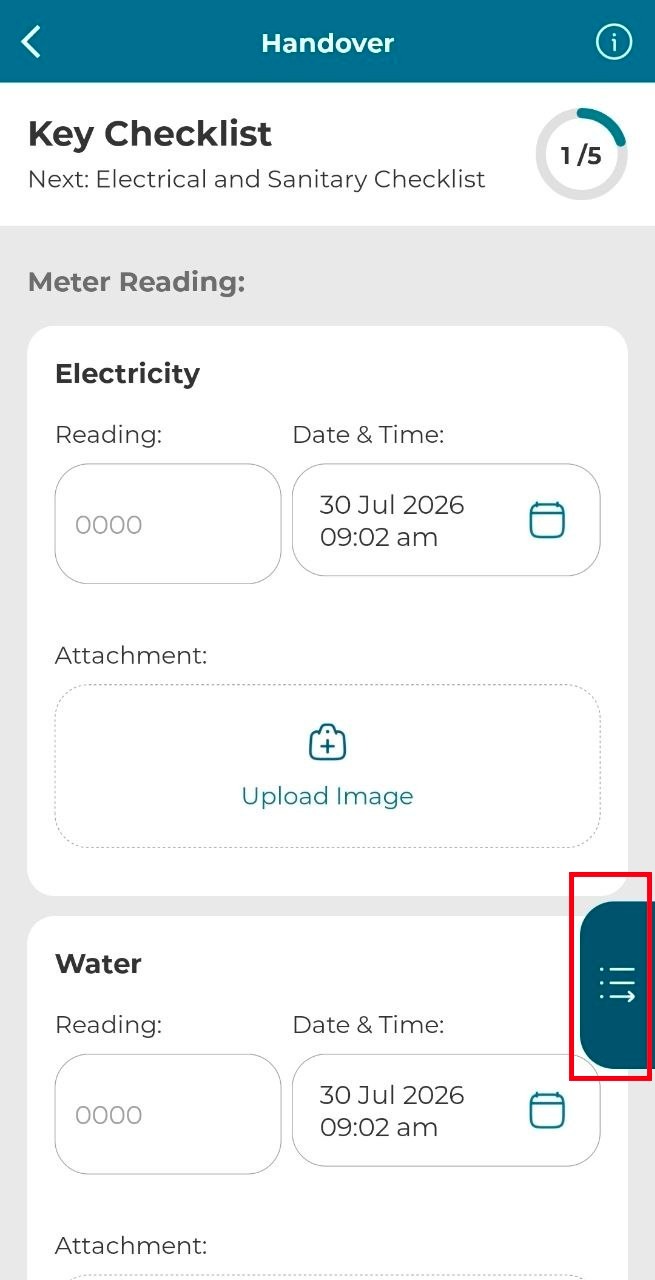
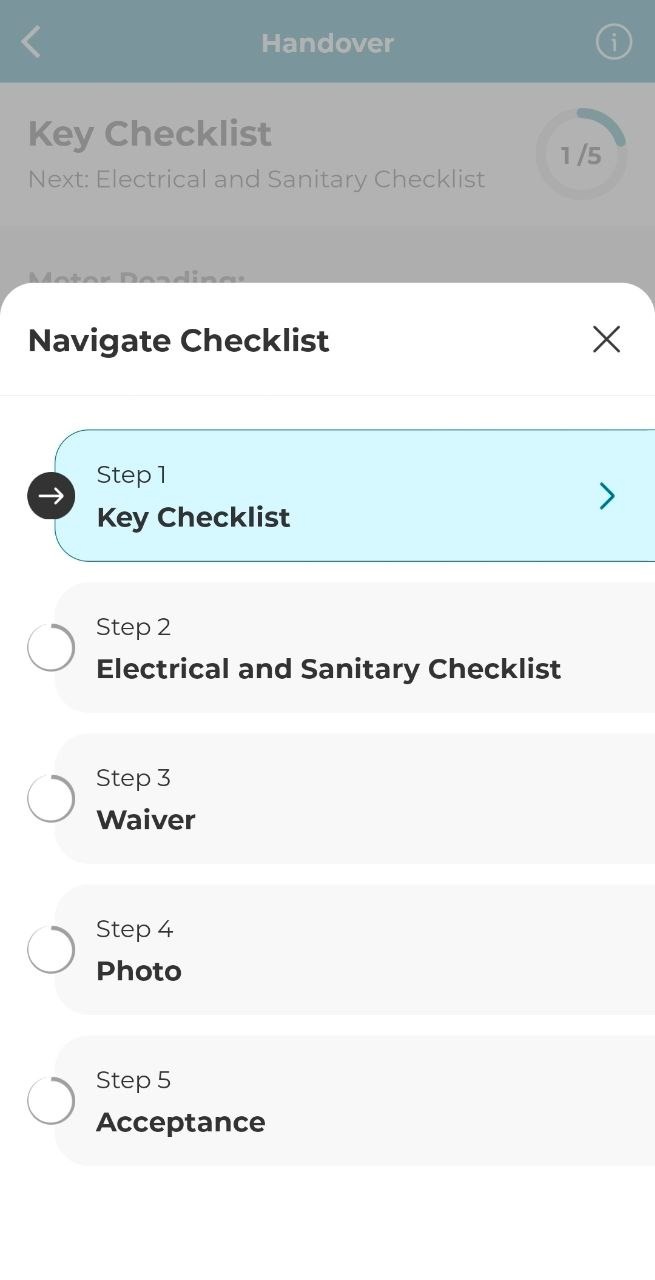
Step 6: Users can navigate through the checklist.
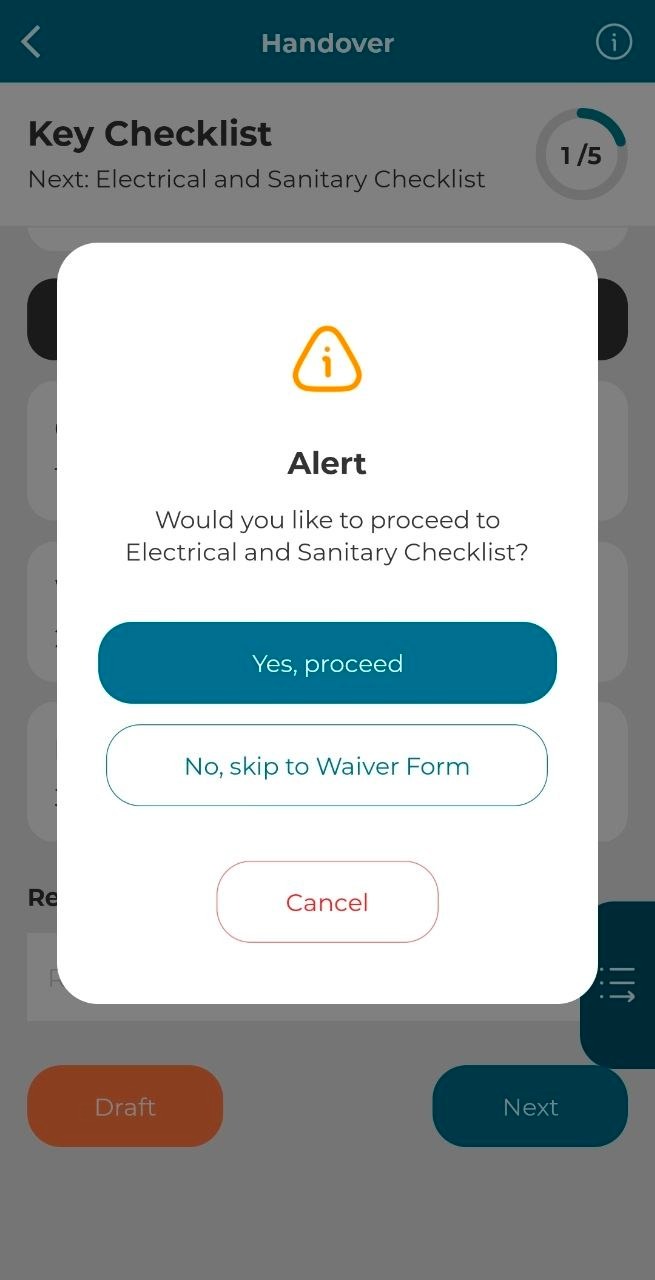
Step 7: Users can proceed to the next section of the checklist or skip to Waiver Form.
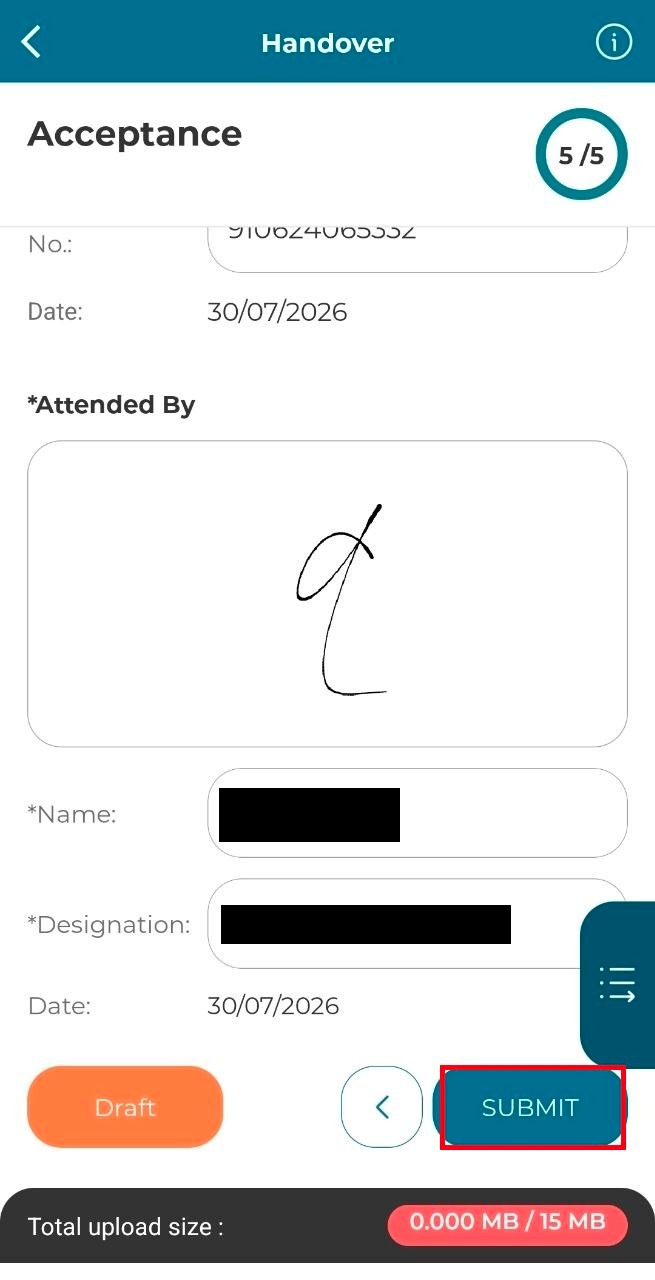
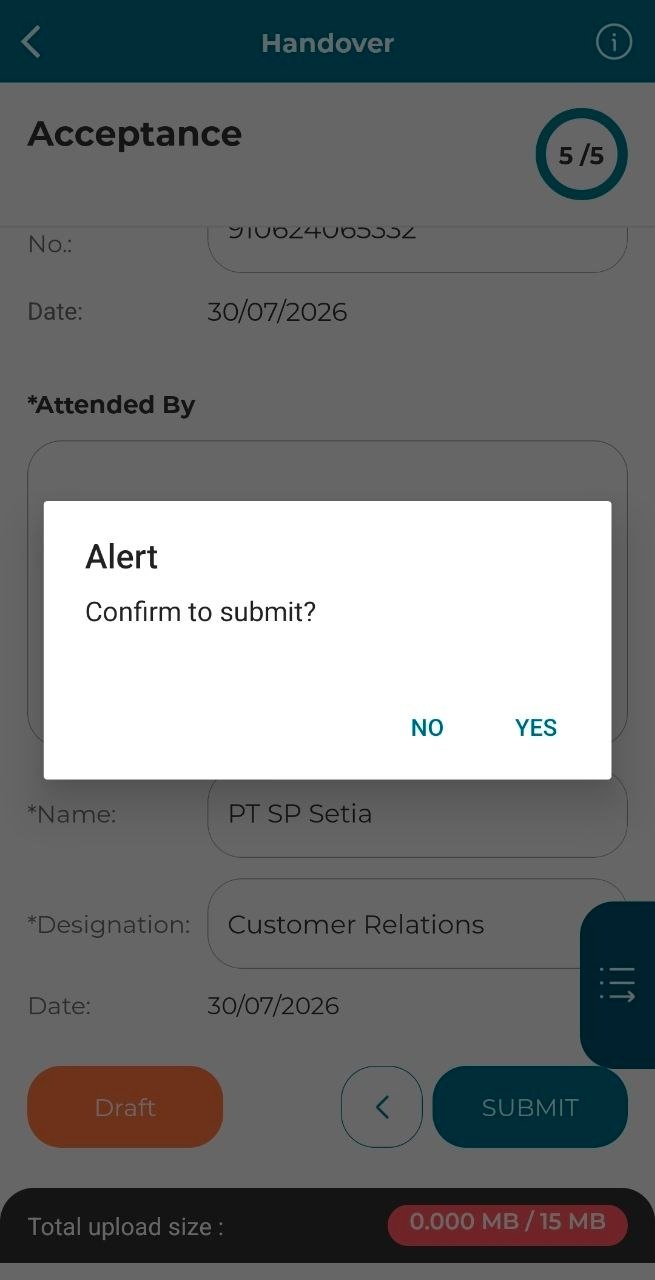
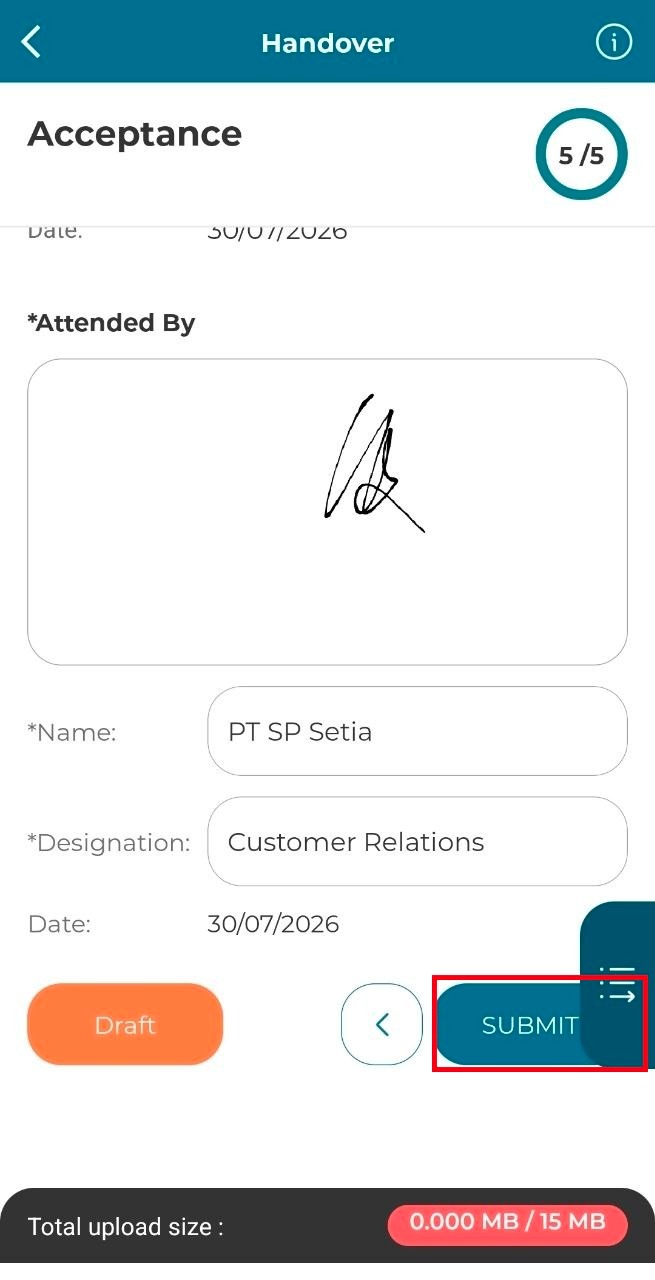
Step 8: Once all information is filled in, click on ‘Submit’ button to proceed with submitting form
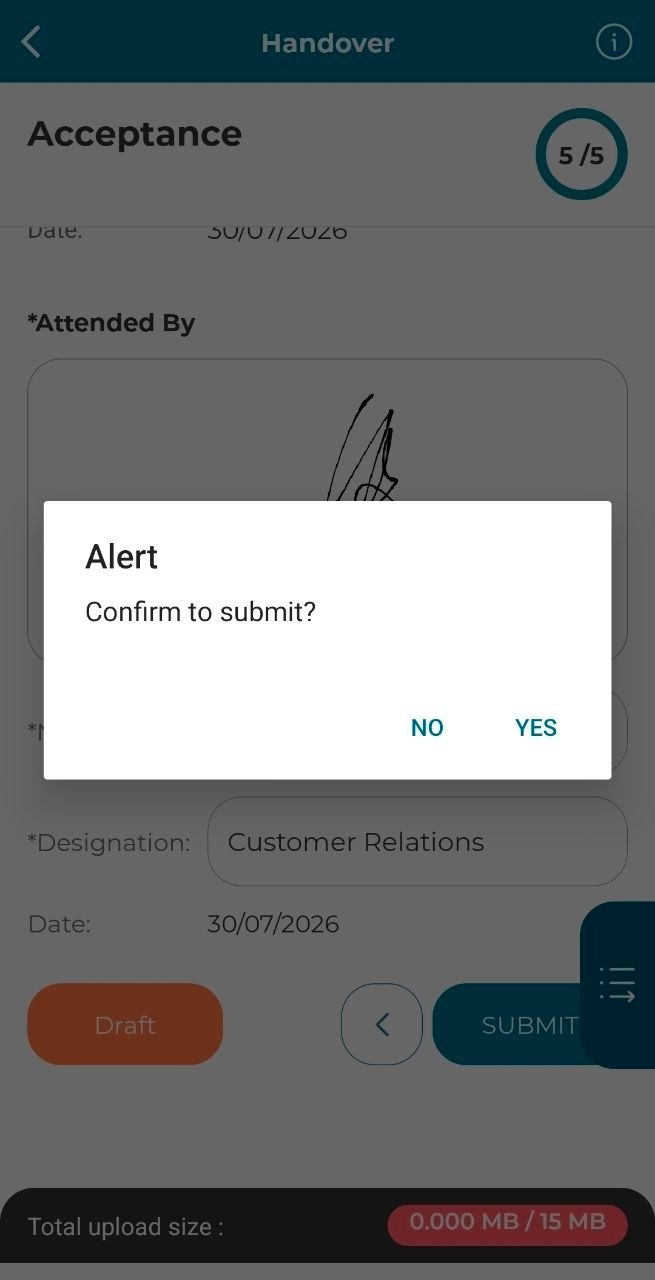
Step 9: Click on ‘Yes’ to confirm submission.
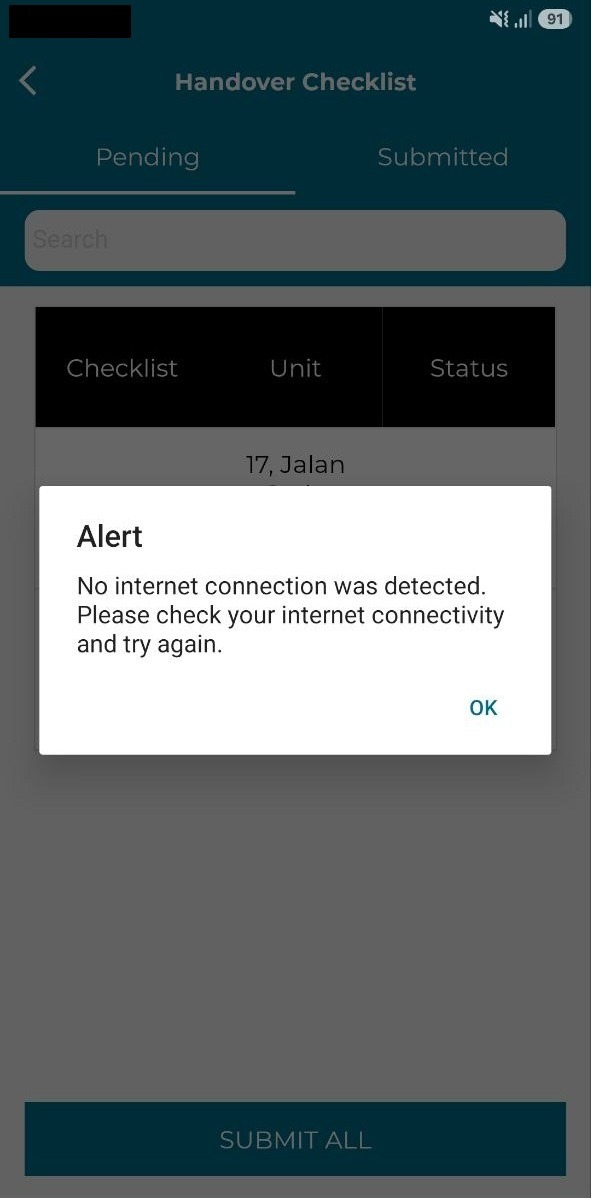
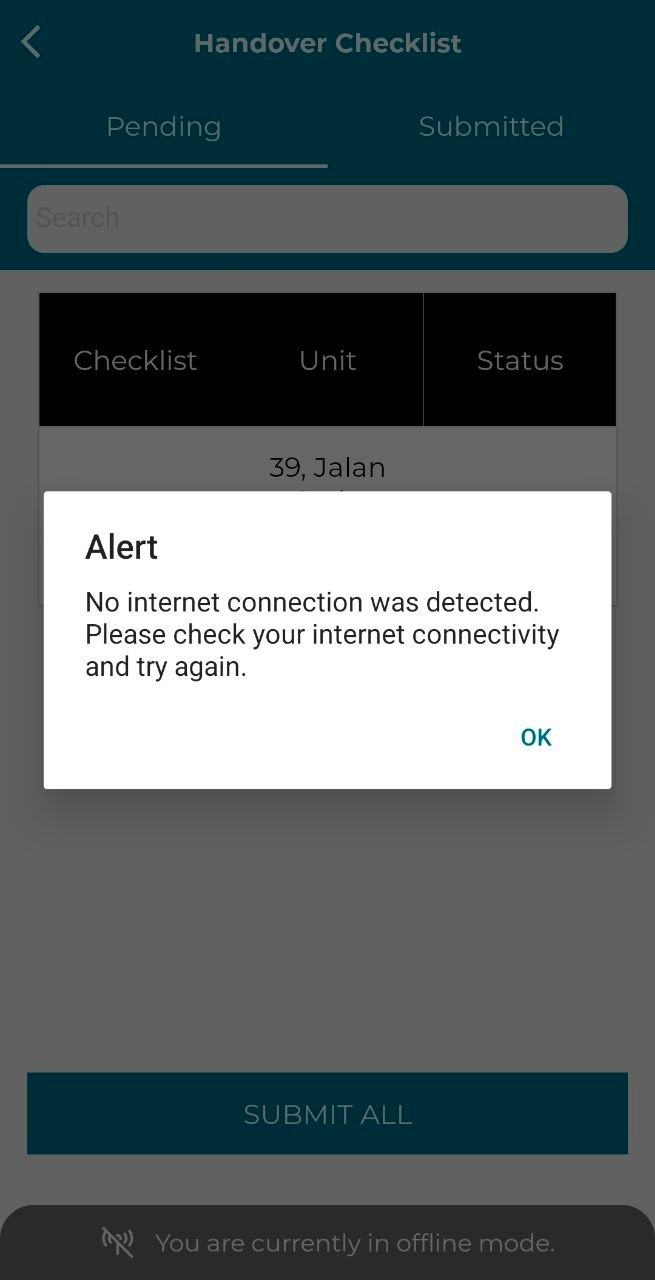
Step 10: Users will be redirected to the ‘Handover Checklist’ page where there will be an alert of no internet connection as user has no internet connectivity.
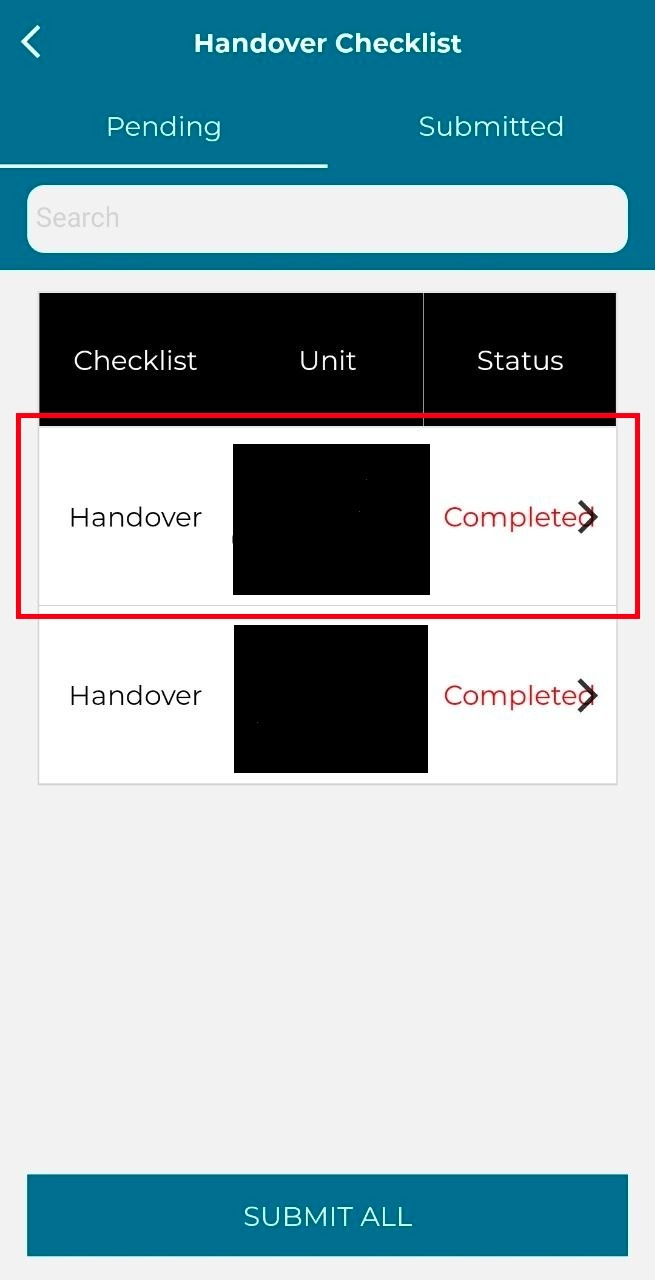
Step 11: The checklist that was submitted with no online connection will be under ‘Pending’. To submit the form into the system, the user must be connected to the Internet.
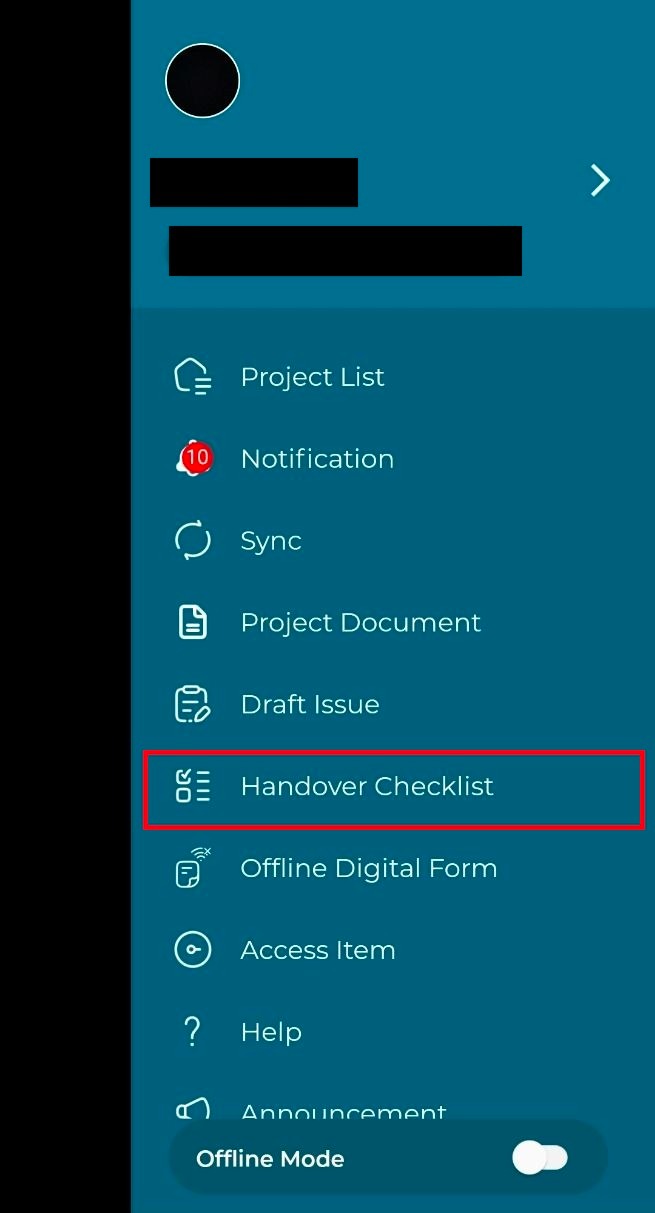
Step 12: Once user is connected to the internet, the user can submit pending forms. Click on ‘Handover Checklist’ on the sidebar menu.
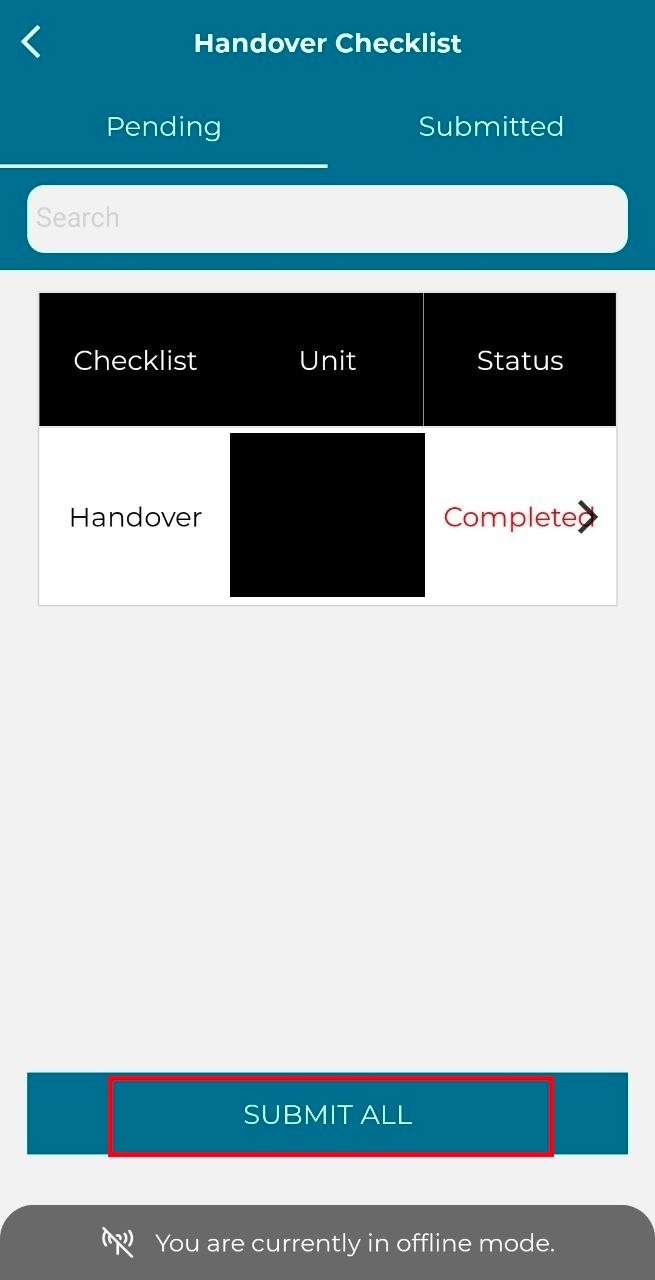
Step 13: Click on ‘Submit All’.
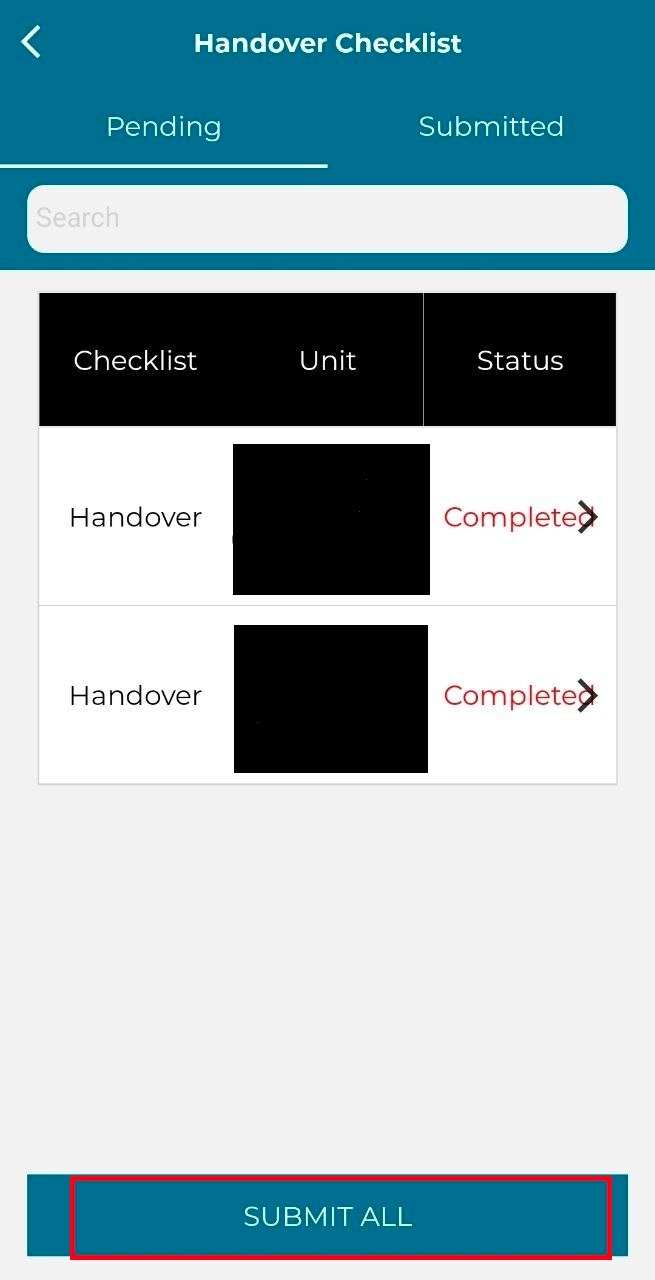
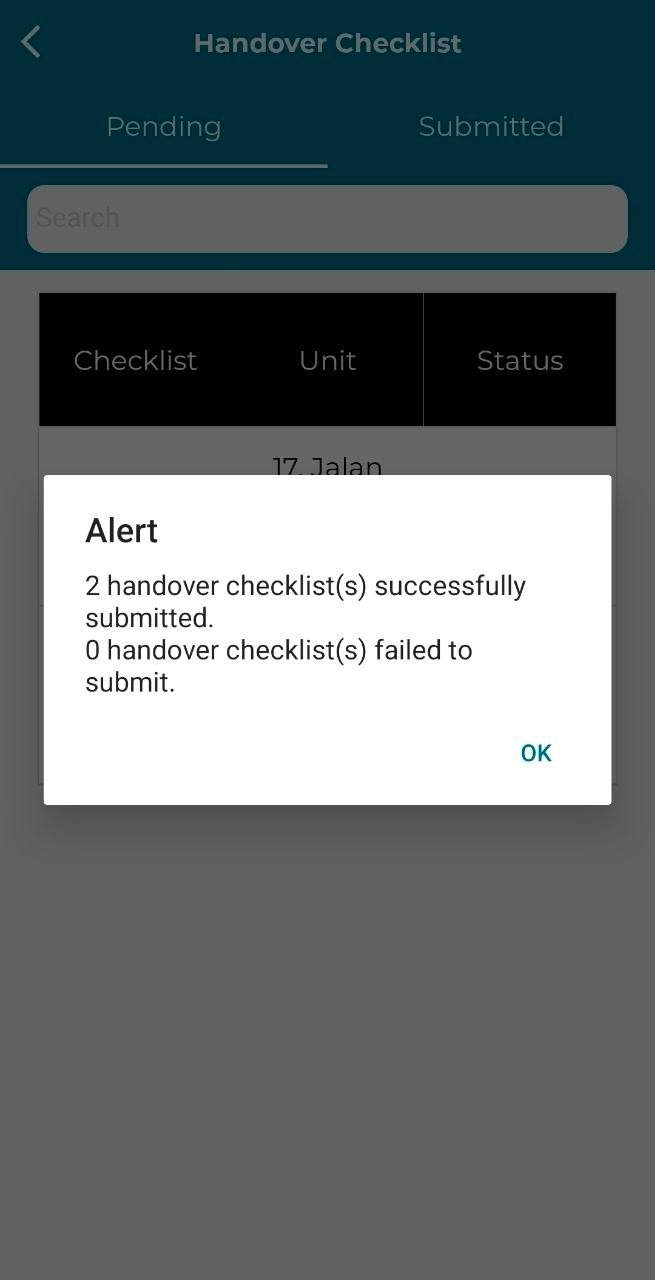
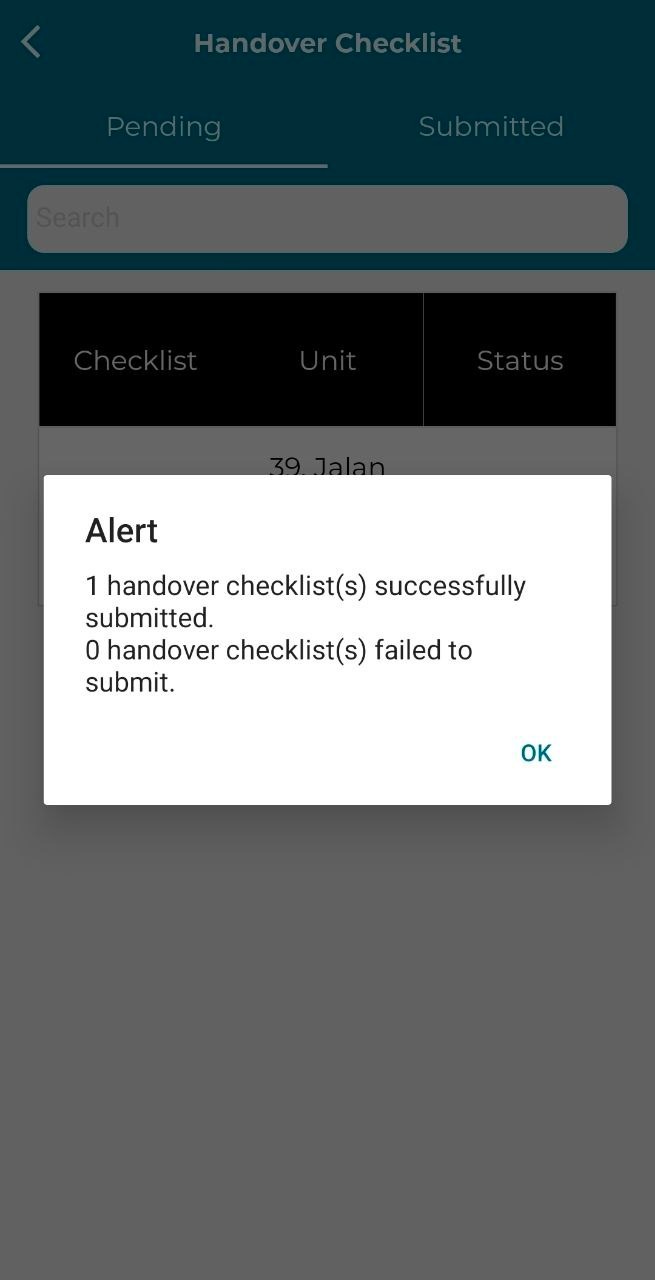
Step 14: An alert will pop-up to notify the user of a successful handover checklist.
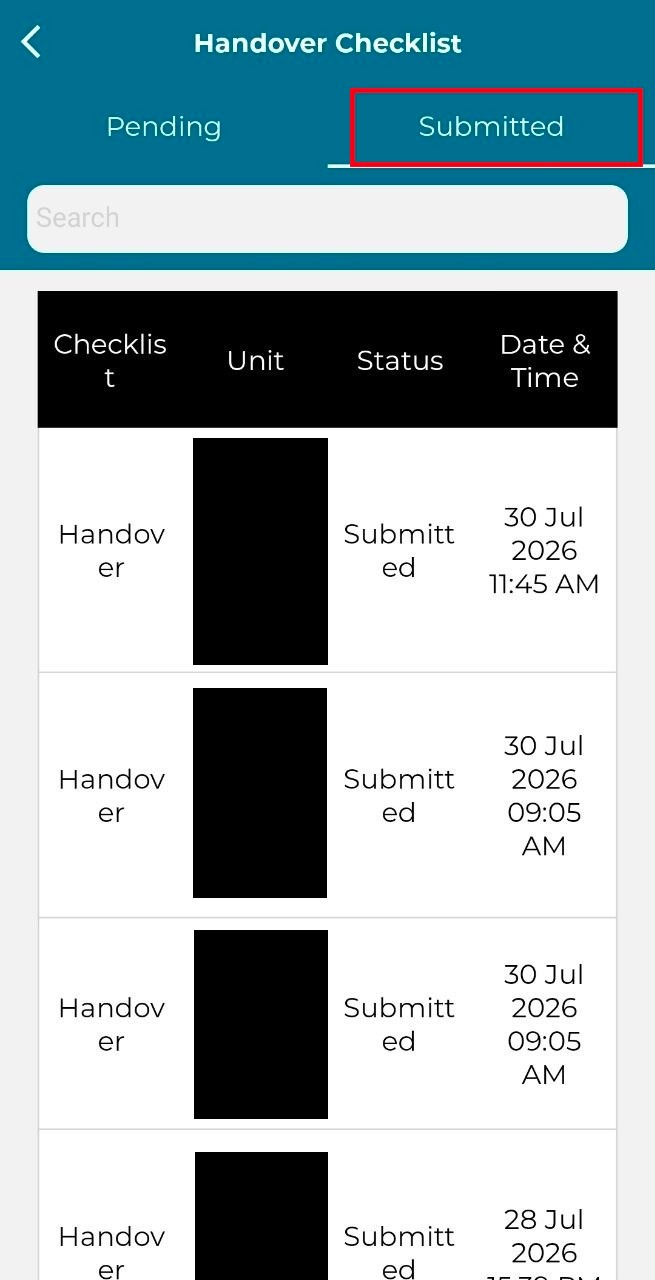
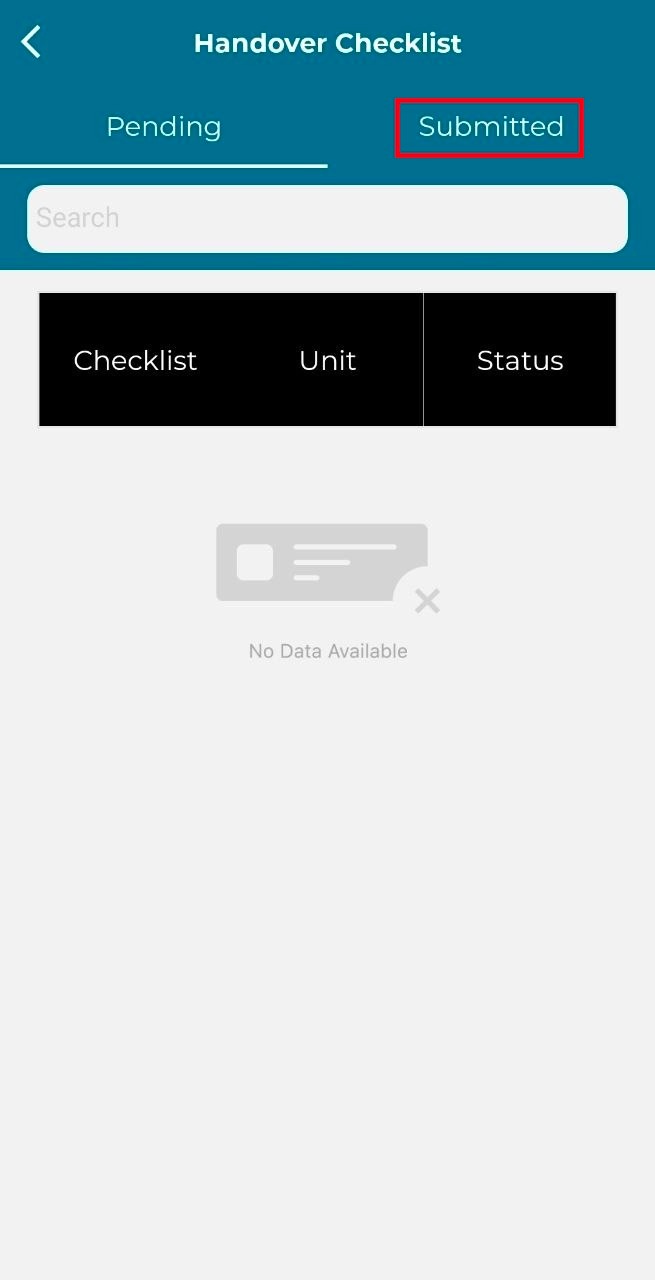
Step 15: Once done, click on ‘Submitted’ tab to view the submitted handover checklist.
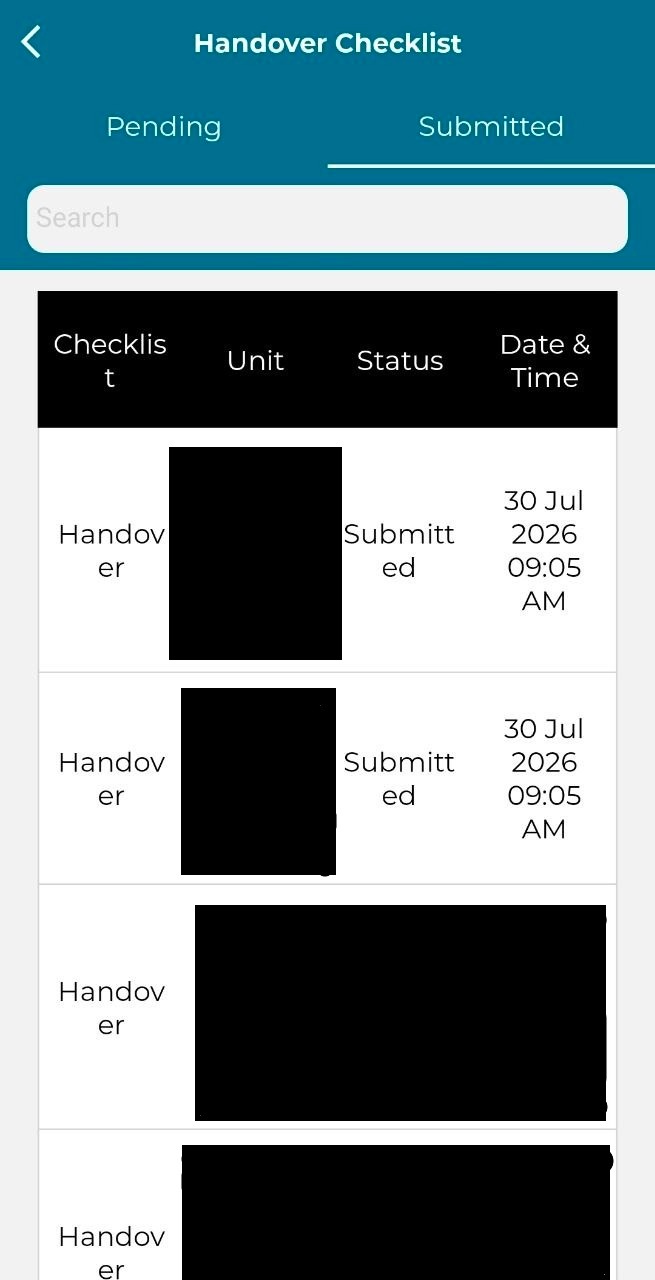
Step 16: The user can view the submitted handover checklist.
2. Manual Offline Mode
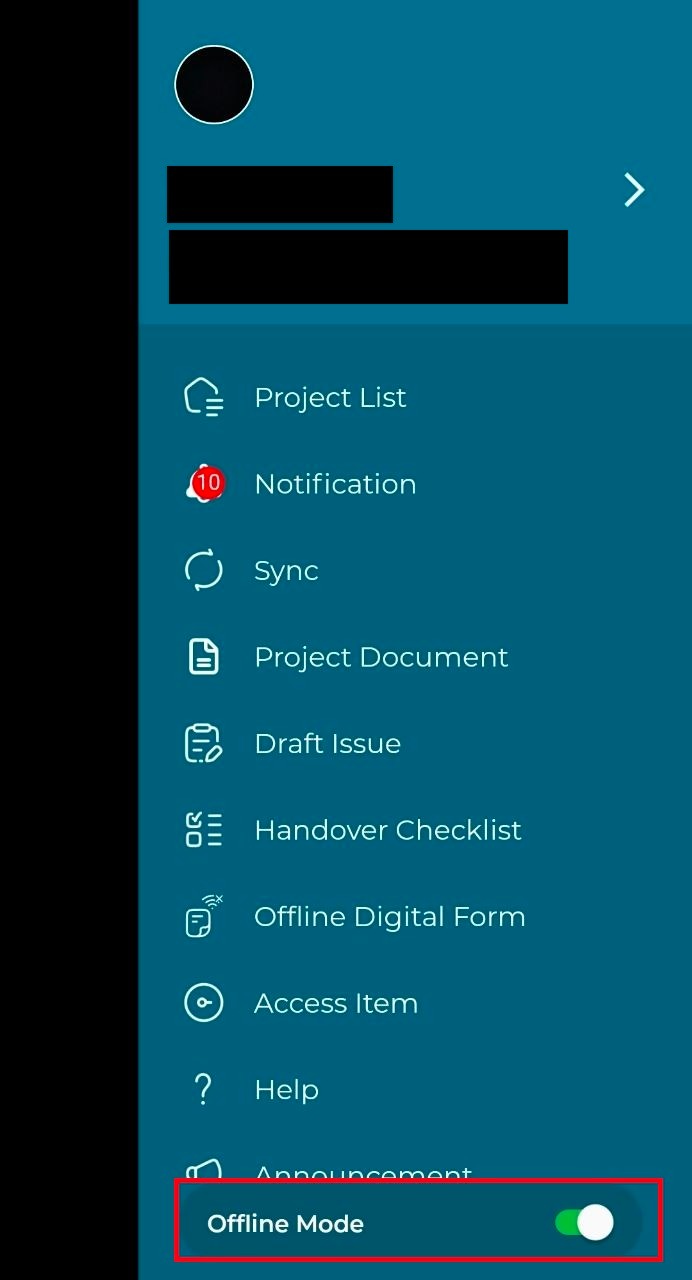
Users can manually toggle On the Offline Mode.
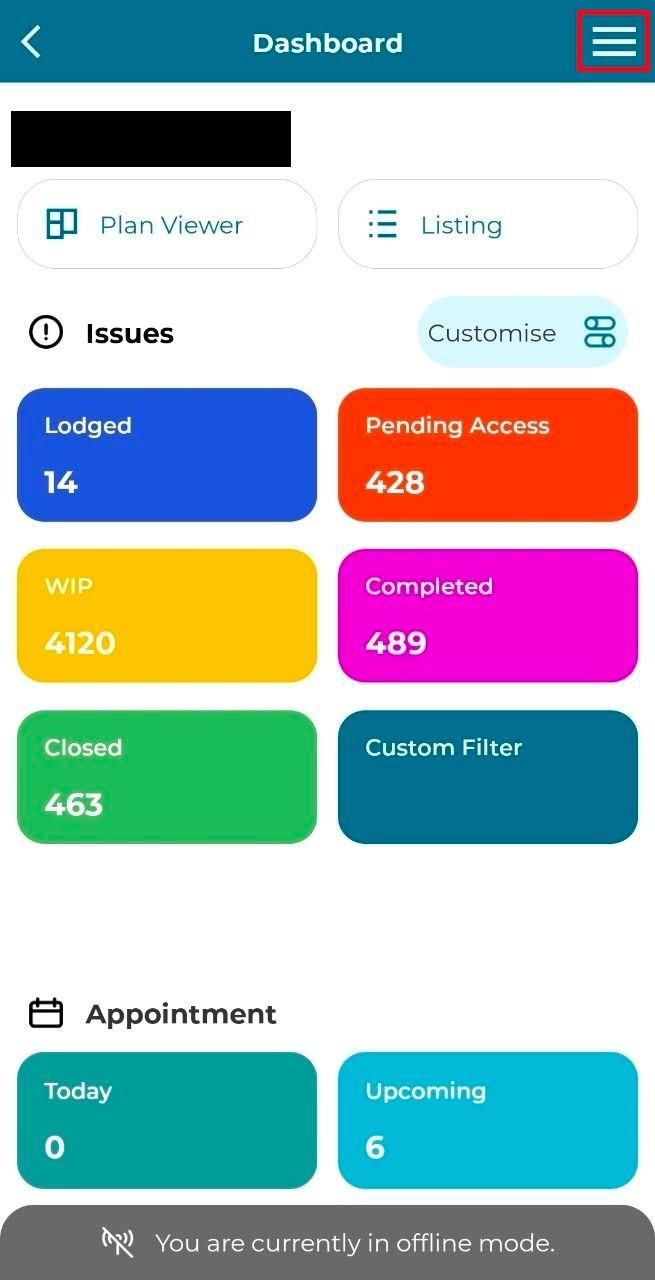
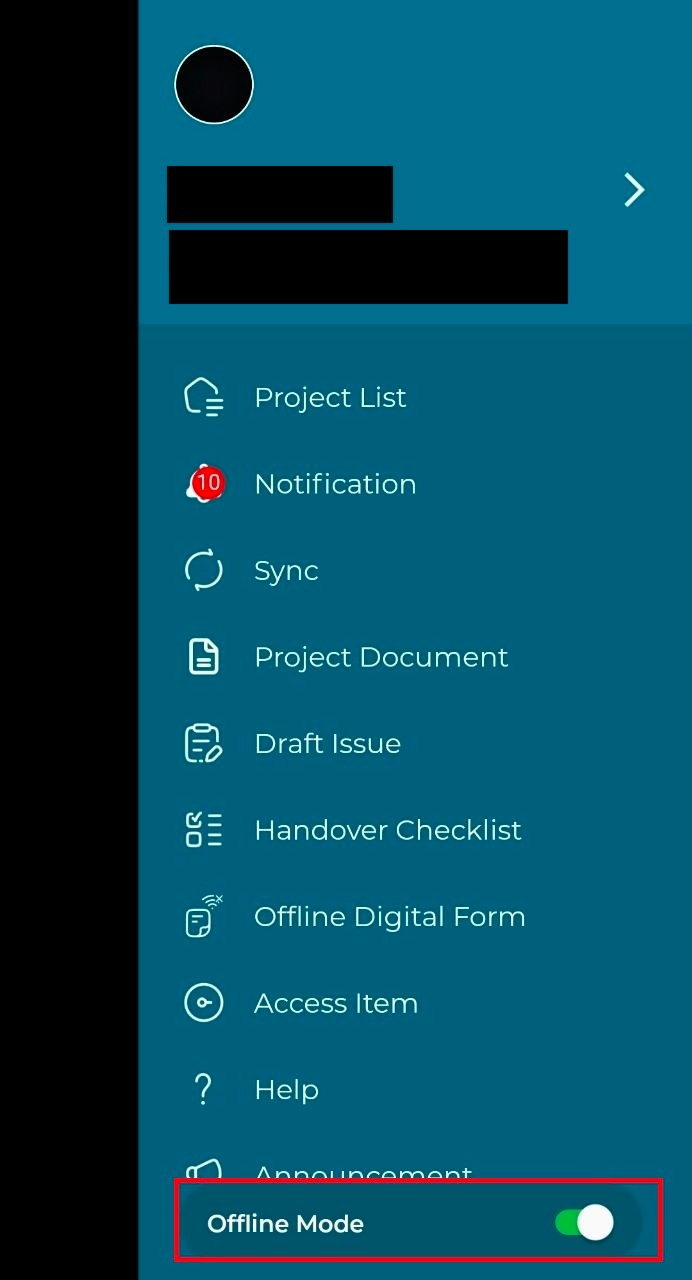
Step 1: Select project then click on the side menu bar to toggle on the ‘Offline Mode’.
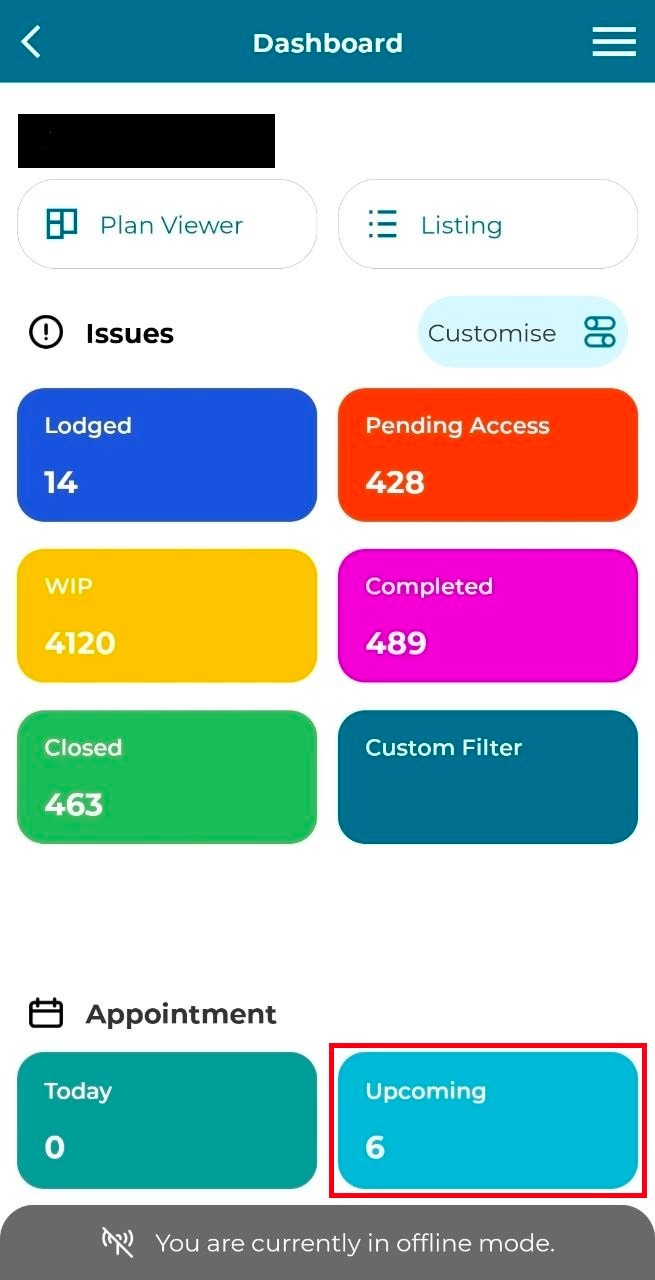
Step 2: Click on ‘Upcoming’ under the Appointment section.
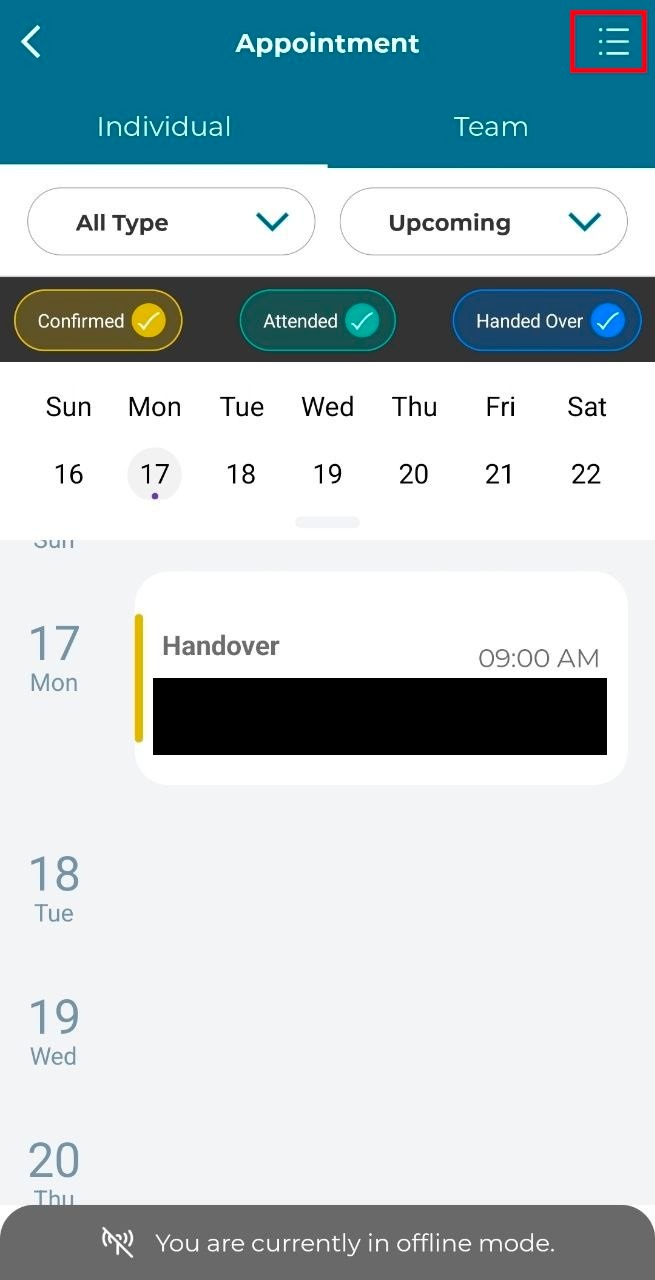
Step 3: Click on the top-right if you want to view appointments in the listing.
Otherwise, can click on an upcoming handover appointment.
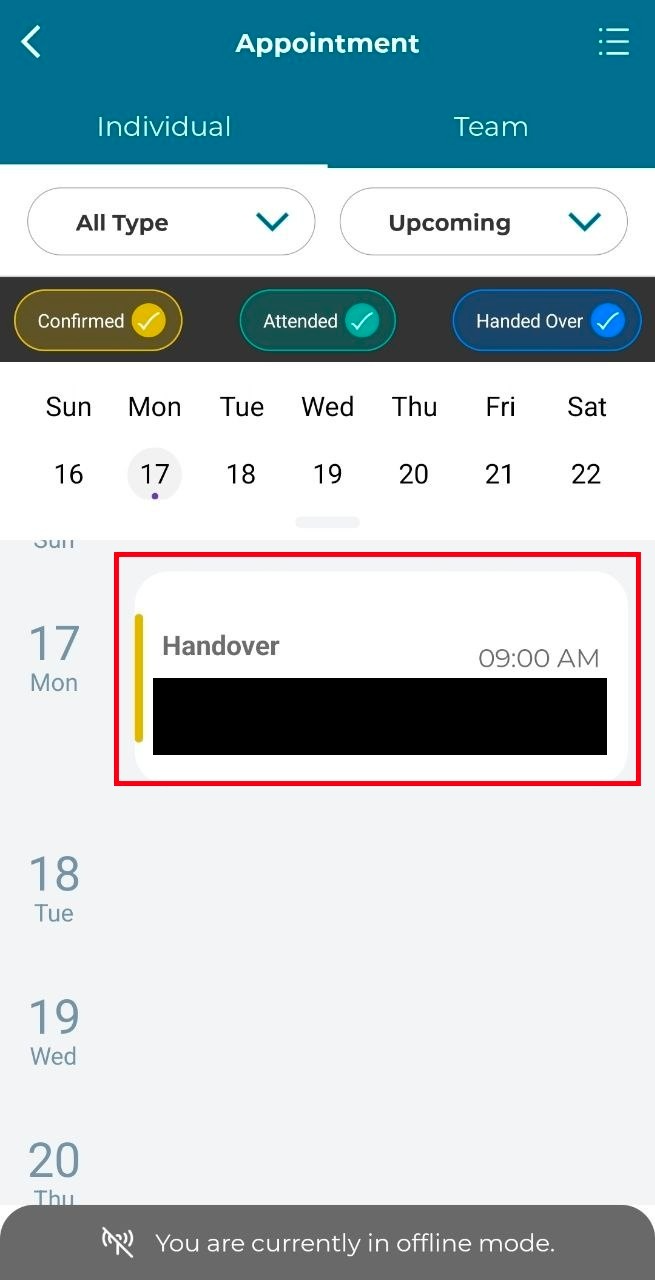
Step 4: Click on ‘Submit Checklist’
Step 5: Fill in all the required information in the handover checklist.
Step 6: Click ‘Submit’.
Step 7: Click ‘Yes’ to proceed with submission. Click ‘No’ to continue editing the checklist.
Step 8: Once submitted, user will automatically be redirected to the ‘Pending’ tab in Handover Checklist.
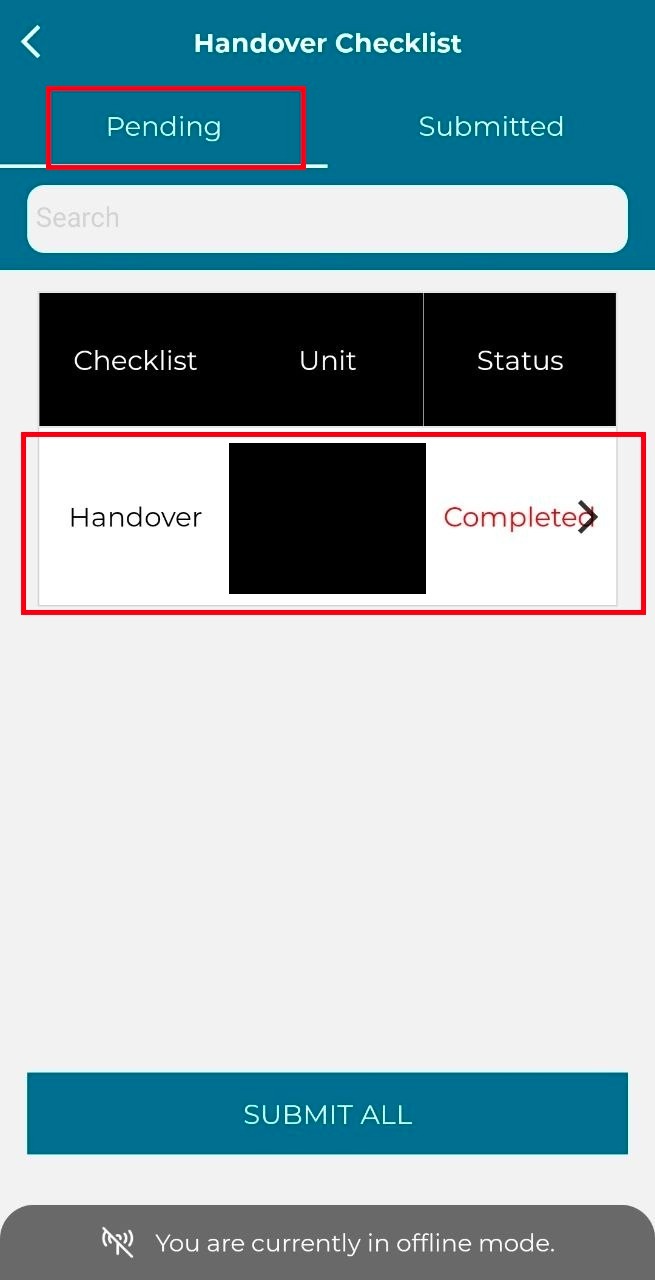
Step 9: If user try to submit the checklist in offline mode, an alert will appear to inform the user that the handover checklist can only be submitted properly when the user is in online mode.
Step 10: To switch back to online mode, click on the side menu on the dashboard.
Step 11: Toggle off the ‘Offline Mode’
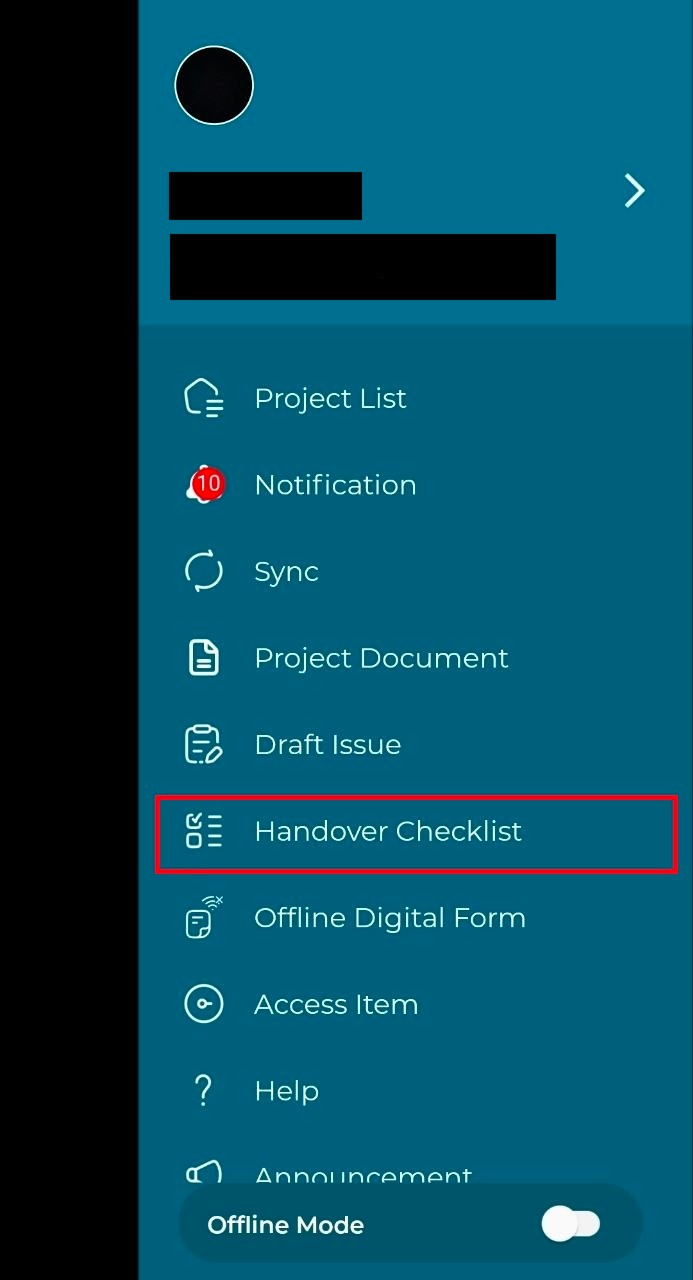
Step 12: Next, click on ‘Handover Checklist’.
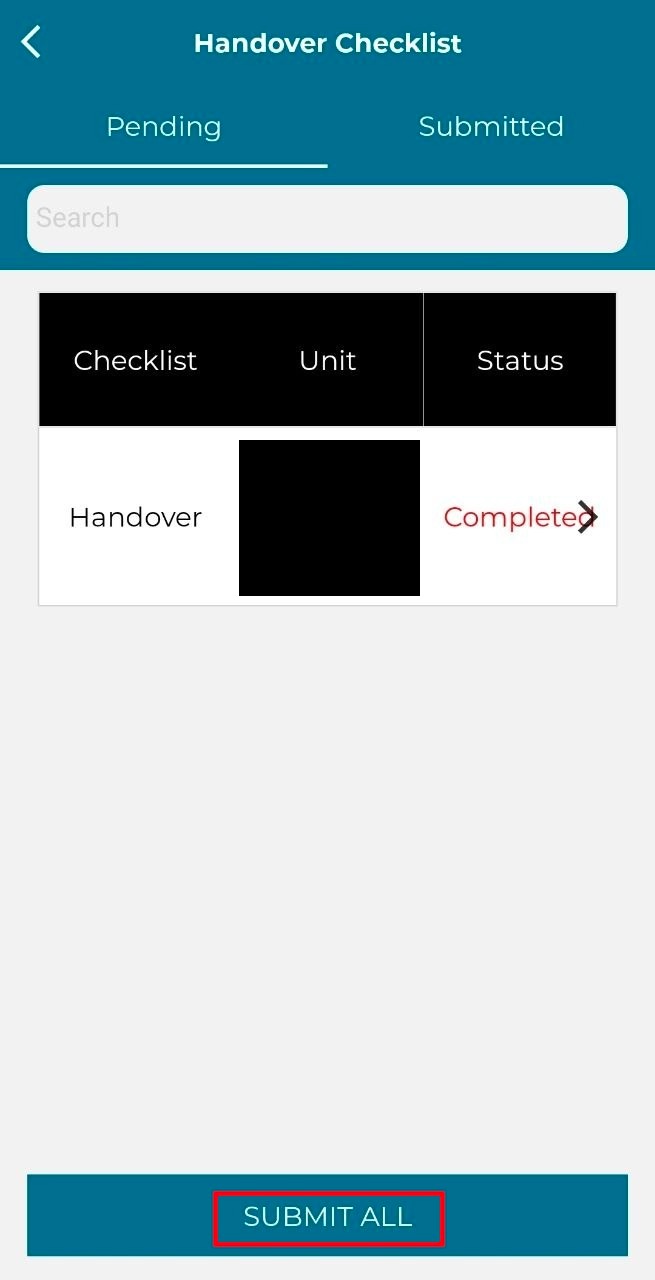
Step 13: Click ‘Submit All’.
Click on ‘Yes’ to submit.
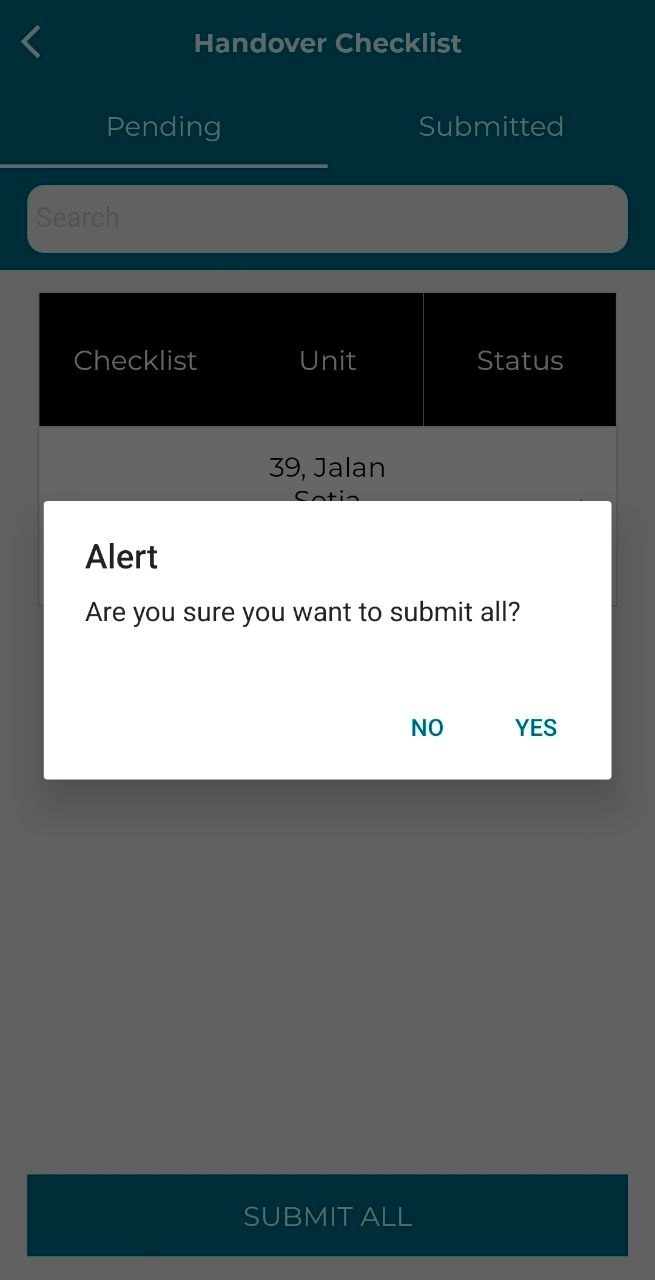
Step 14: An alert will appear on the handover checklist successful submission.
Step 15: User can view the submitted checklist on the ‘Submitted’ tab.