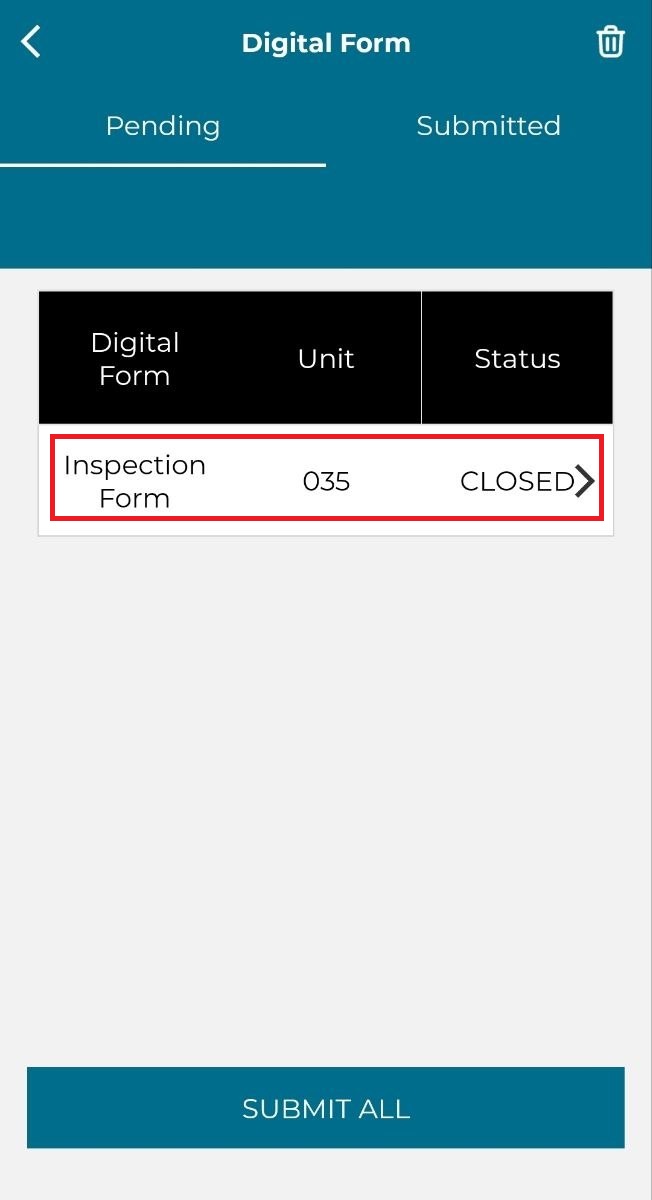
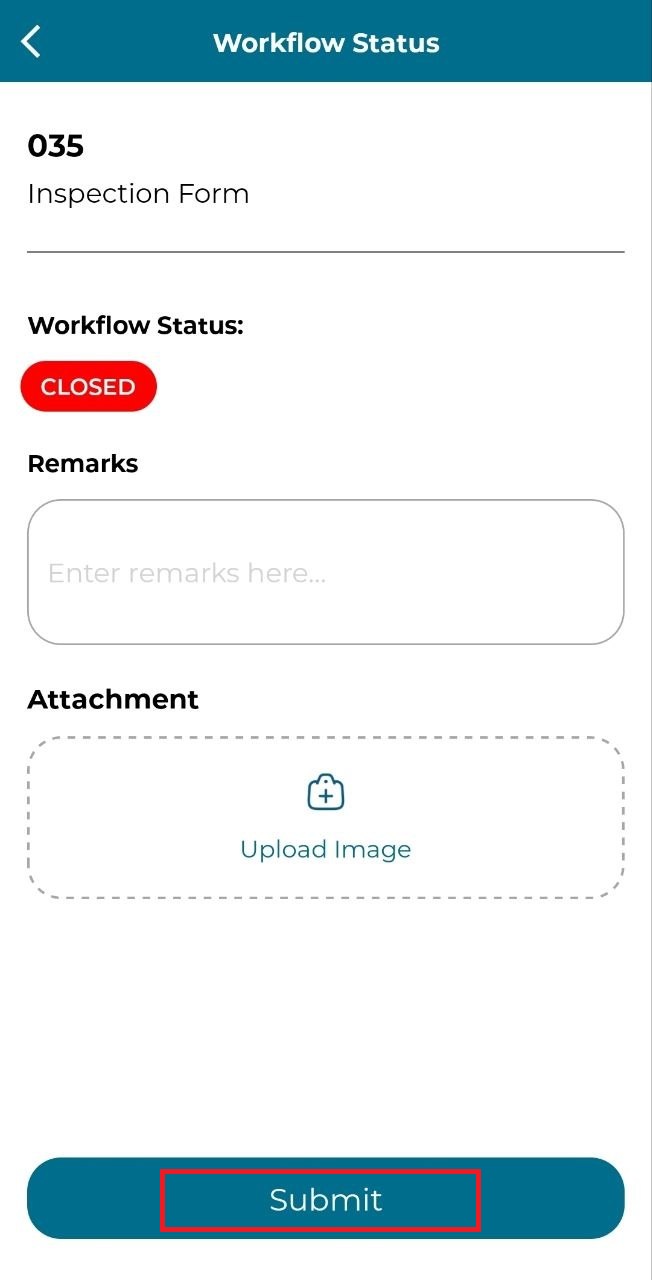
This function allows users to download a digital form and submit it offline, making it suitable for situations where there is no internet connection on-site.
Download Digital Form For Offline Use
1. Click Side Menu and click 'Sync'.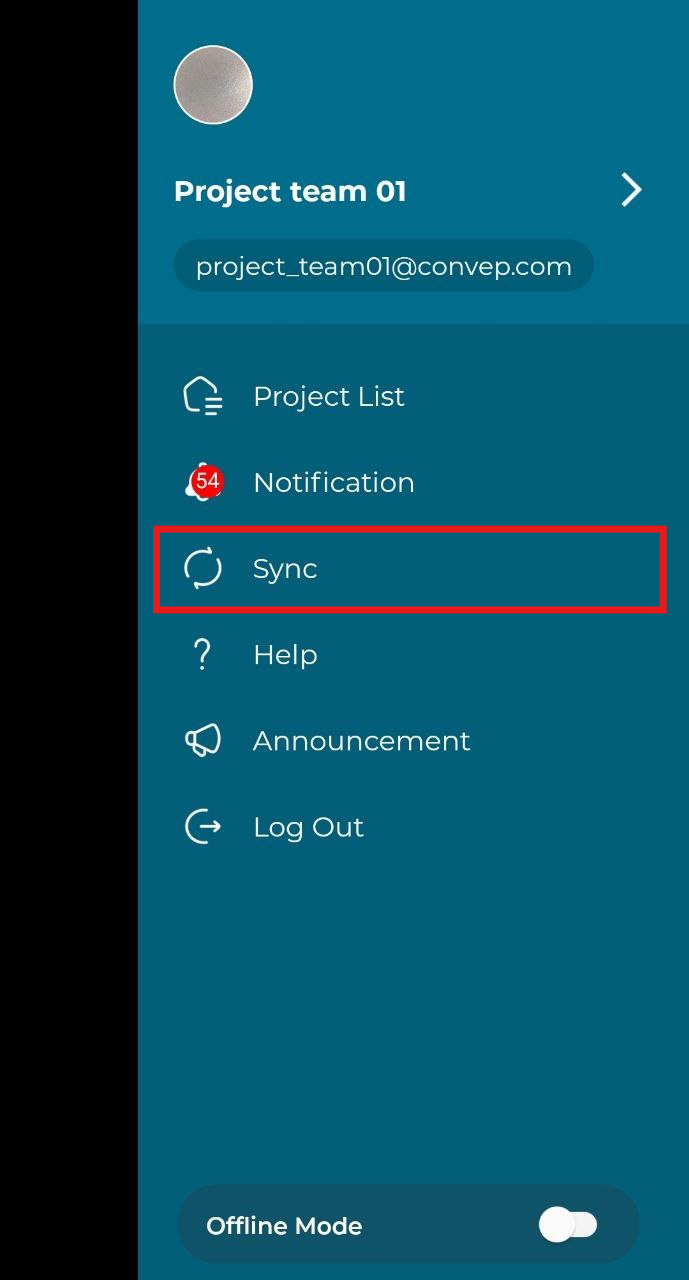
2. Click 'Offline Digital Form'.
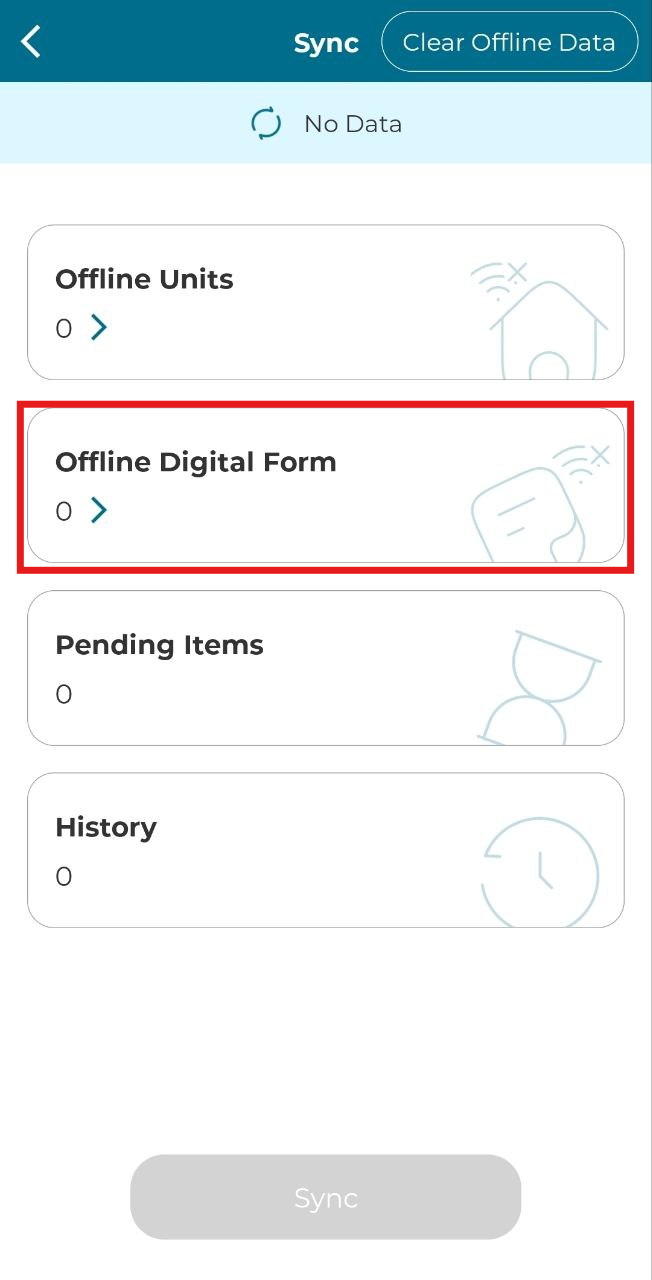
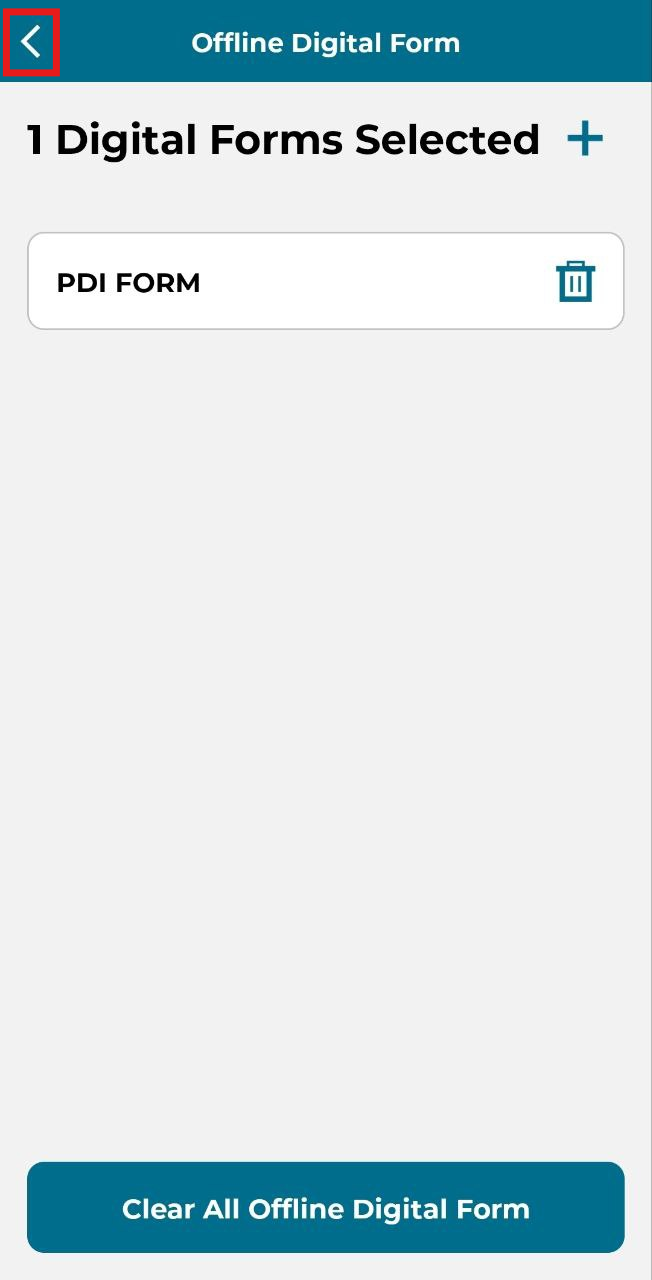
3. Click add icon to add digital forms.
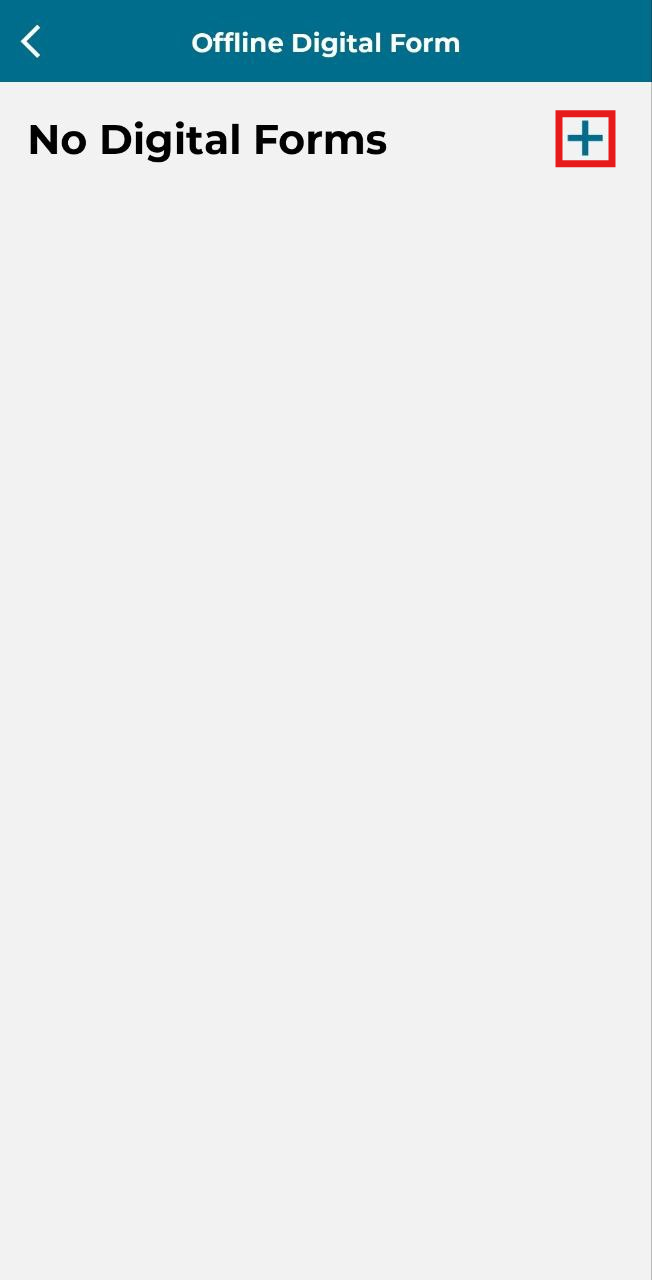
4. Select digital form(s).
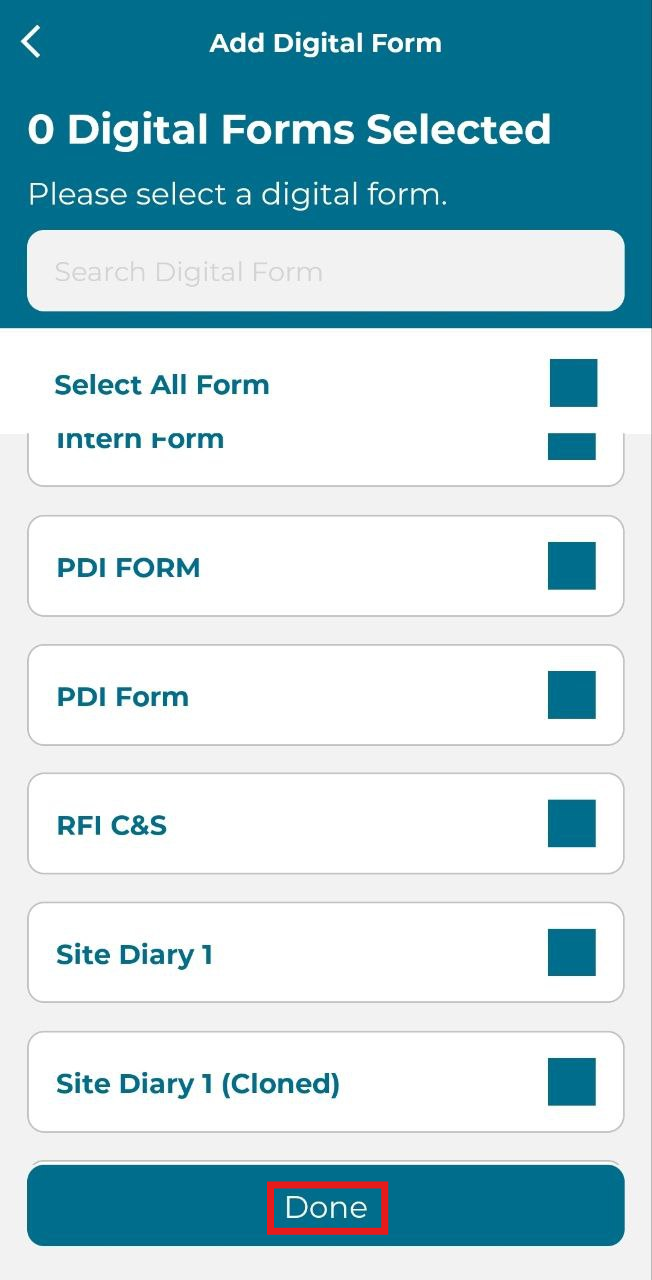
5. Click add icon to add more digital form.
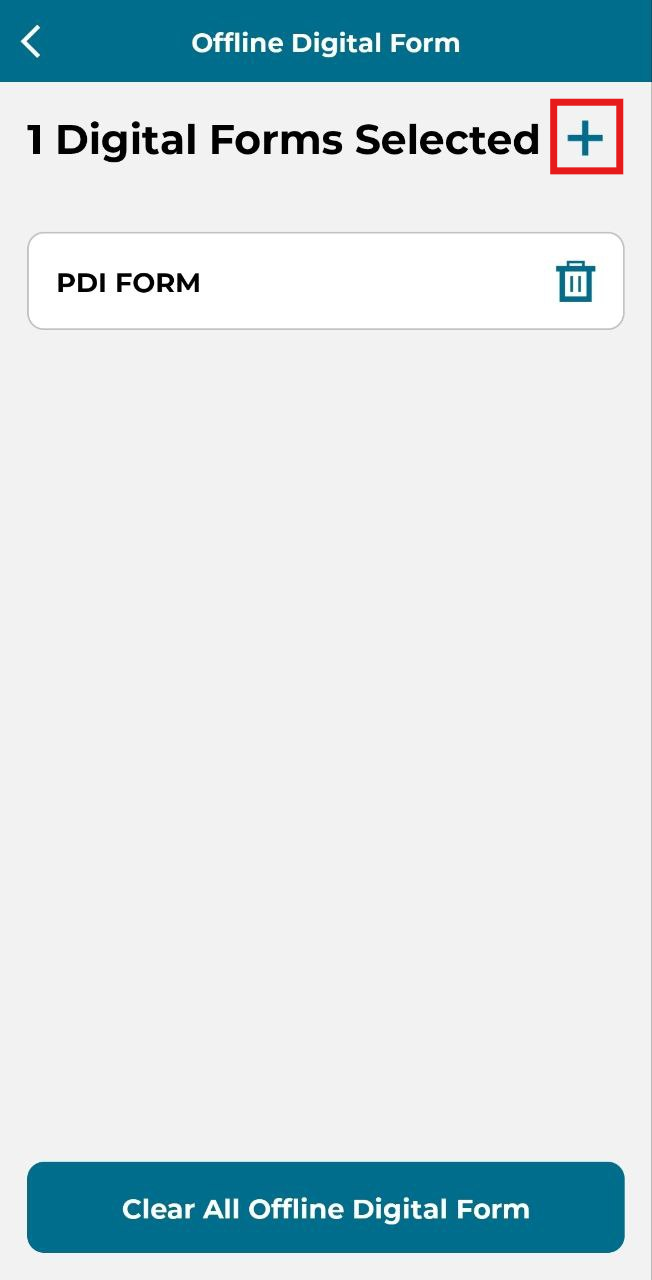
6. Click delete icon to delete form.
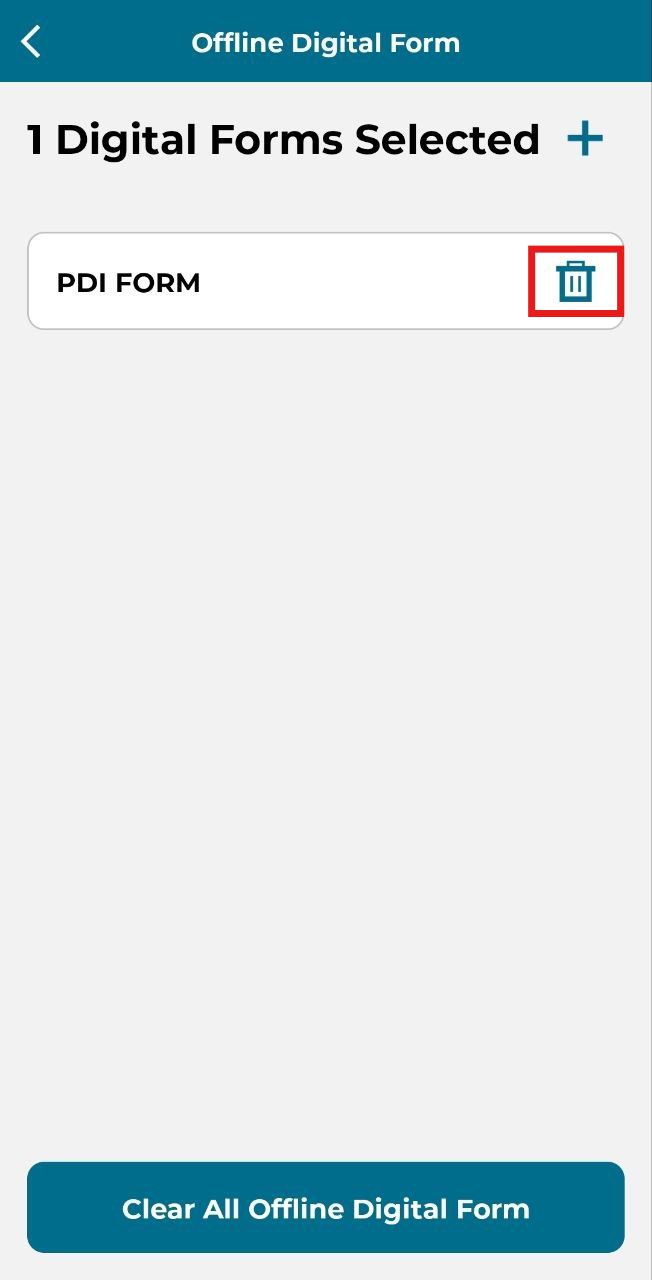
7. Click back icon.
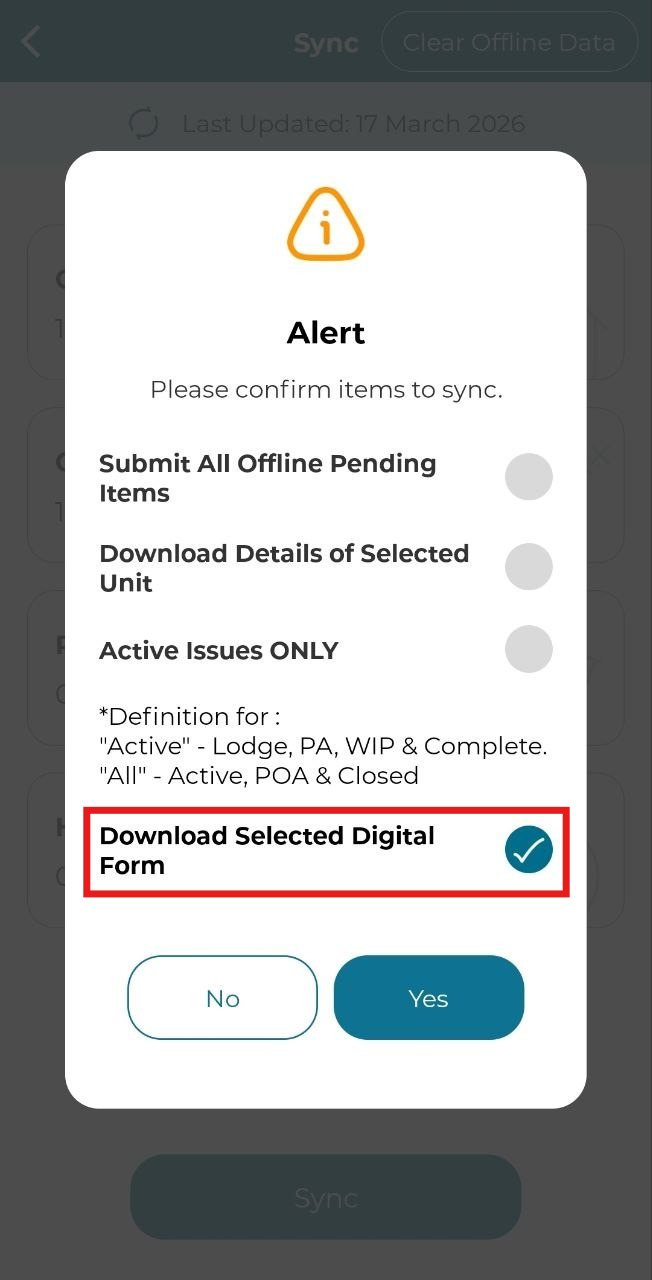
8. Select 'Download Selected Digital Form' and click 'Yes'.
Submit Offline Digital Form
User can submit digital form in offline mode but only if the form has been downloaded. User also must be in online mode to submit the digital form to the system. Below are the steps on how to submit offline digital form(s).
1. Click on 'Project' or 'Unit'.
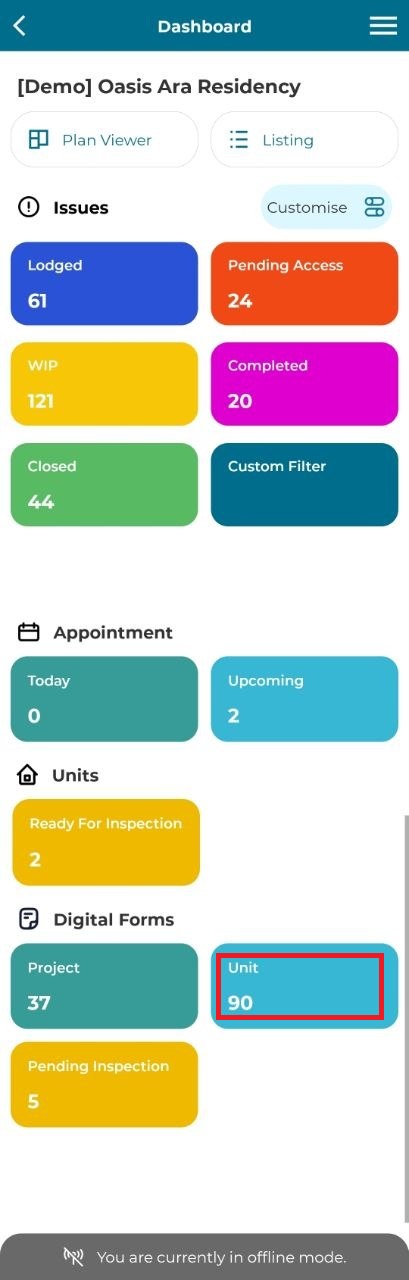
2.
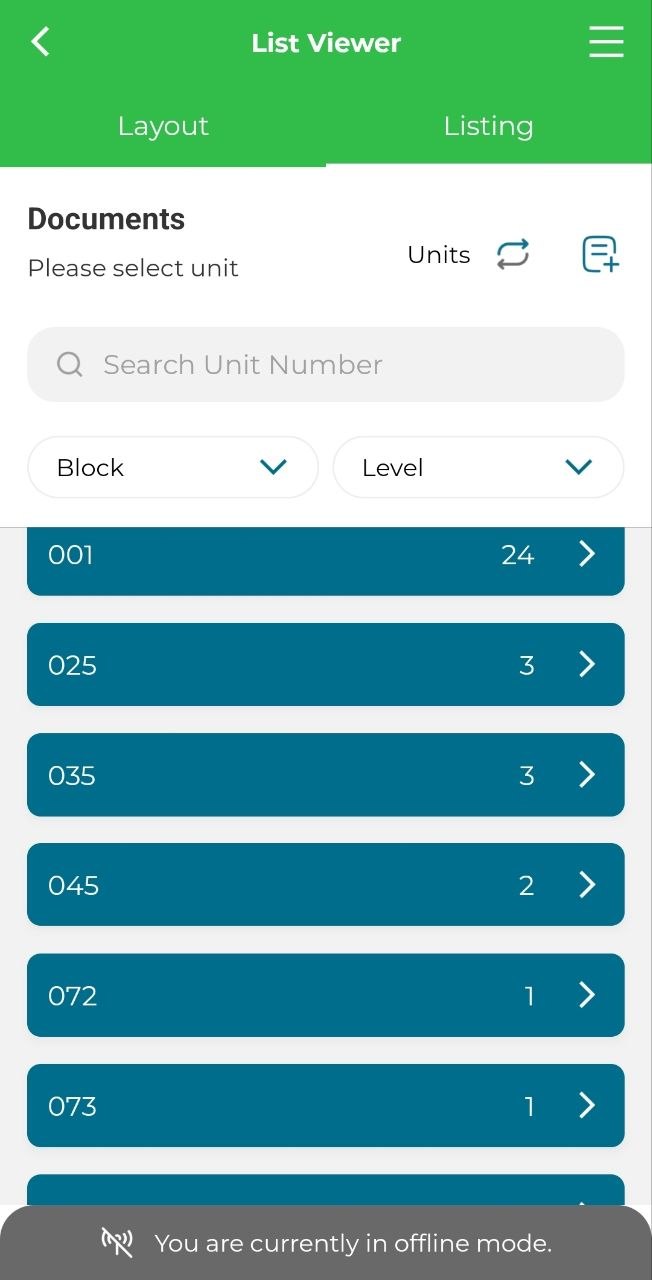
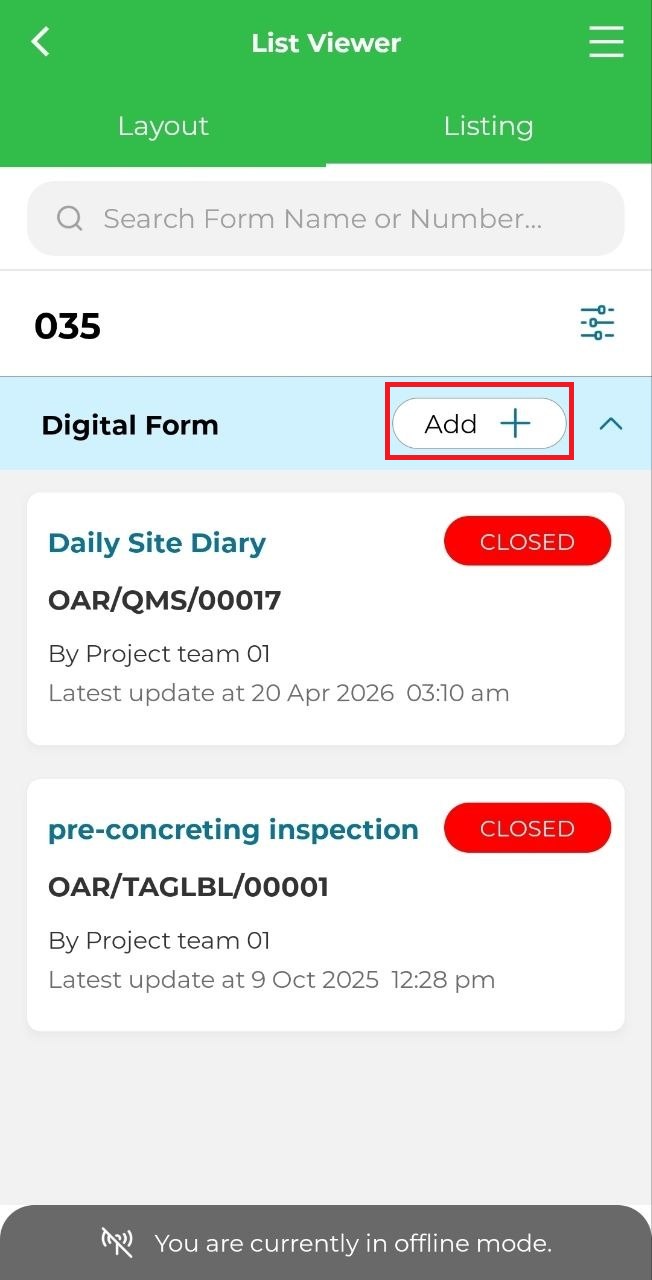
3. Click on 'Add' and select downloaded digital form.
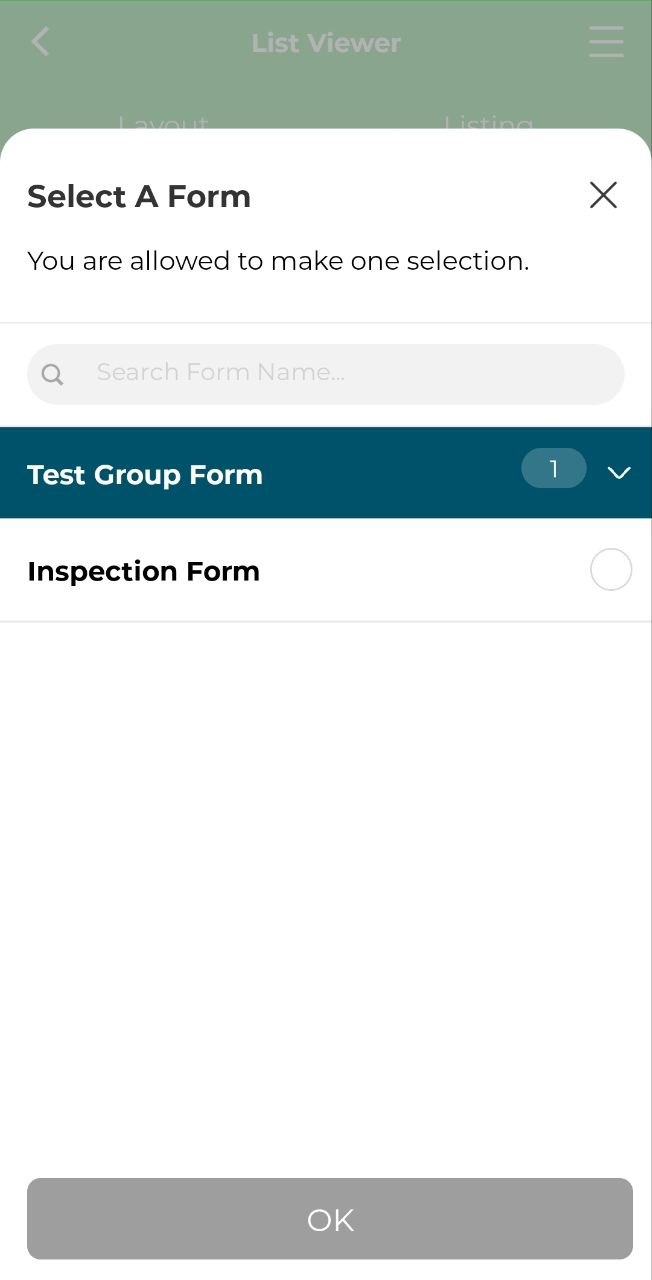
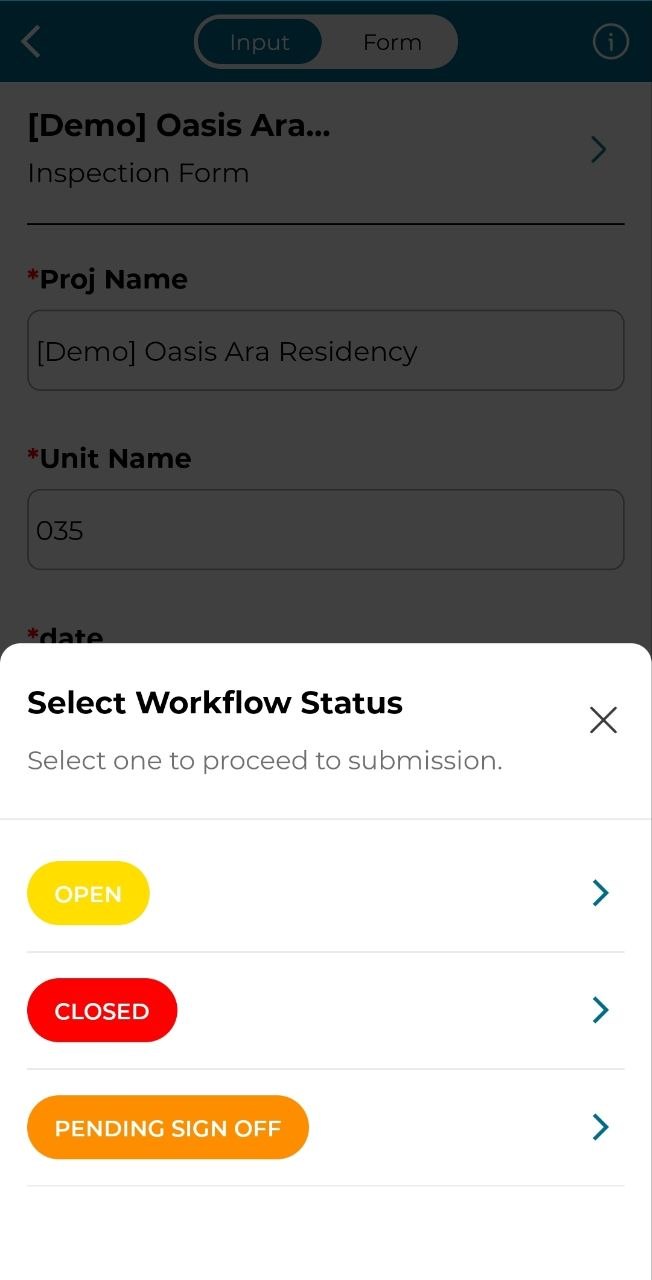
4. Select the workflow status either 'Open', 'Closed' or 'Pending Sign Off' to submit form.
5. Once submitted, user will be redirected to the digital form page where the form submitted is in pending status as user currently in offline mode.
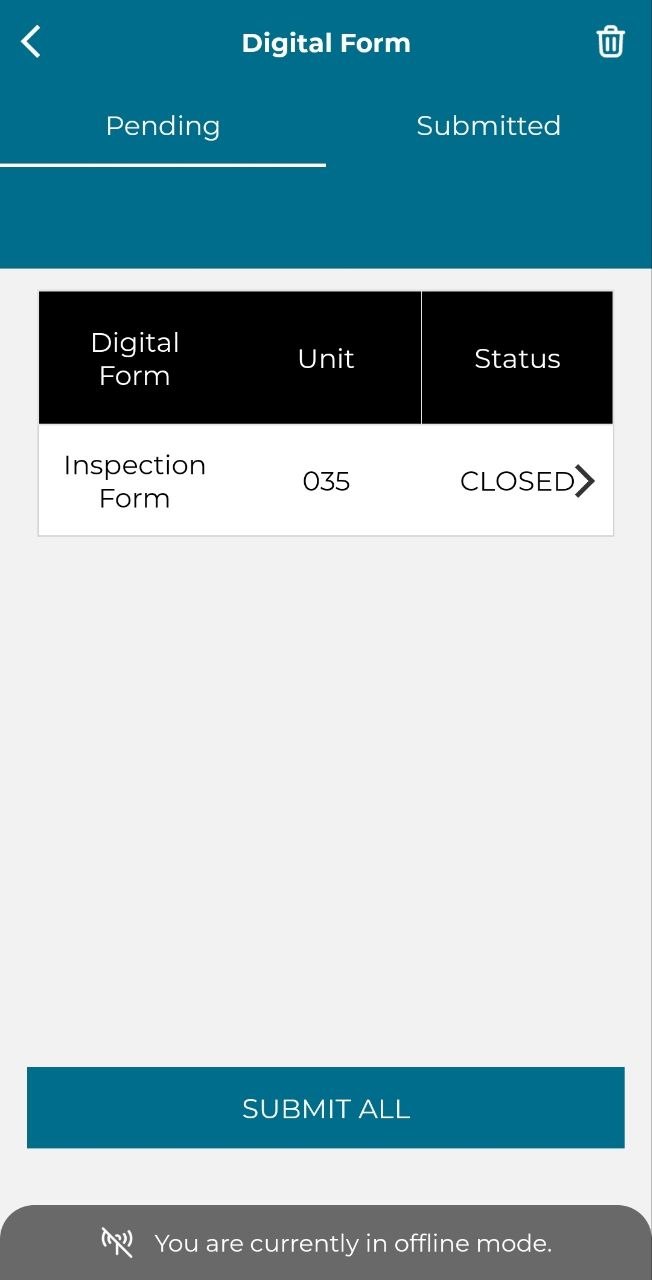
6. To submit, user must have internet connection/ be online, then just click on the form. Select workflow status and click 'Submit'.