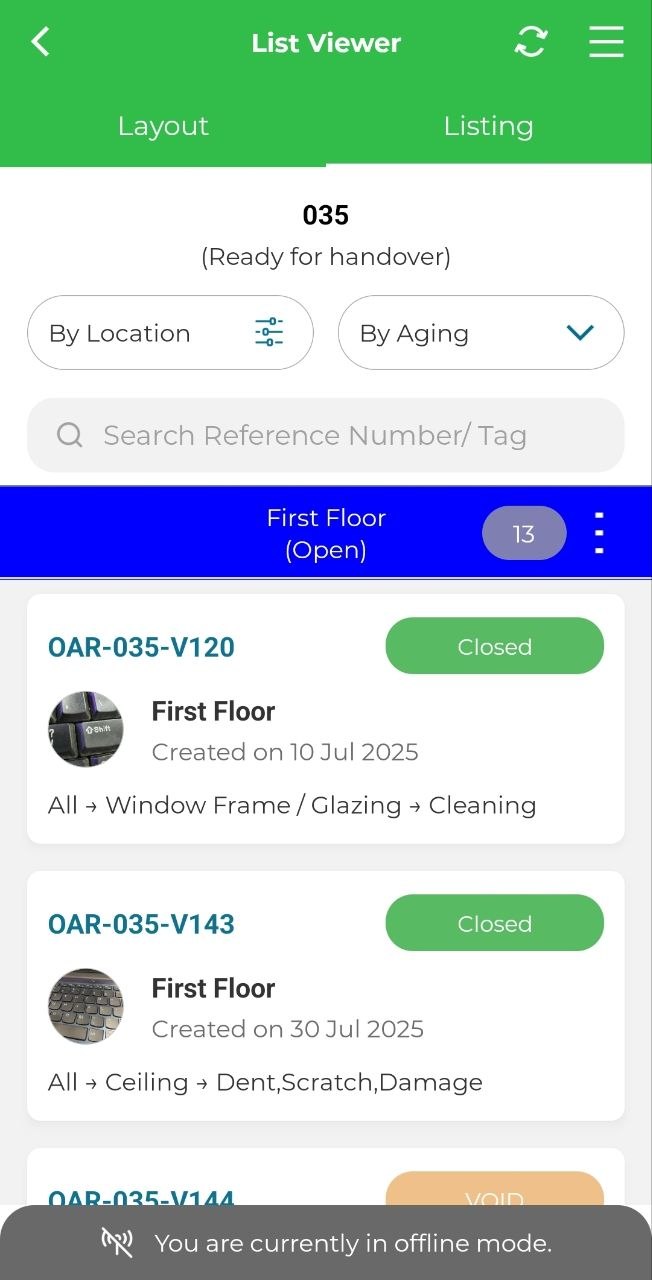
This function is to allow users to retrieve the previously submitted issues as well as the layout of a unit for offline use. This is ideal for situations where there is no internet connection on-site. Below are the steps to download and view unit(s) offline.
Download Unit(s) For Offline Use
1. Select Project.
2. Click 'Sync' in the side menu.
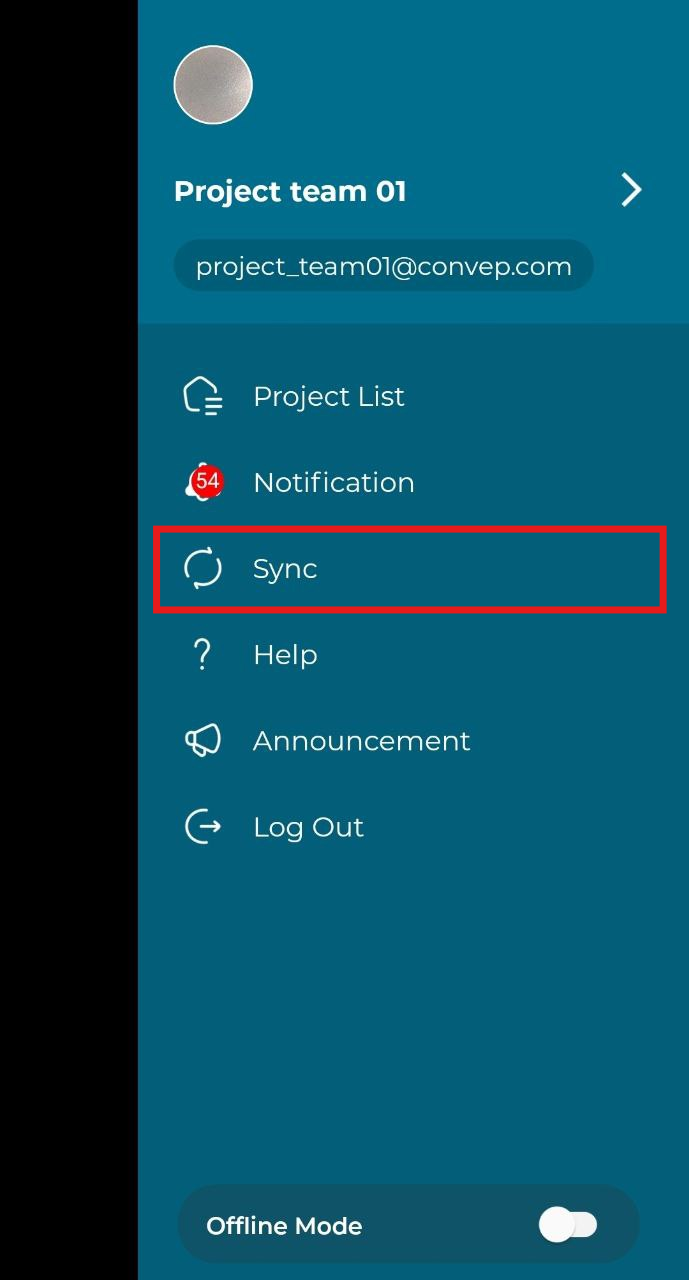
3. Click 'Offline Units' and click 'Add'. Select the Project and Unit(s) needed for offline use. Repeat this step as necessary.
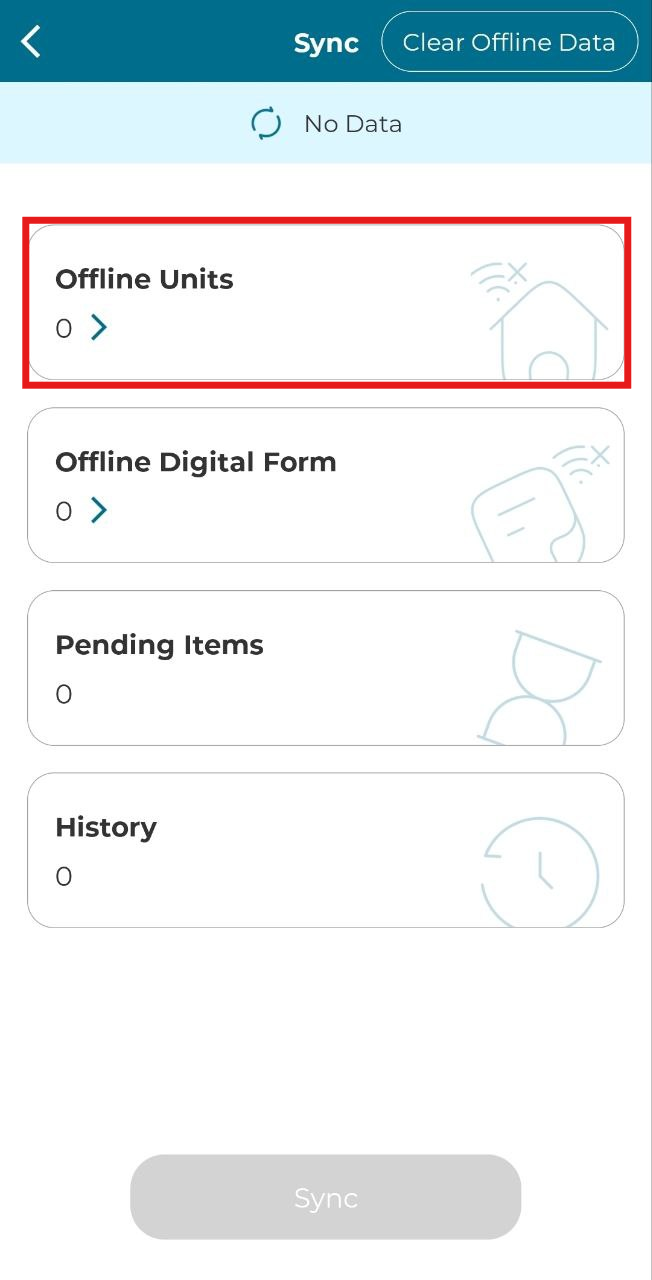
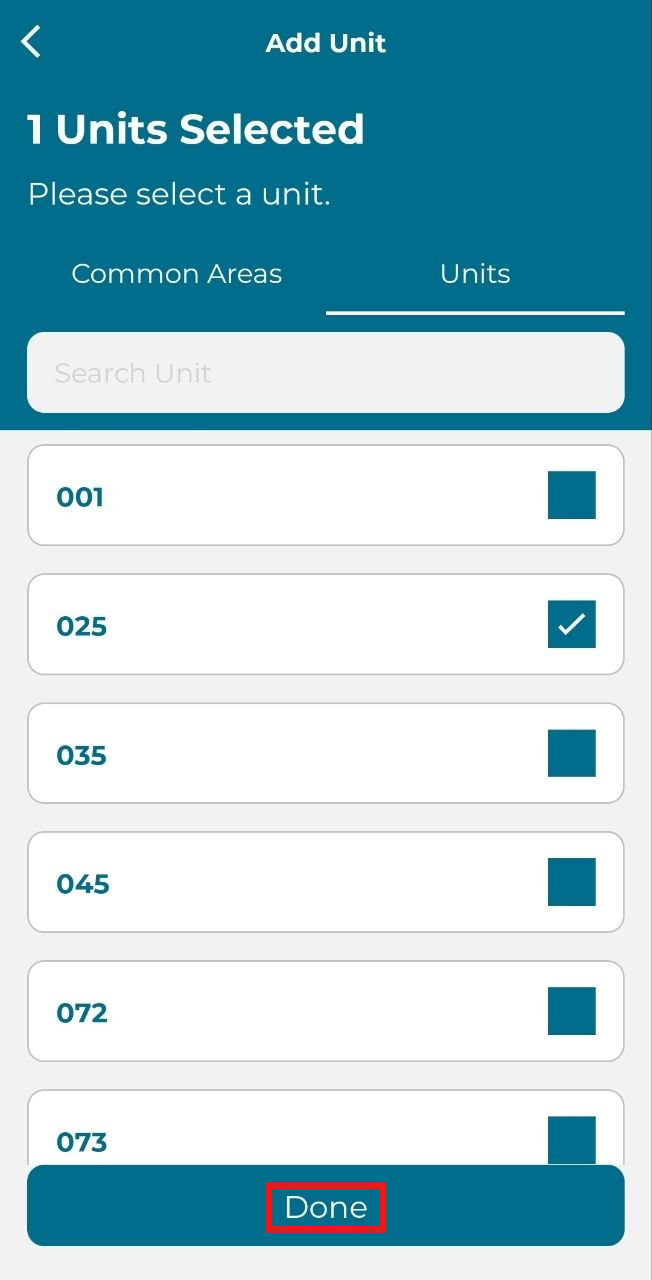
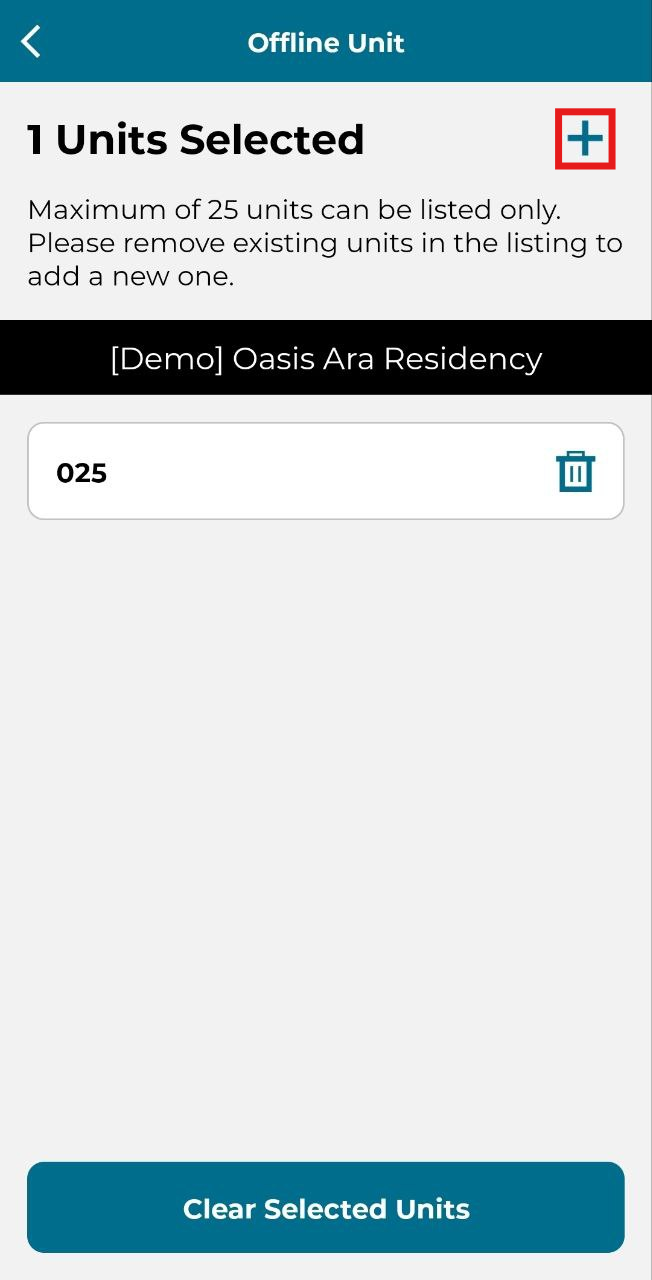
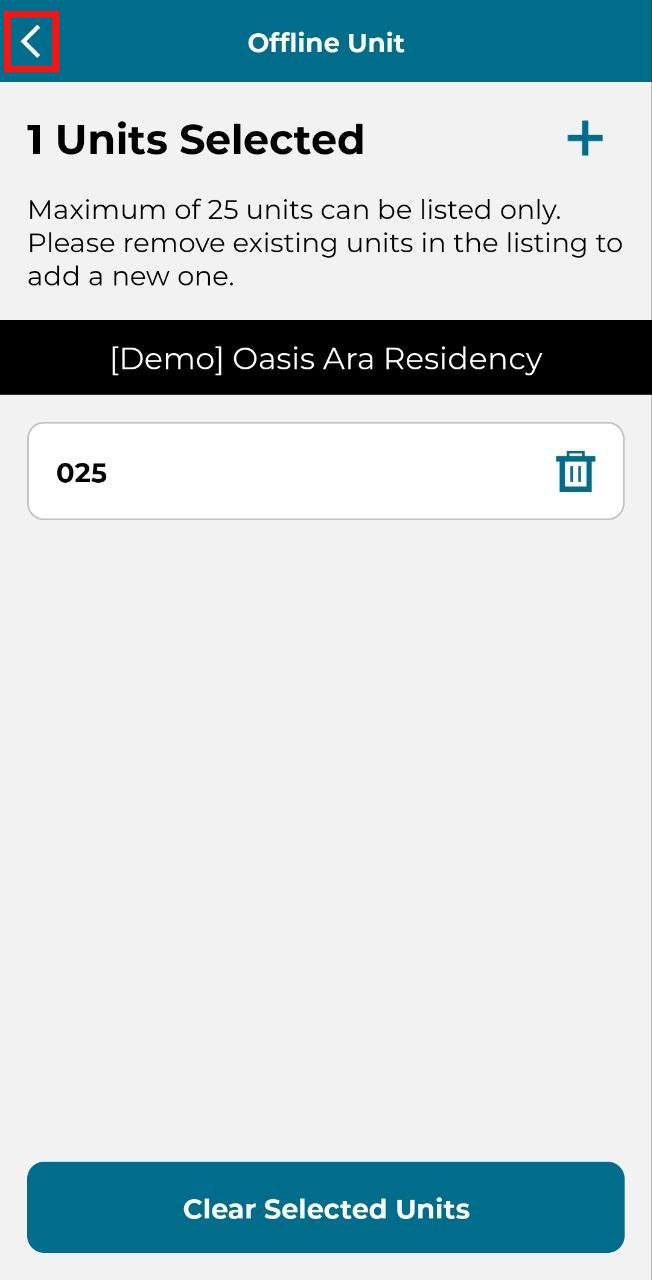
4. Click the 'Back' button.
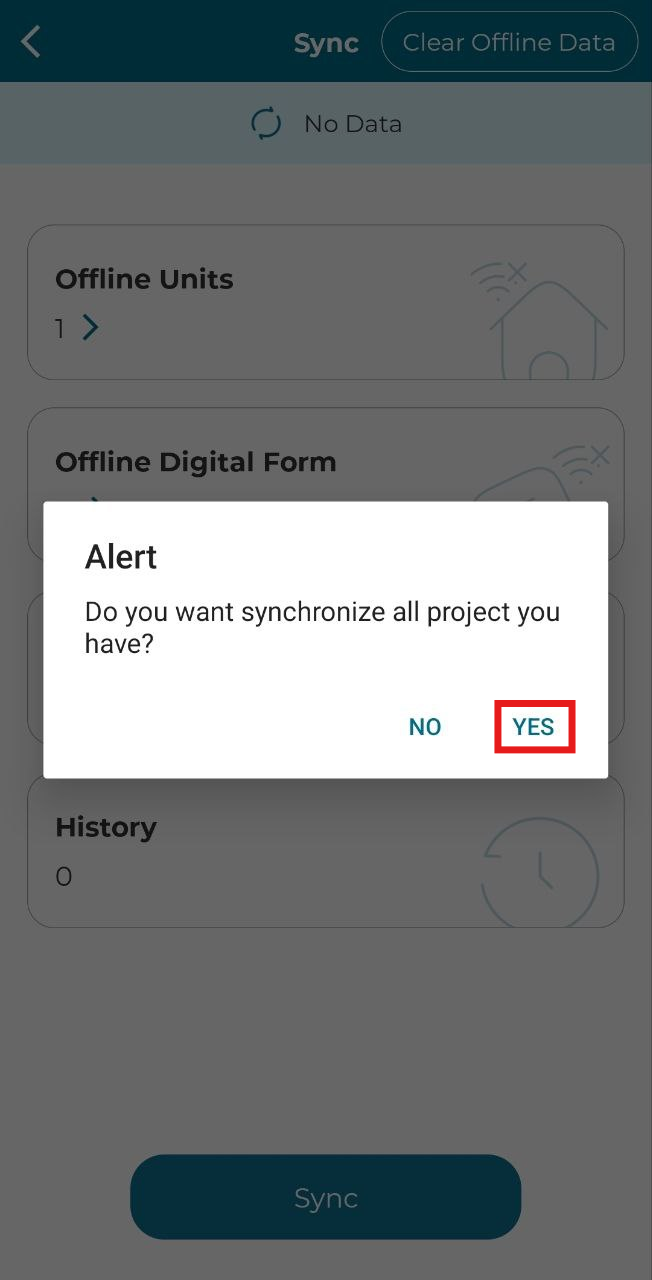
5. Click 'Yes' at the confirmation pop up box.
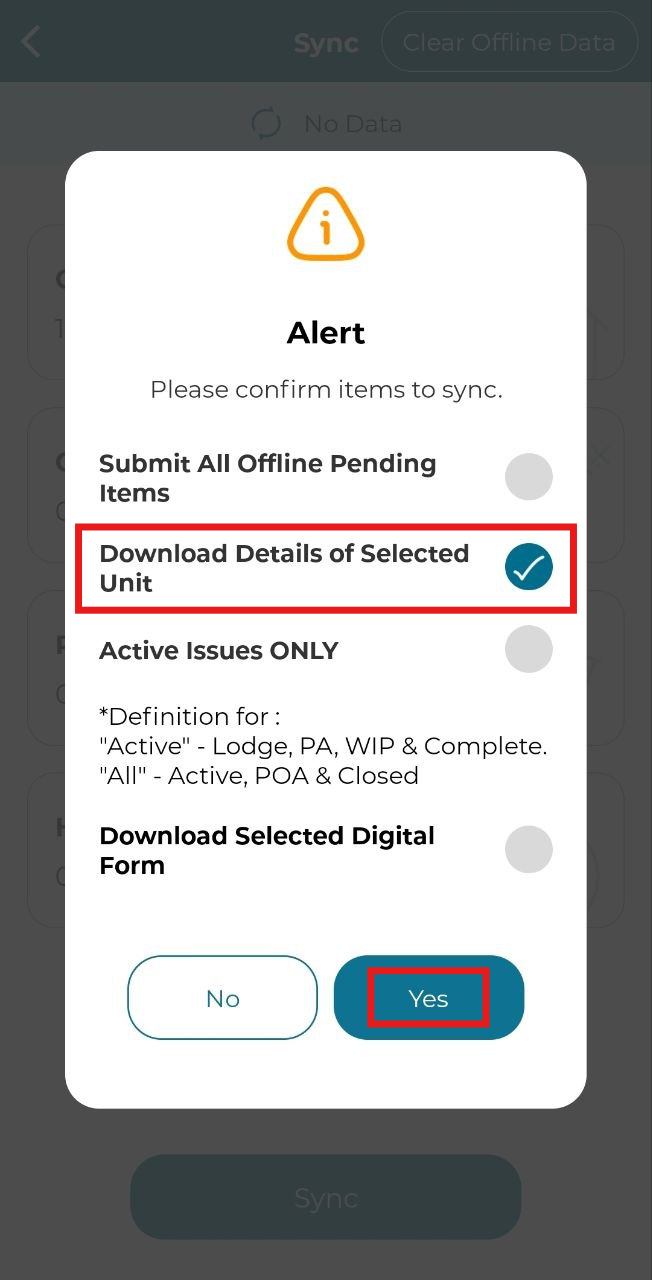
6. Select 'Download Details of Selected Unit' and click 'Yes'. Wait until the data have been downloaded and click 'OK'.
View Downloaded Unit for Offline Use
Downloaded unit(s) can be viewed in Plan Viewer or Listing.
Plan Viewer
1. Choose project
2. Click 'Plan Viewer'.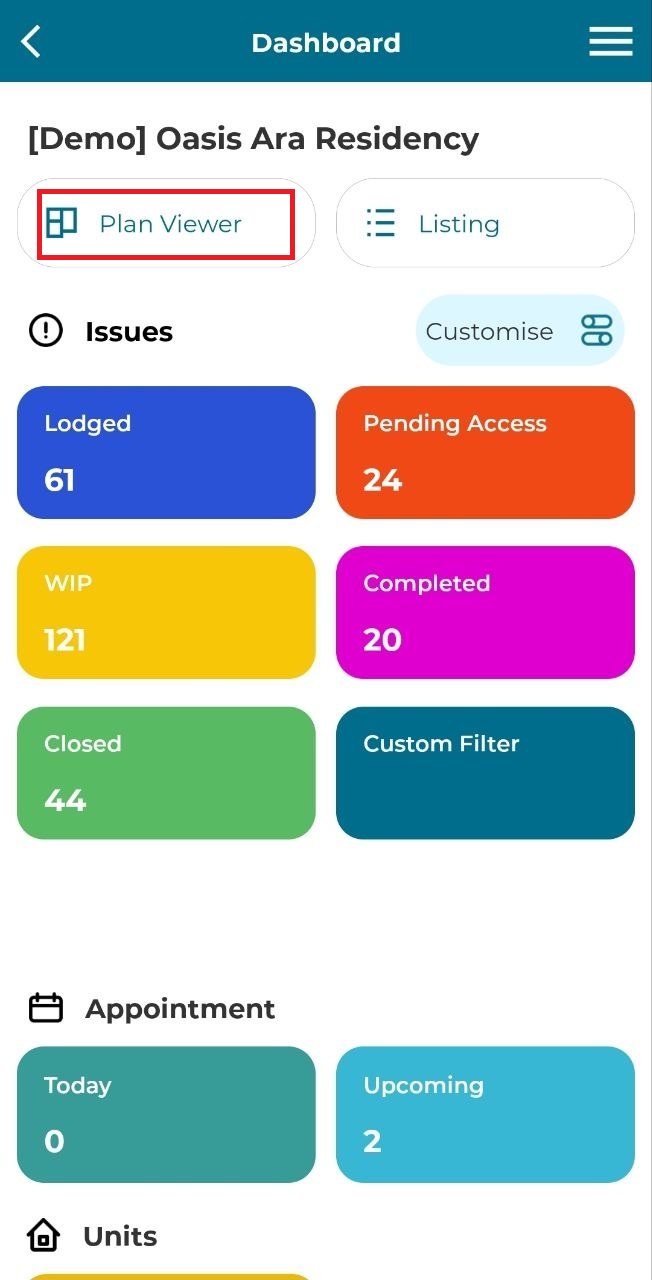
3. Search for downloaded unit.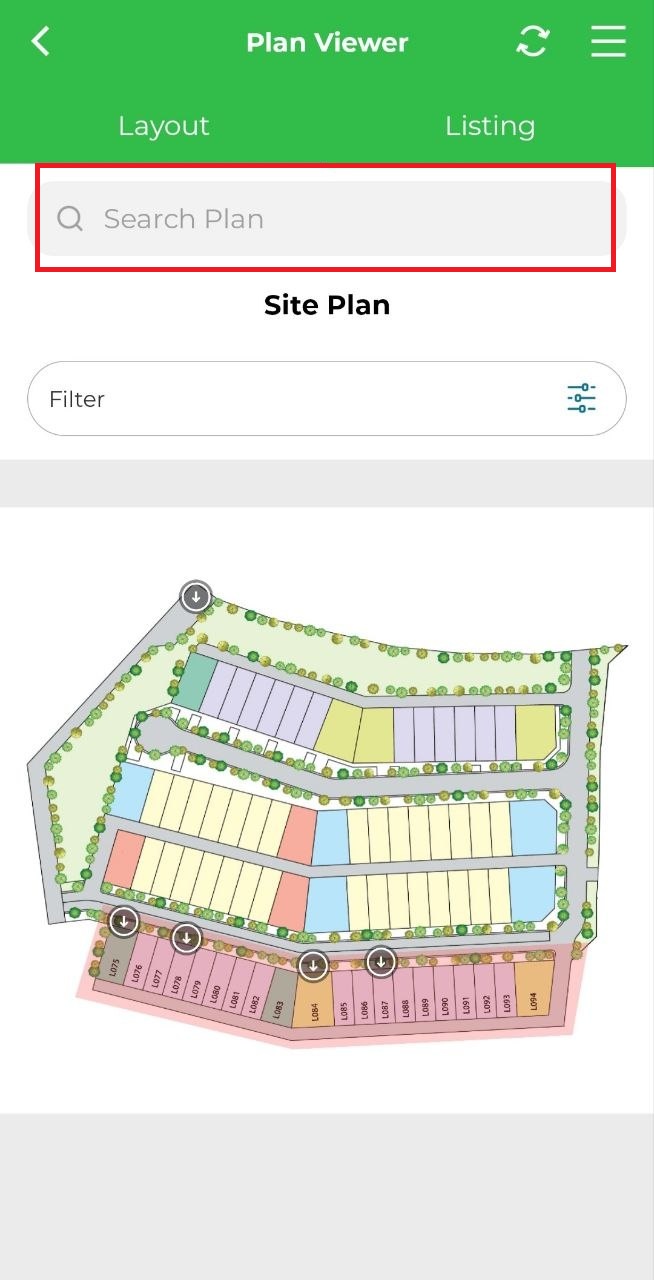
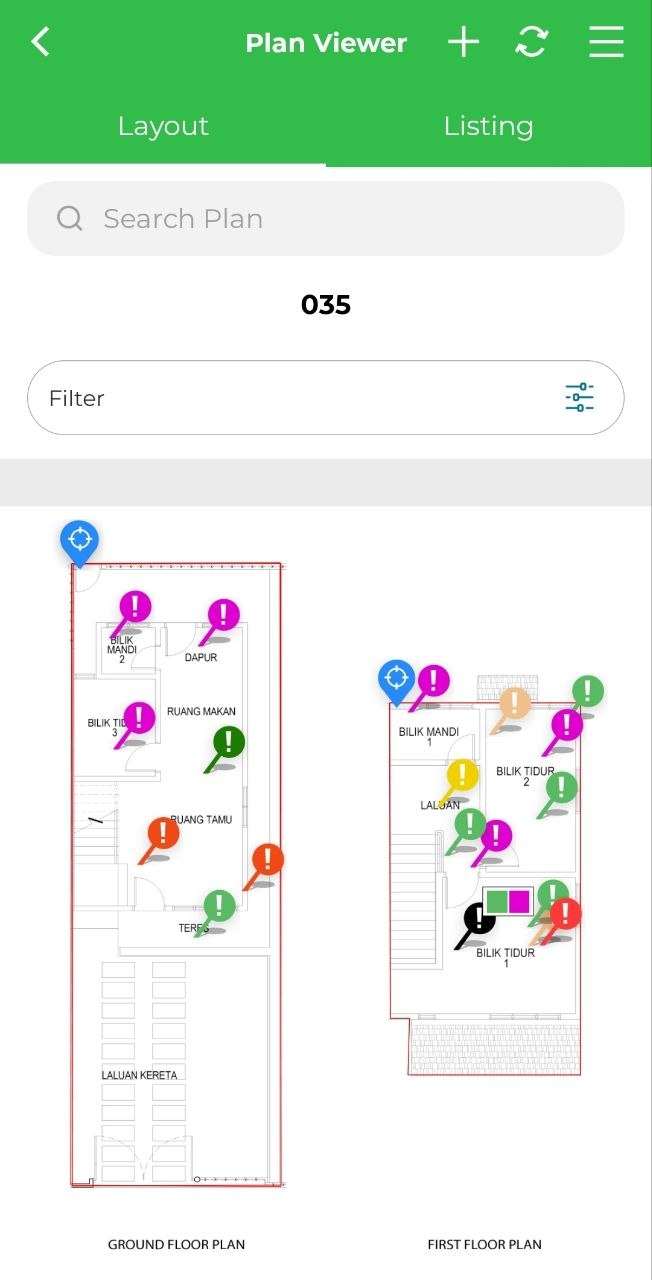
4. Below is the unit downloaded with all existing issues.
Listing
1. Select project.
2. Click on 'Listing'.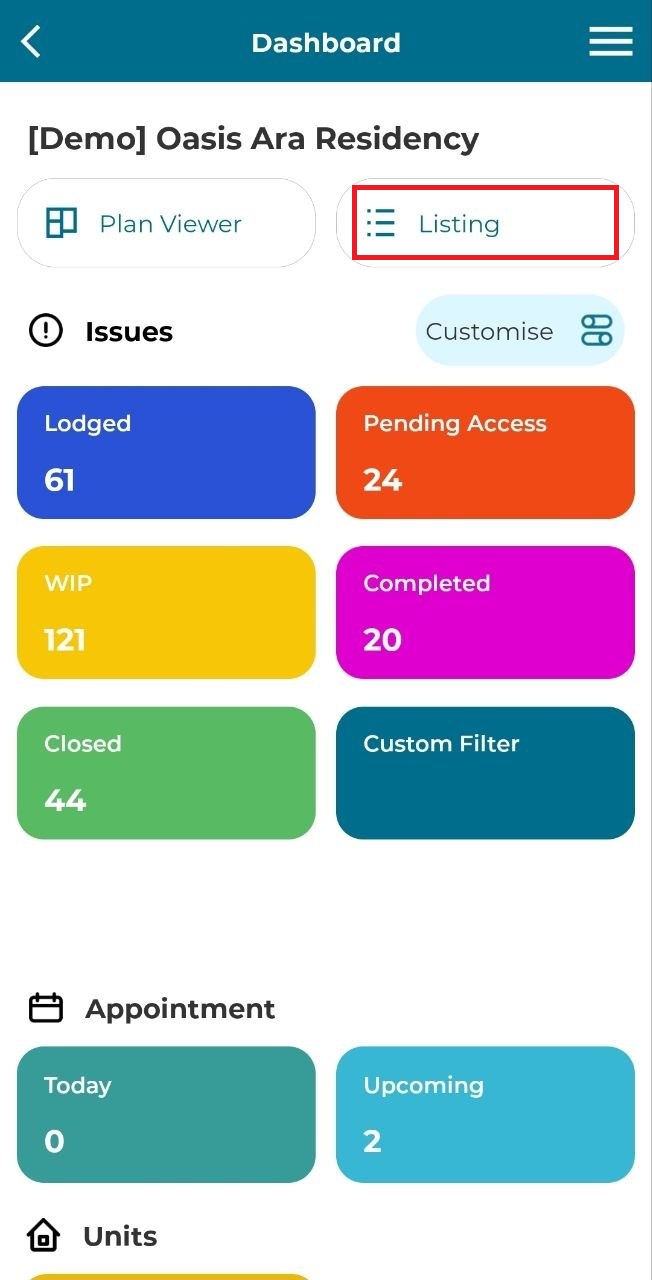
3.
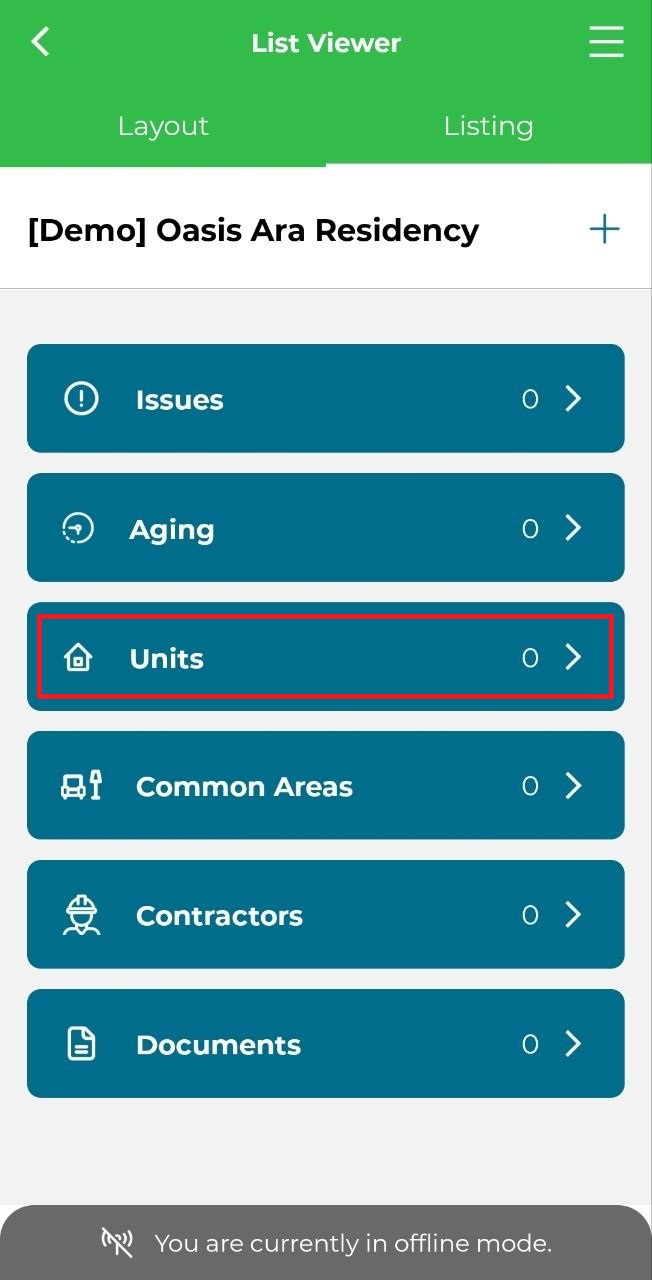
4. When clicked on unit that have not been downloaded, it will not display any data as user is currently in offline mode as figures shown below.
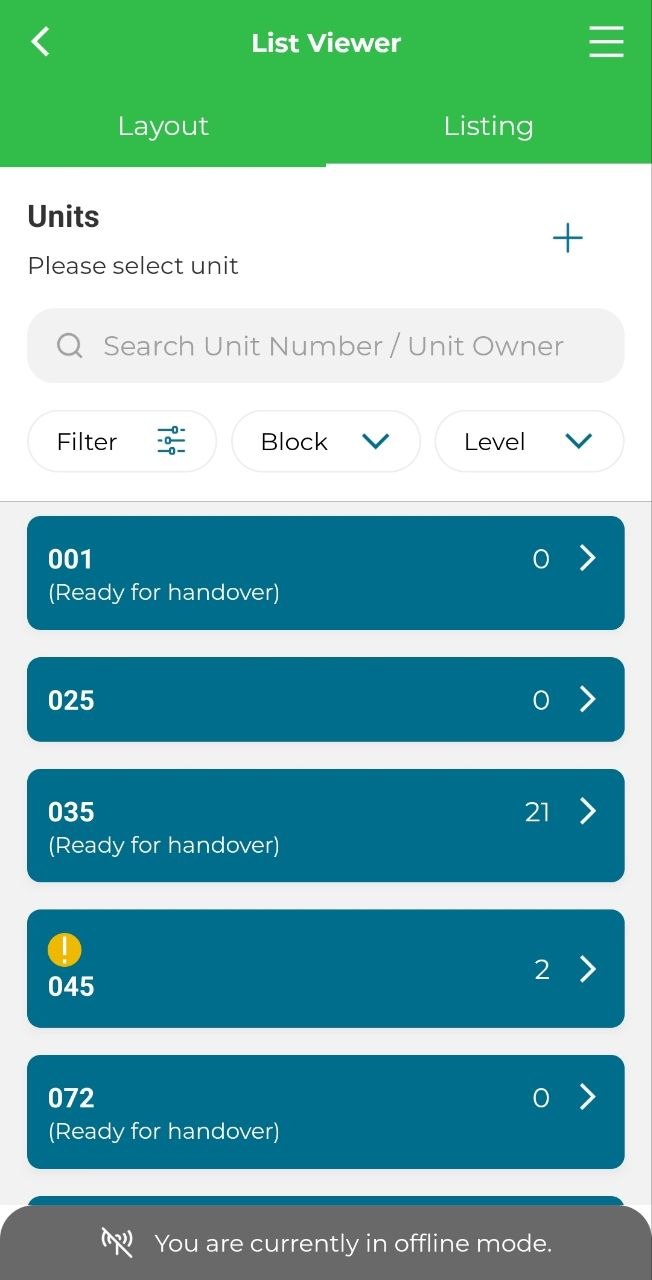
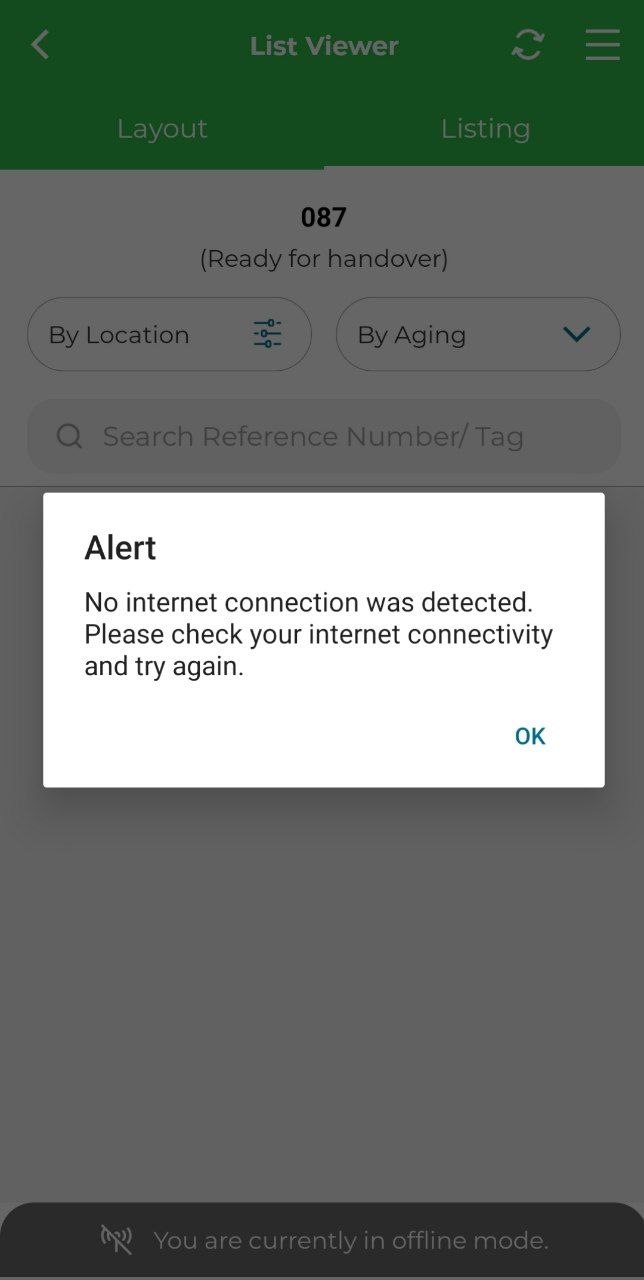
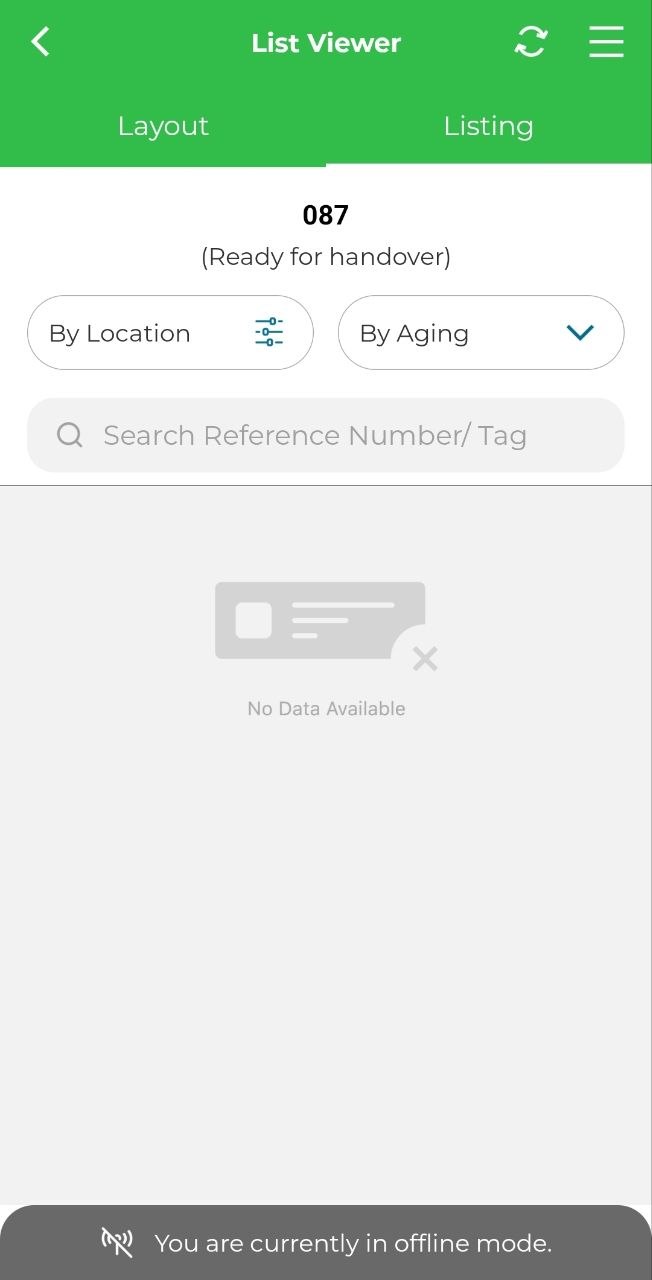
5. For unit that have been downloaded, the issues will be displayed. User can click on issue to view issue details.