DIGITAL FORM - PROJECT
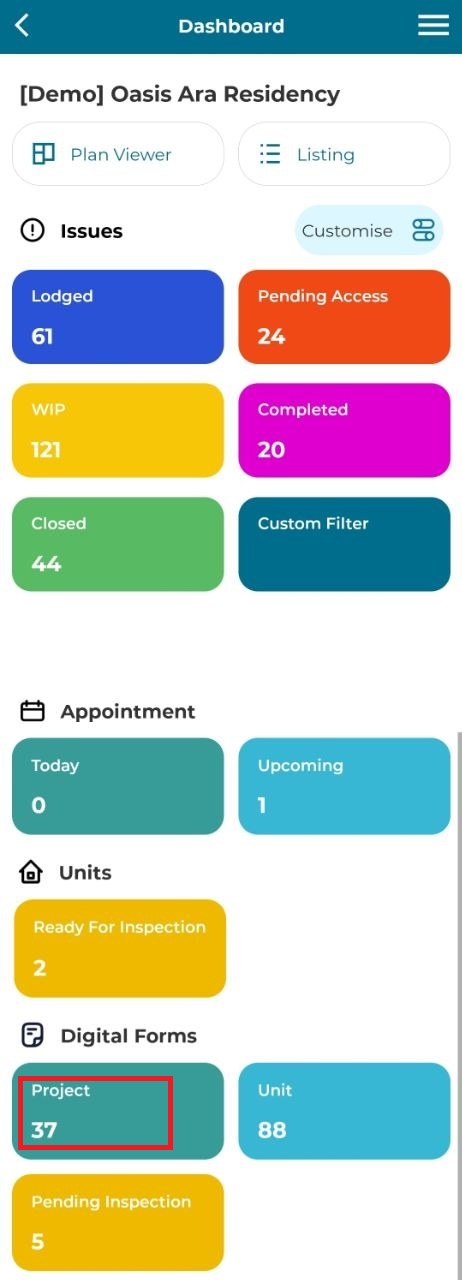
1. Click 'Project' from the dashboard.
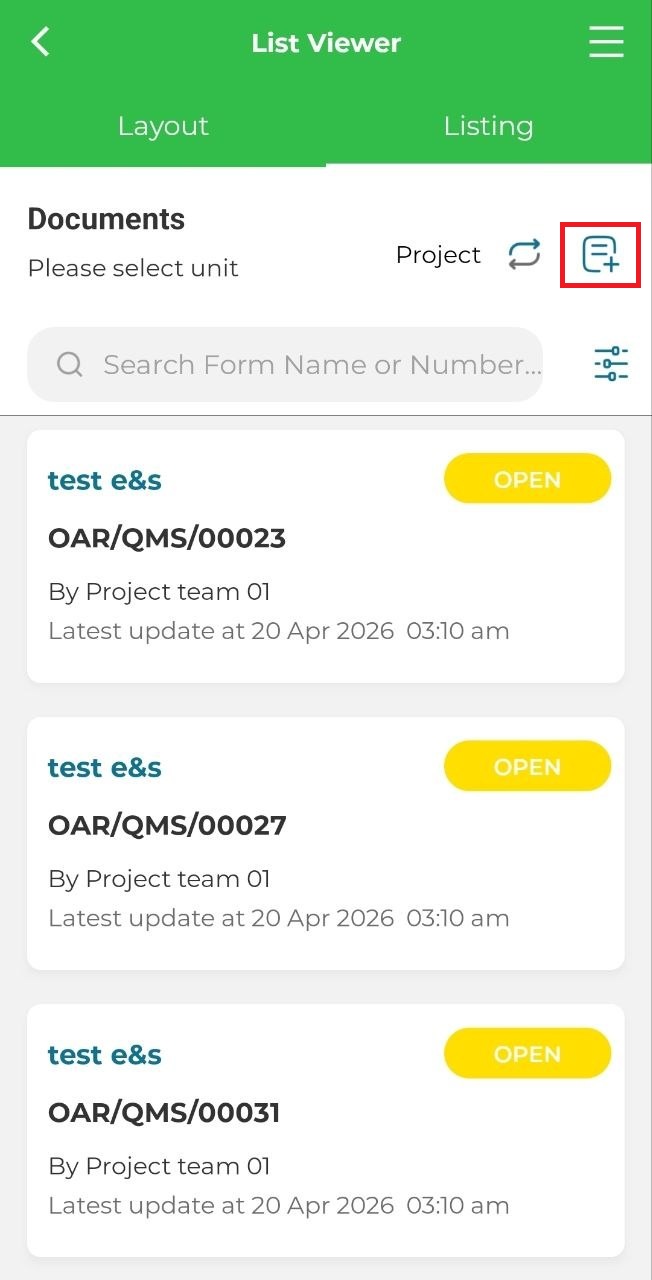
2. Click on the add icon.
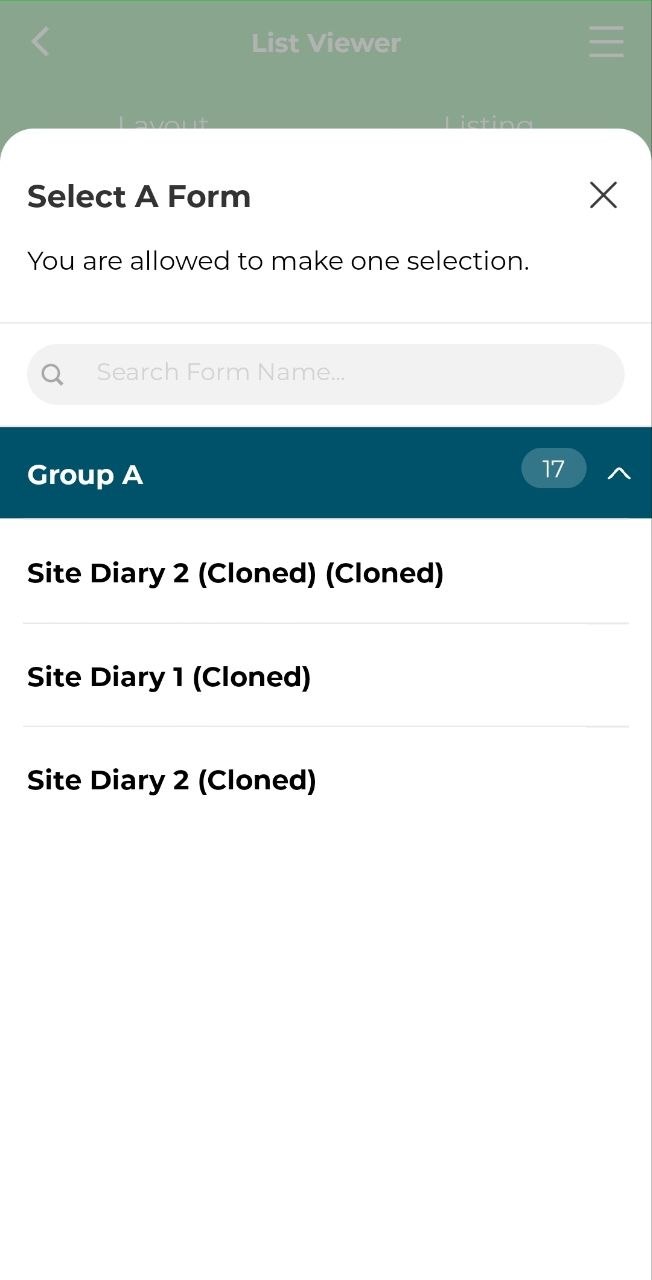
3. Select a form.
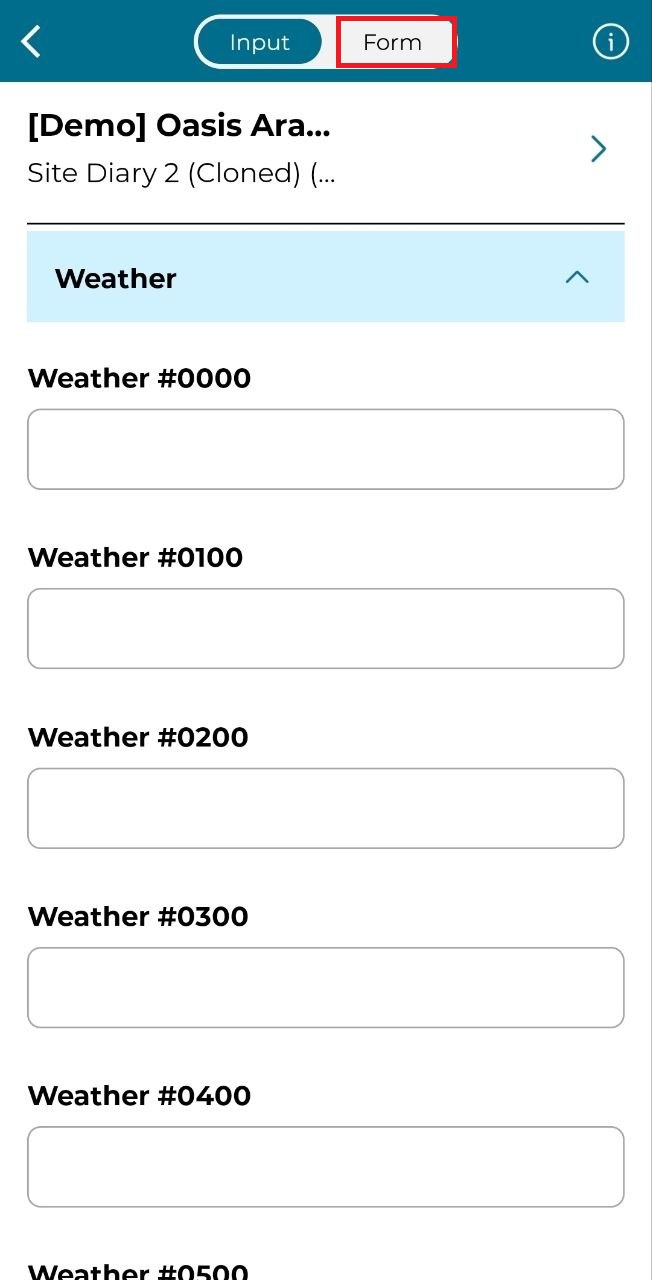
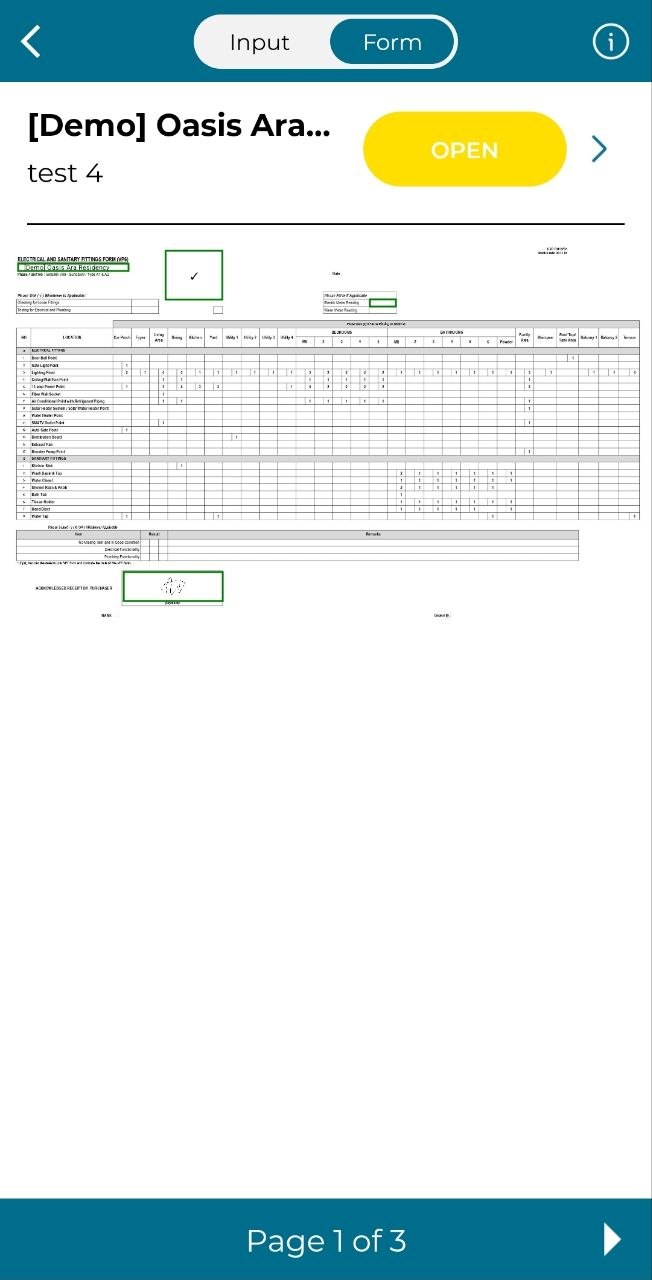
4. Fill in the form using the Input tab or Form tab. Click on 'Form' to view form.
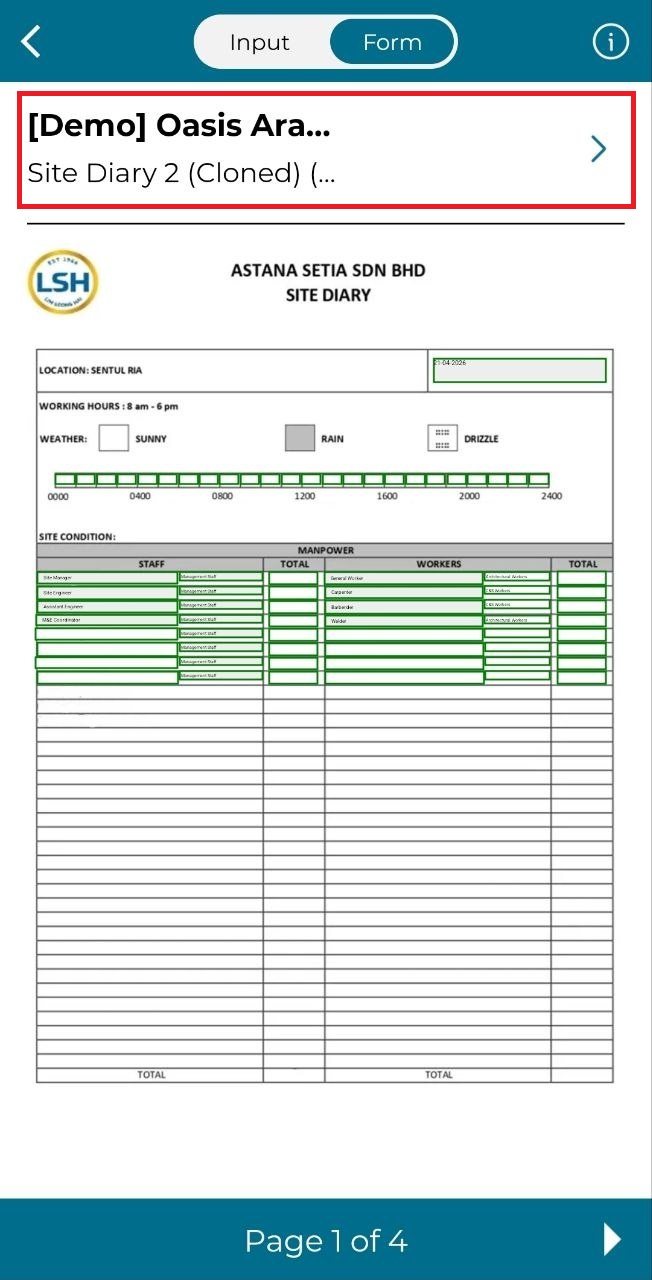
5. Fill in the form. Click on the section above to submit form.
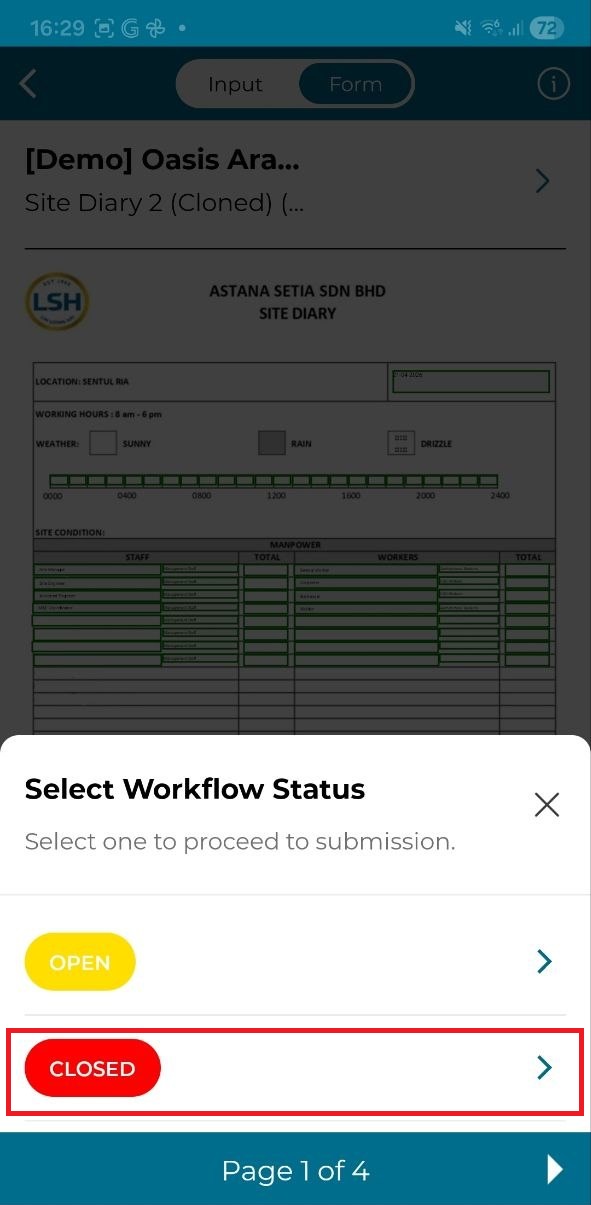
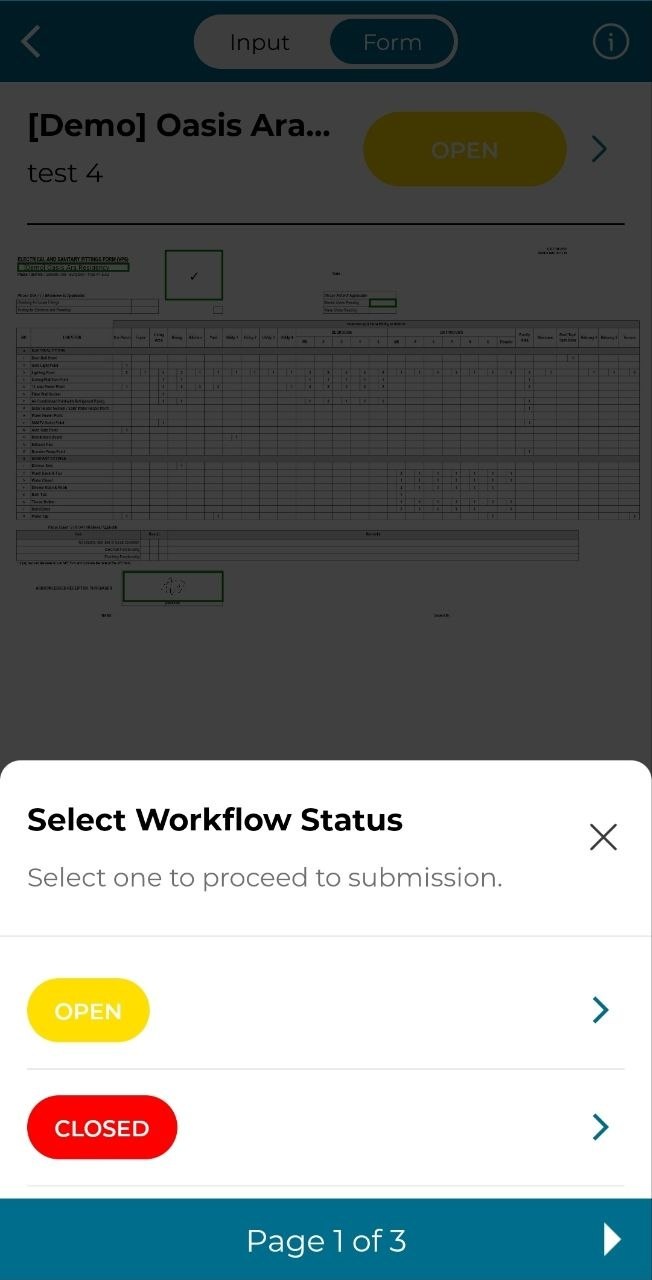
6. Click 'Open' to keep the form in draft status. You can make changes to the form.
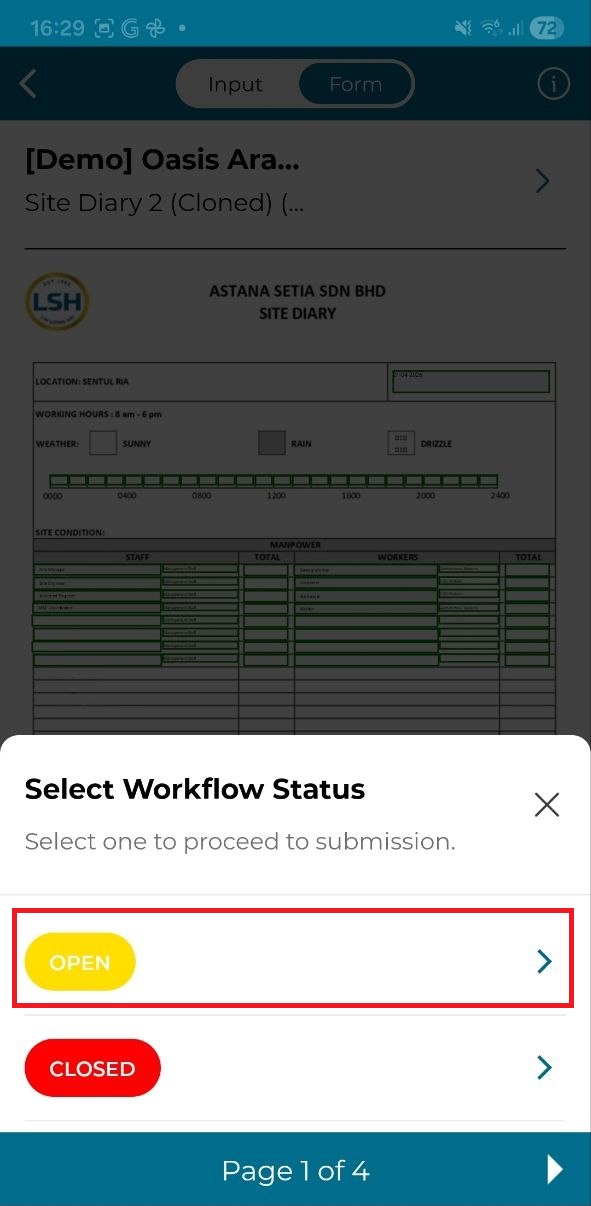
7. Click 'Closed' to submit the form. You cannot make any changes once form closed and submitted.
DIGITAL FORM - UNIT
1. Click 'Unit'.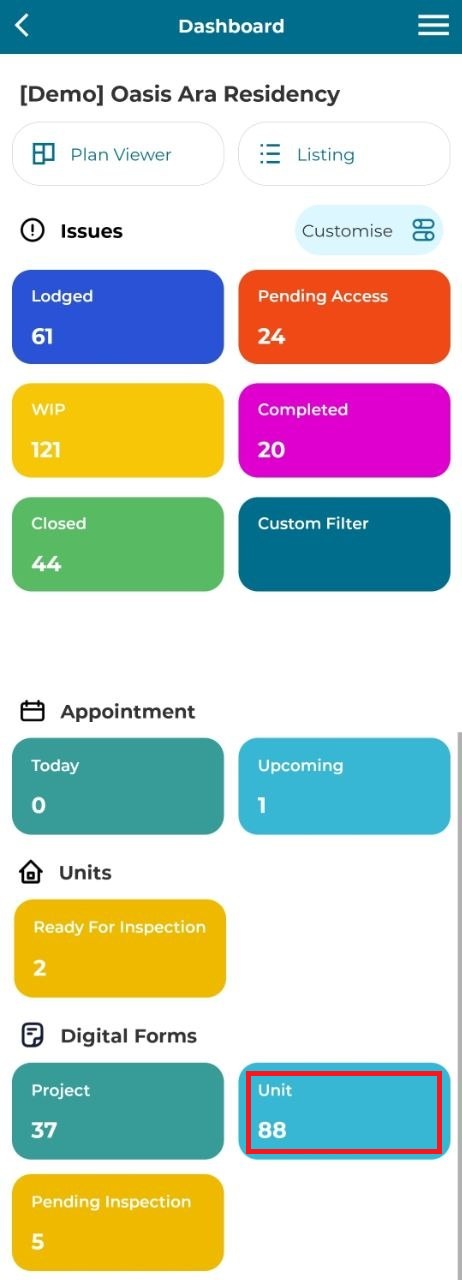
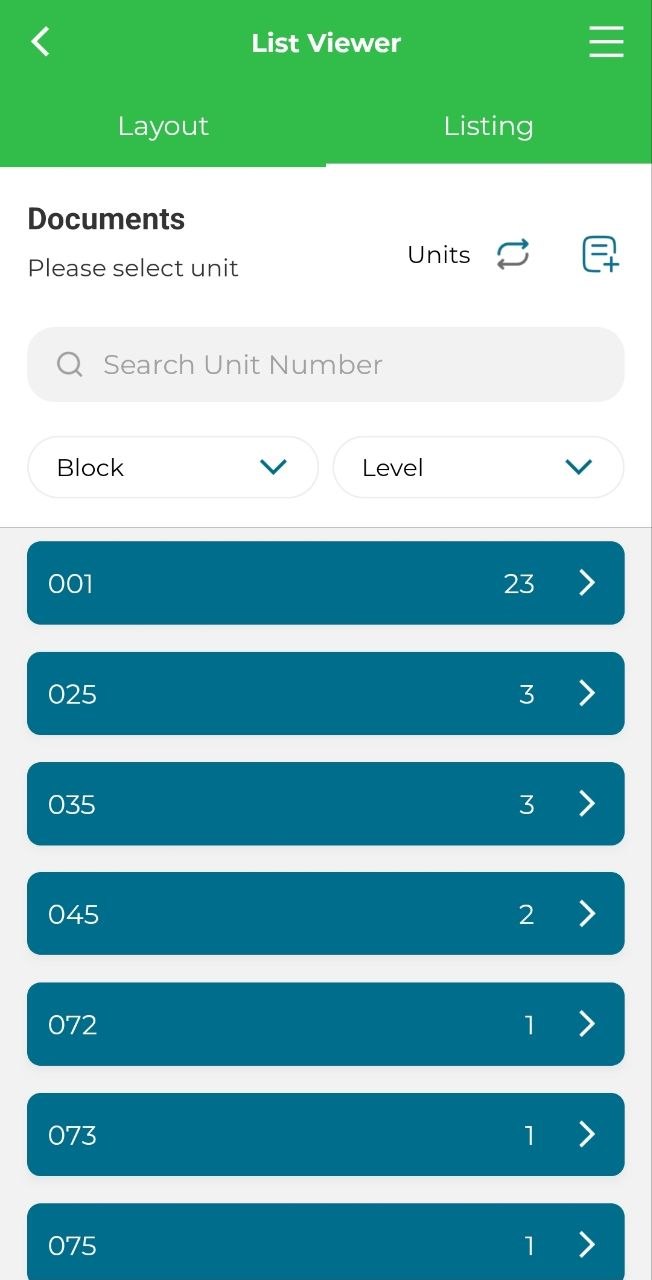
2. Select unit.
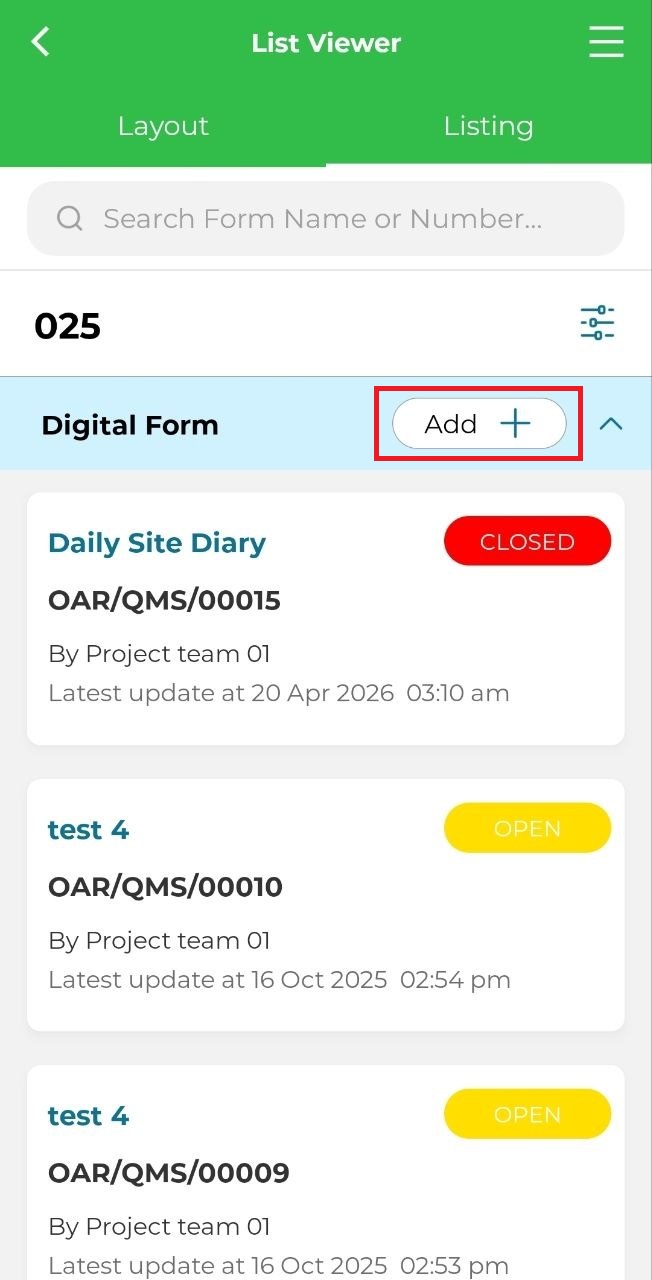
3. Click 'Add'.
4. Select a form and click 'OK'.
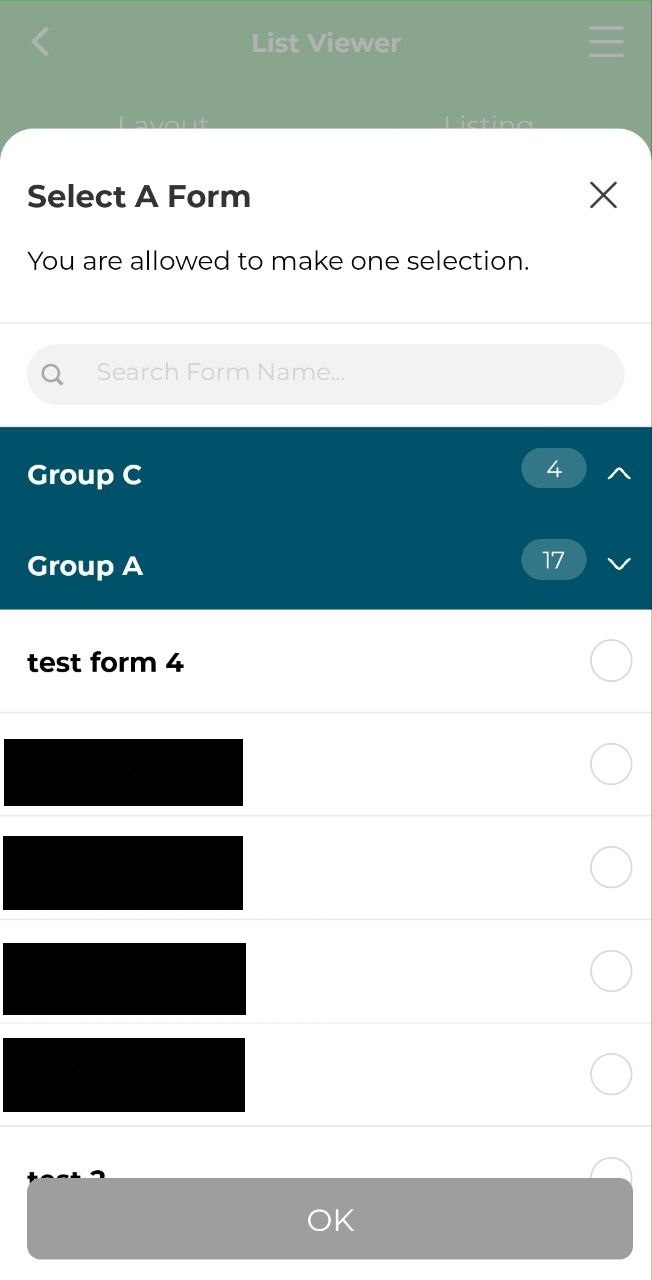
5. Fill in the form in 'Input' or 'Form' section.
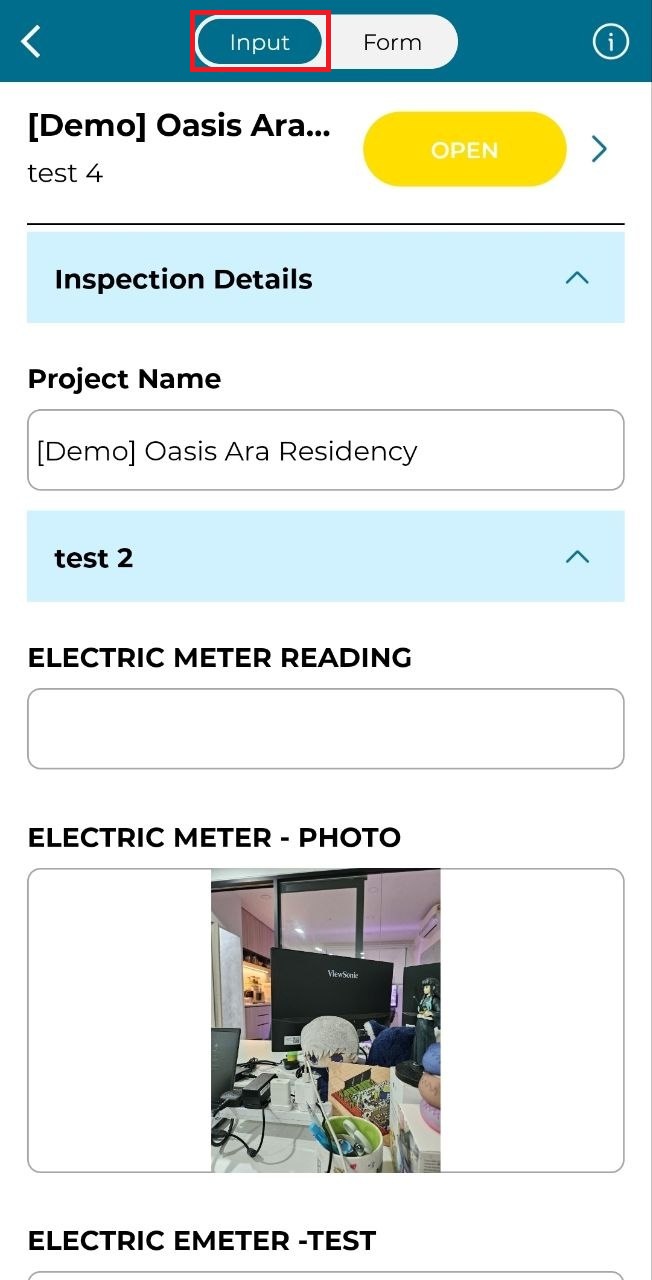
6. Click 'Form' to fill in and view in form mode.
7. Click the above section to submit.
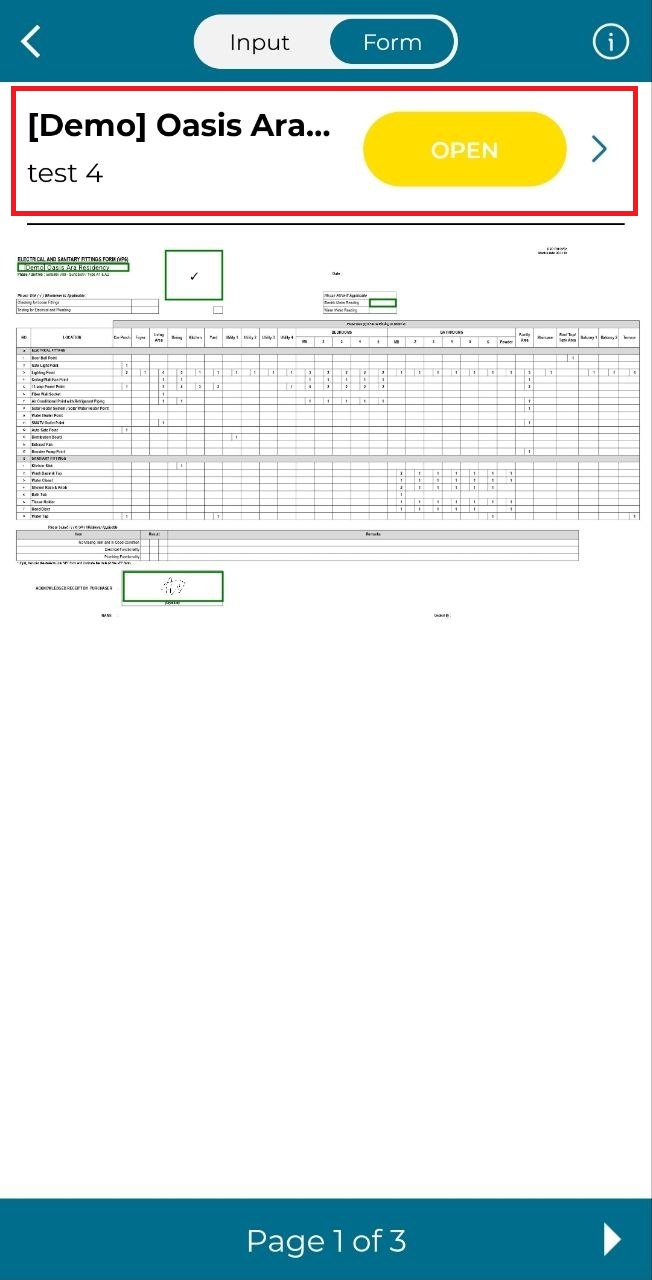
8. Select workflow status.
OFFLINE DIGITAL FORM
1. Click Side Menu.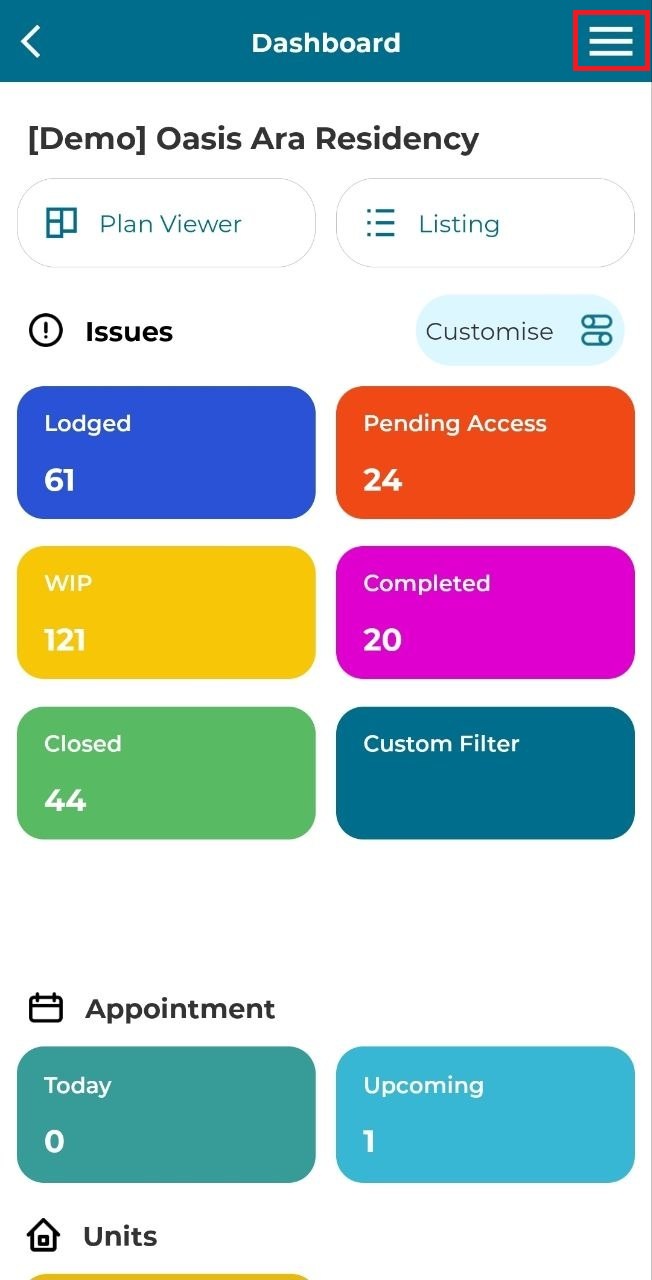
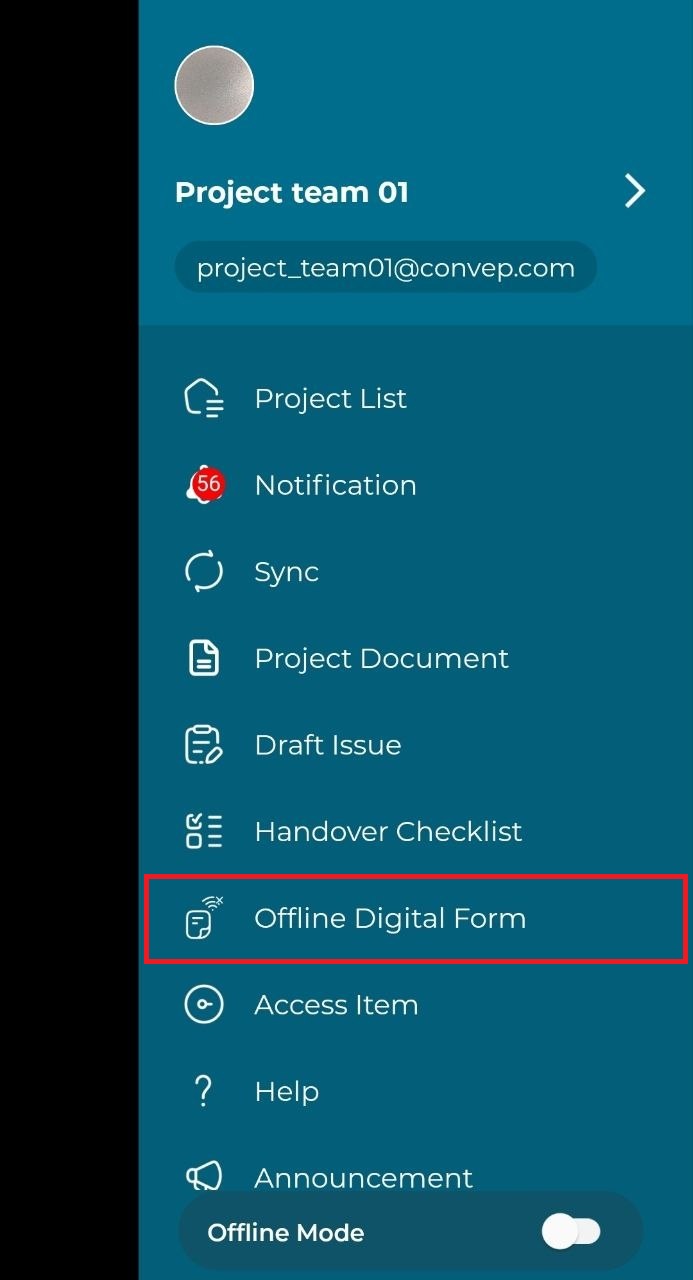
2. Click 'Offline Digital Form'.
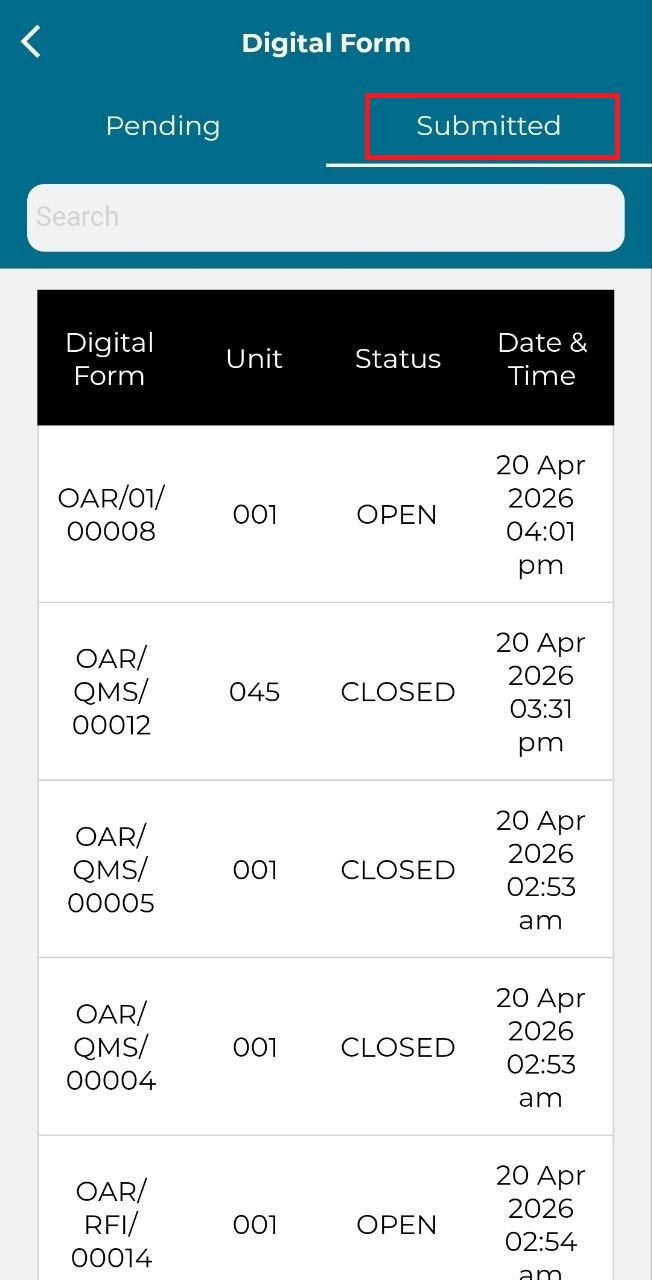
3. Click 'Submitted' to view list of submitted digital forms.
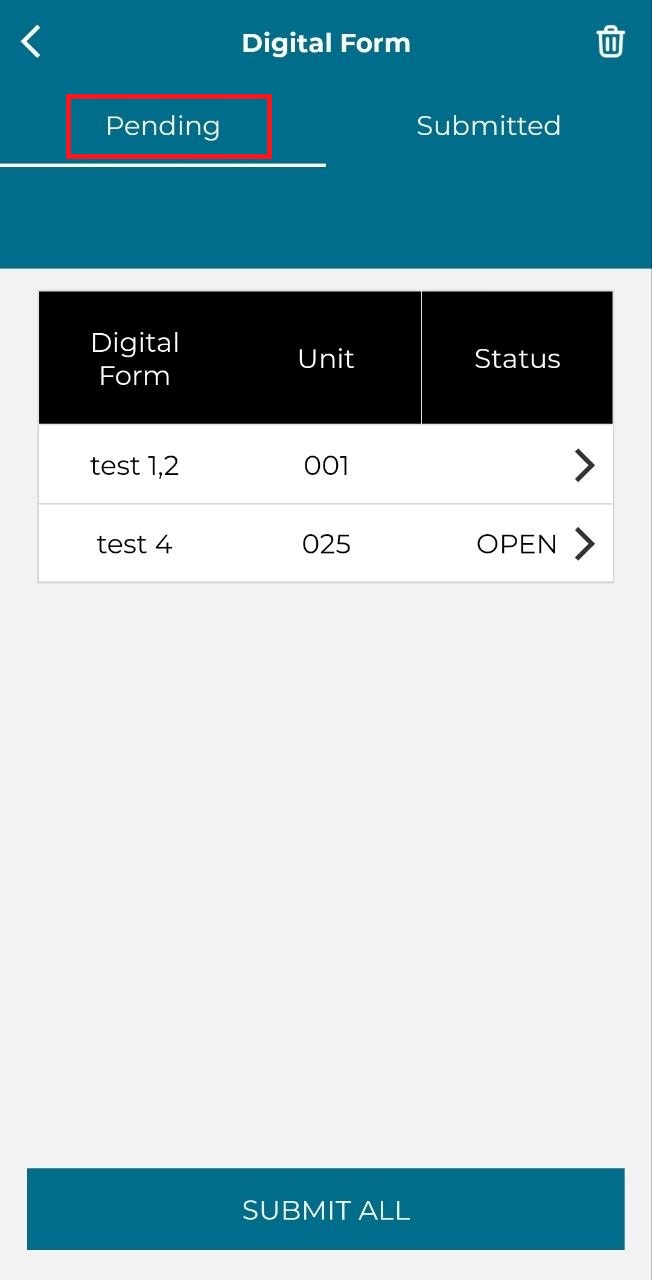
4. Click 'Pending' to view list of pending digital forms.
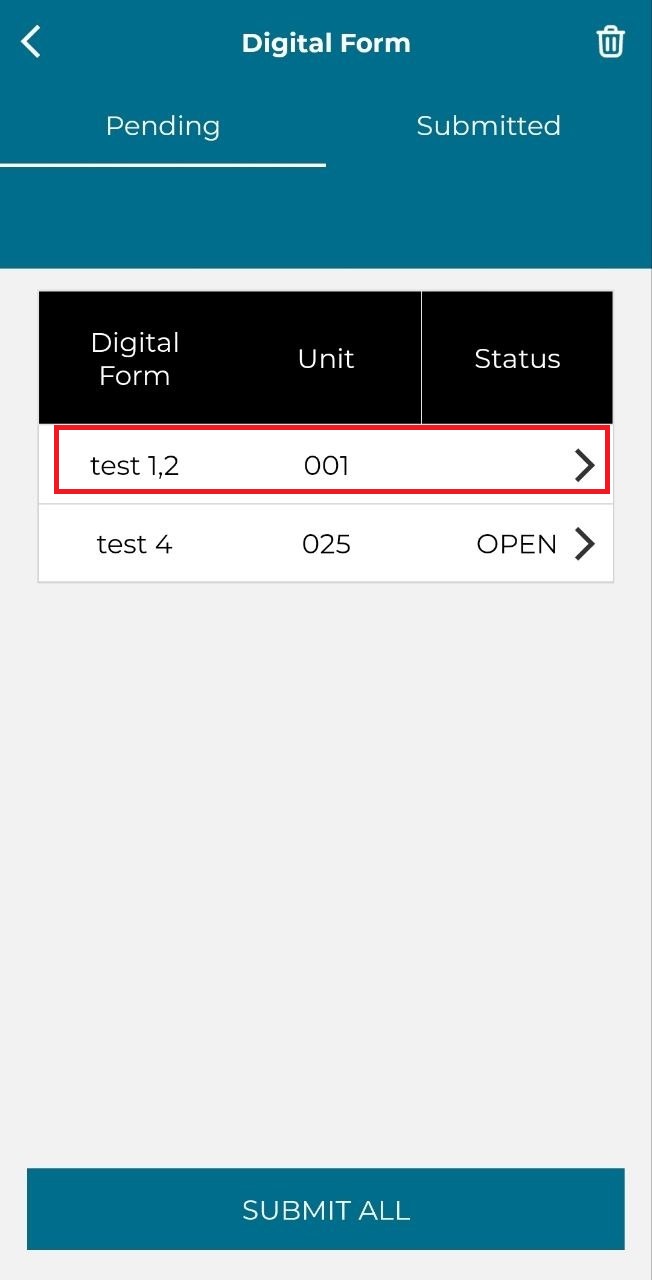
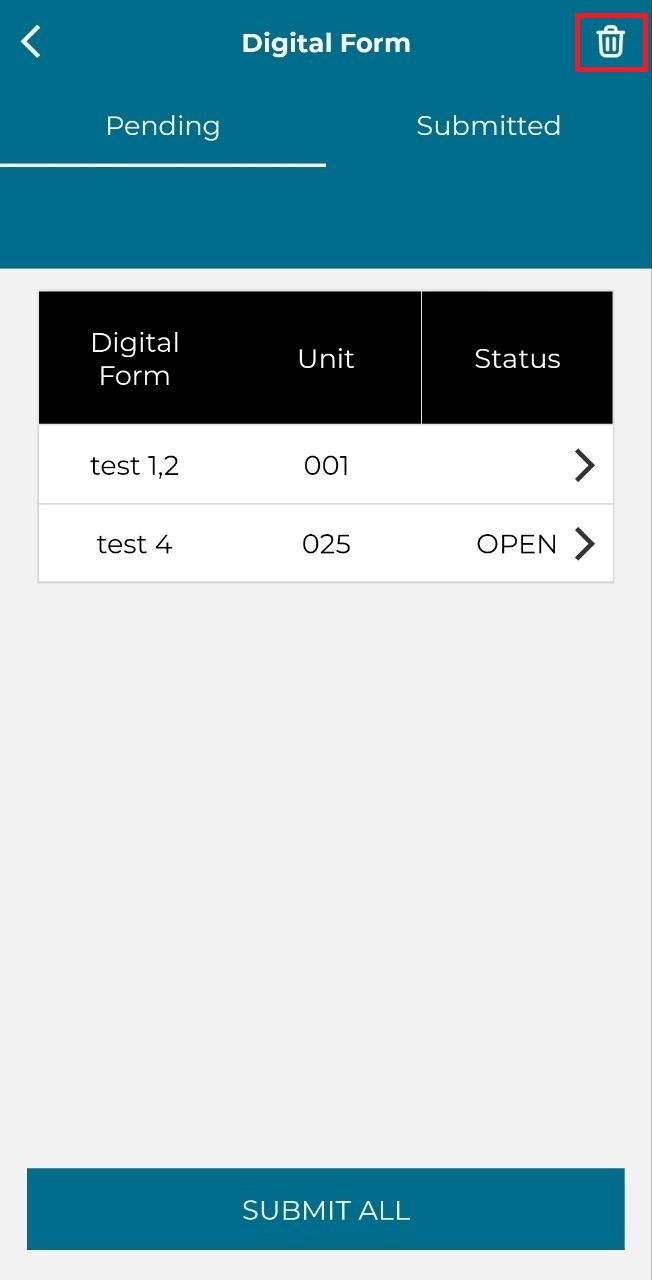
5. Click the delete icon to delete all pending digital forms.
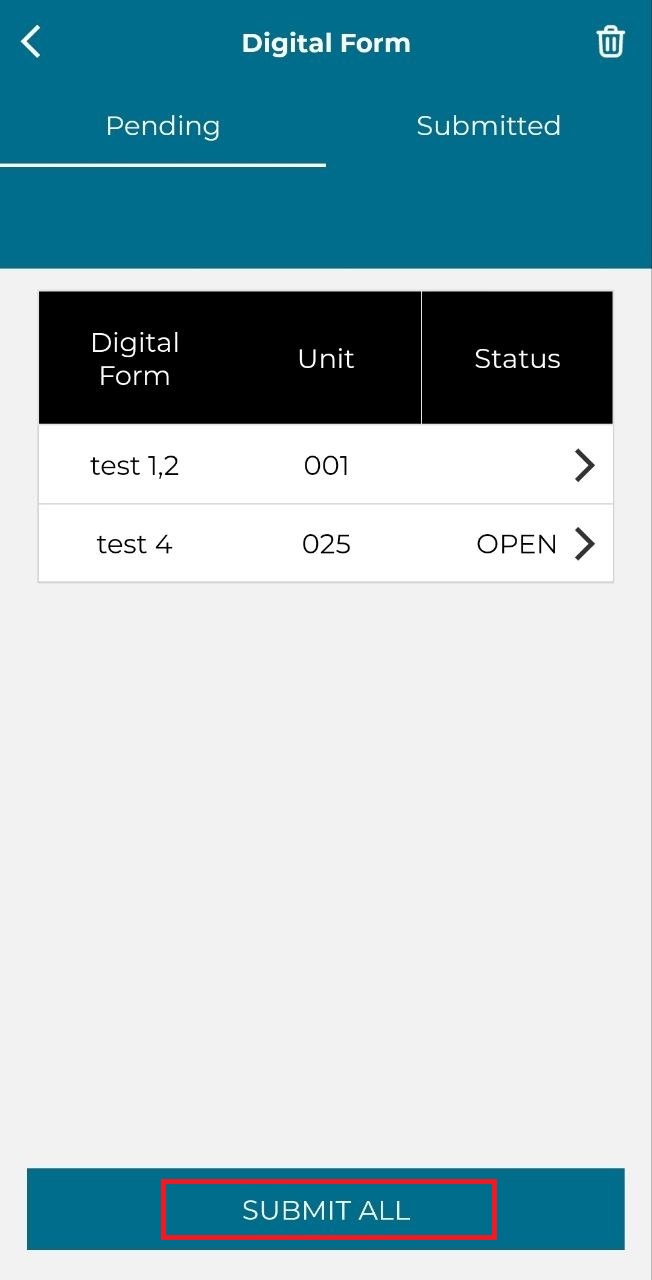
6. Click 'Submit All' to submit all digital forms.
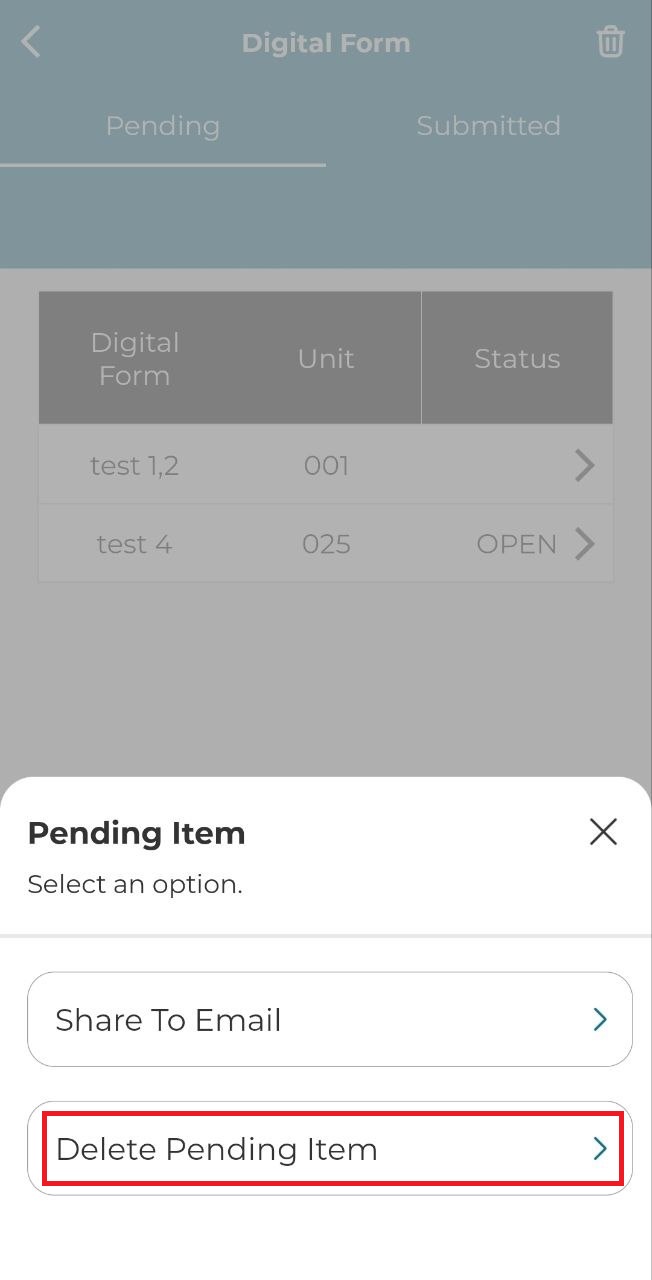
7. Hold until the option to delete appear to delete only one digital form.