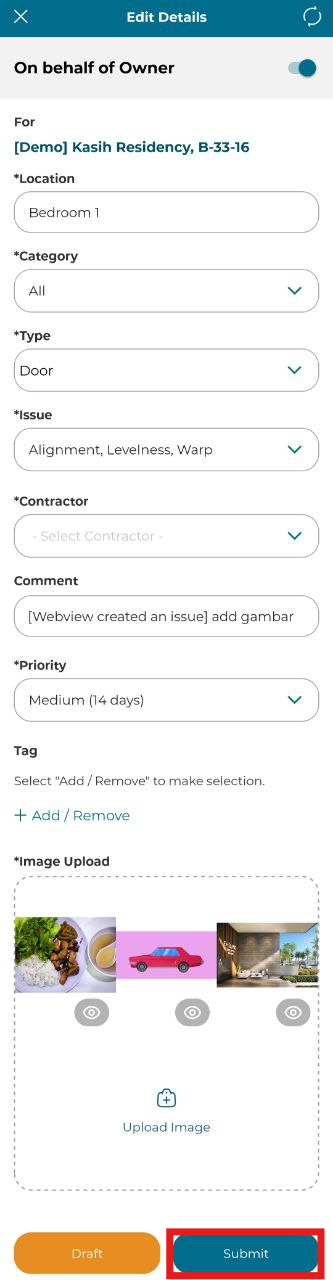
There are two ways to edit issue details through the mobile app:
- Through the Plan Viewer, wherein the user can see the layout plan image and select where the issue is located
- Through the Unit Listing, wherein the issue is lodged through dropdown menus
METHOD 1: Plan Viewer
1. Select Project.
2. Select 'Plan Viewer'.
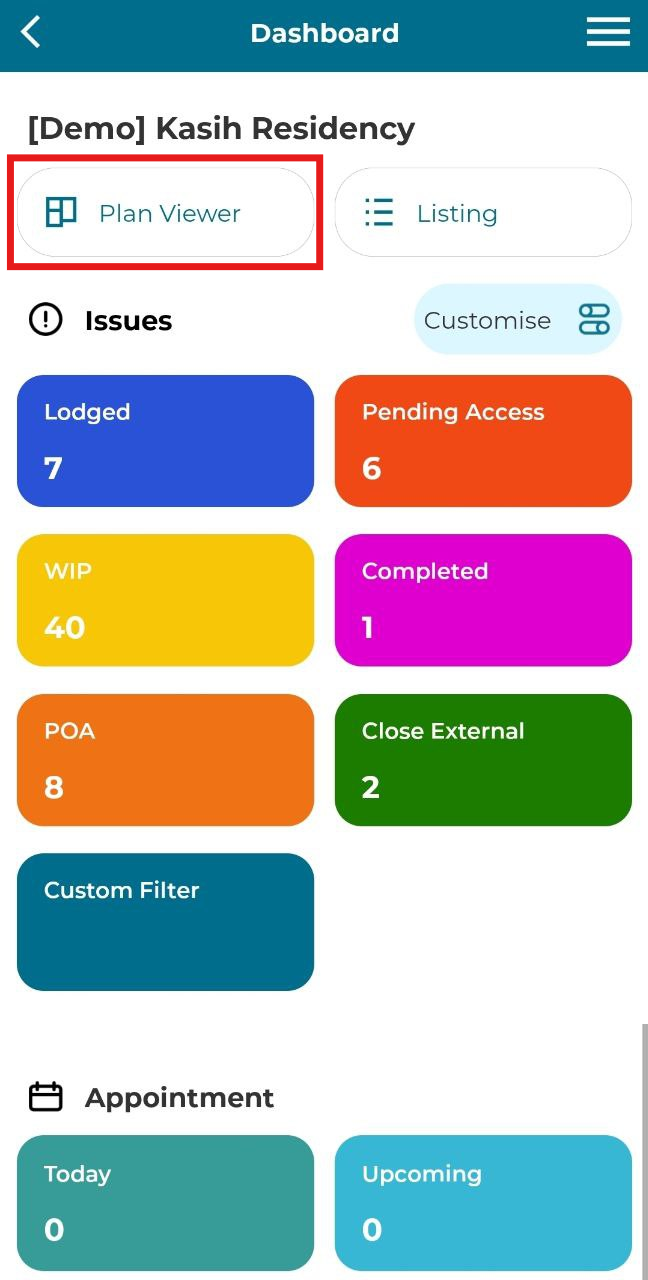
3. Select which Block (if applicable), Level (if applicable), and Unit. A layout image will be loaded.
Or enter unit on the search plan bar.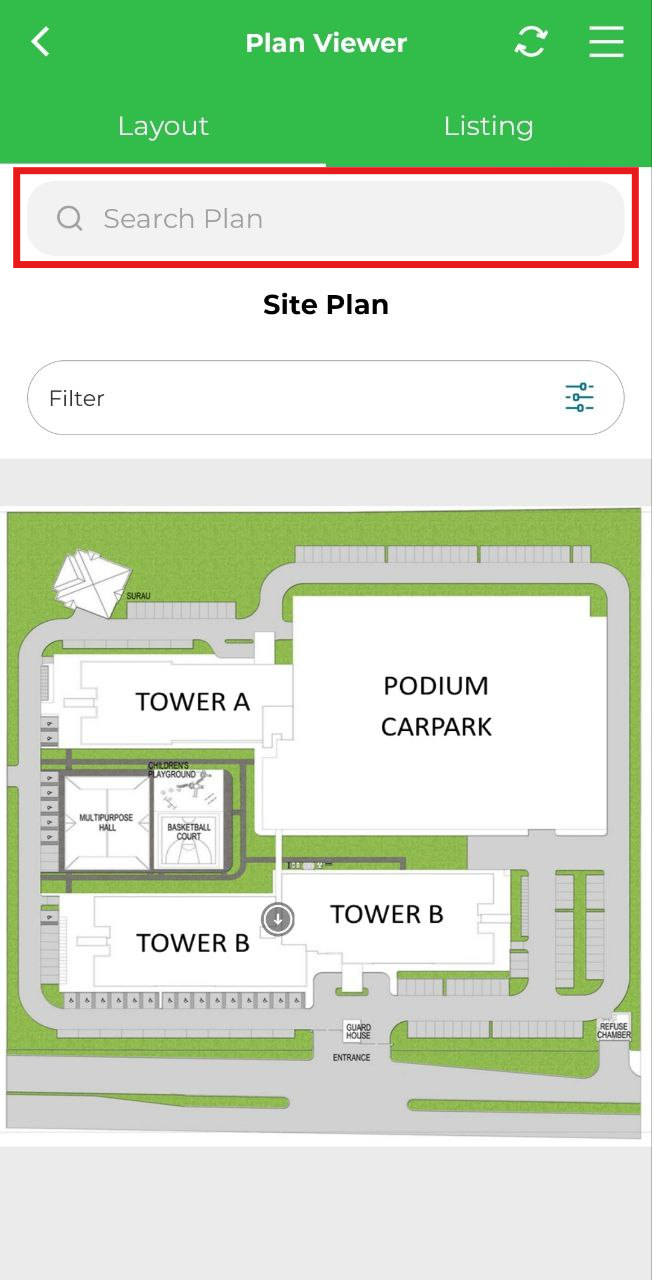
4. Tap on the marker.
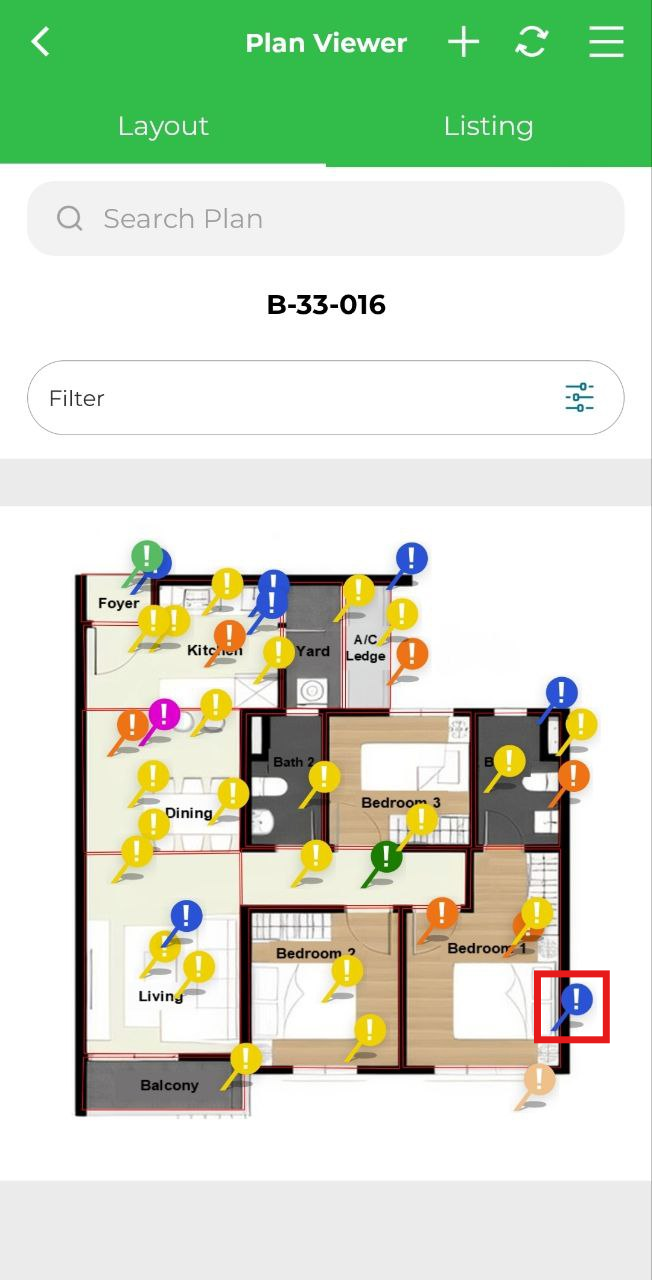
5. Click "Edit Details".
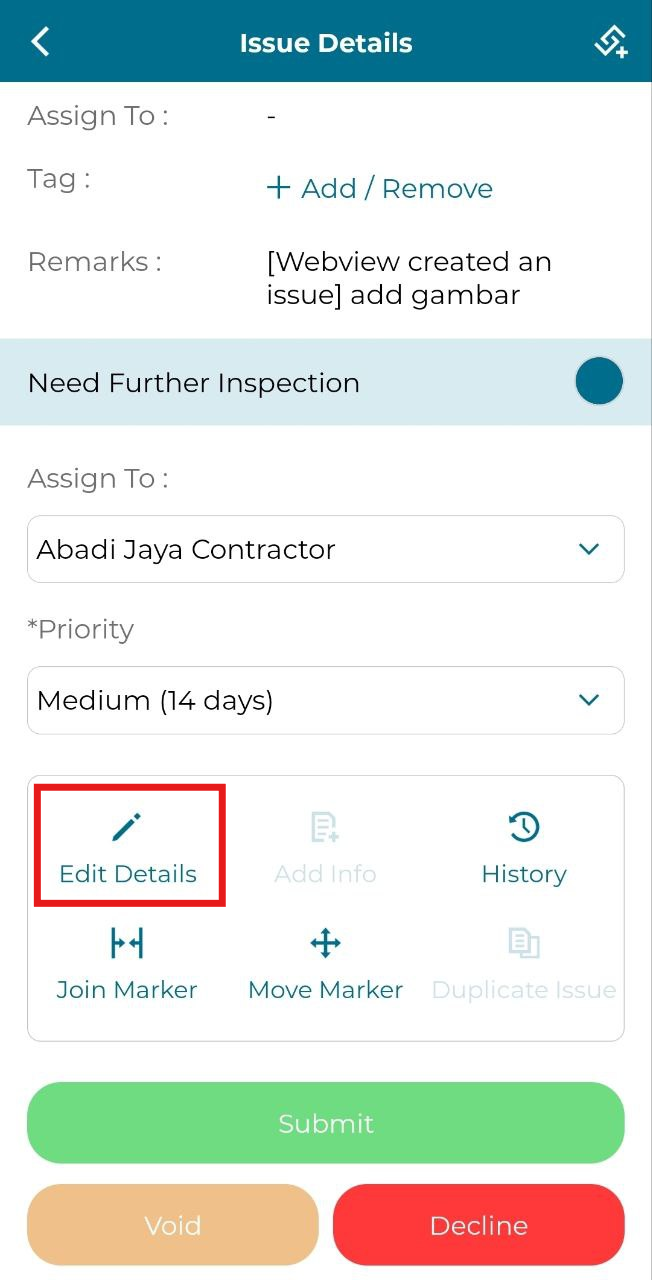
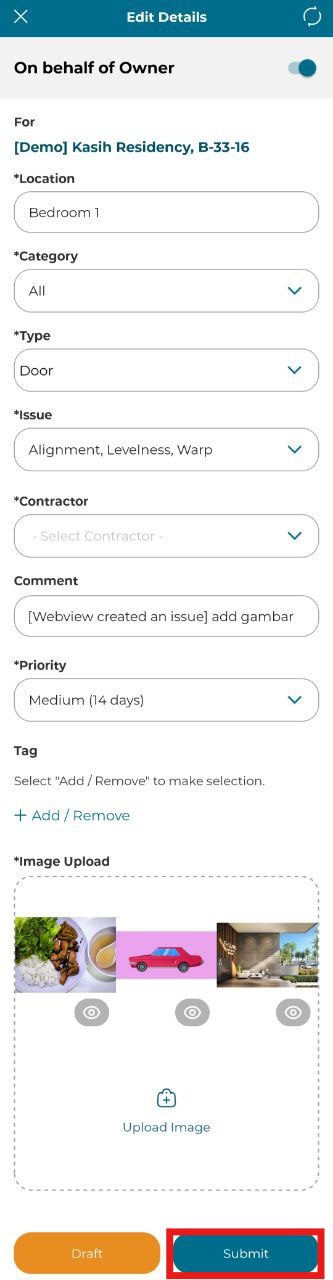
6. Select the Type, Issue, Contractor and Priority from the dropdown menus and using the Image Upload to attach a photo (either Take Photo or Choose from Library). Input Comment or Tag if necessary. Select 'Submit'.
METHOD 2: Listing
1. Select Project.
2. Select 'Listing'.
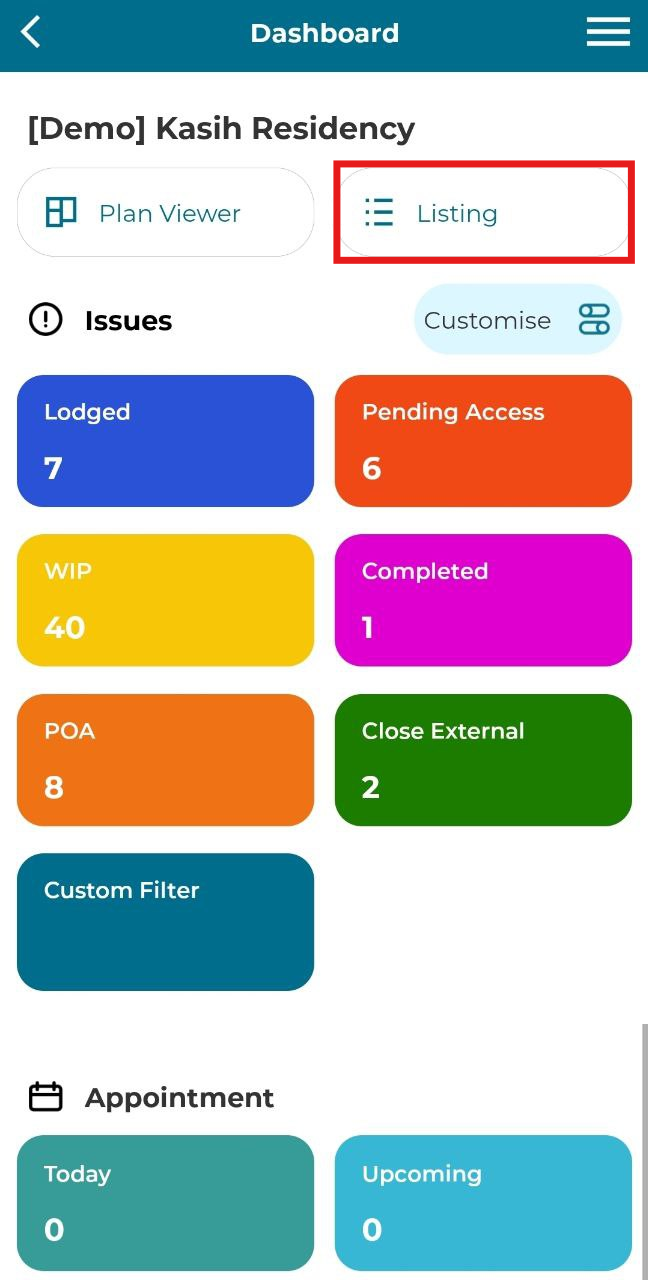
3. Click 'Units' or 'Issues'.
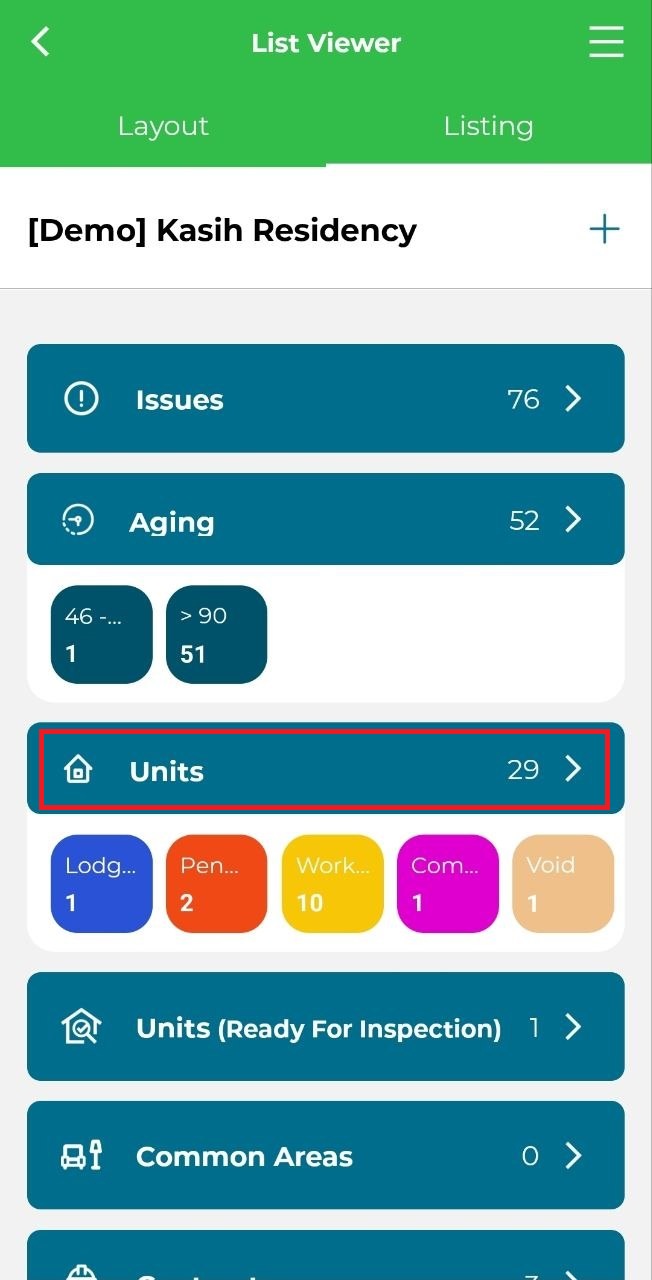
4. Select 'Unit'. The 'Search' bar can be used to filter units.
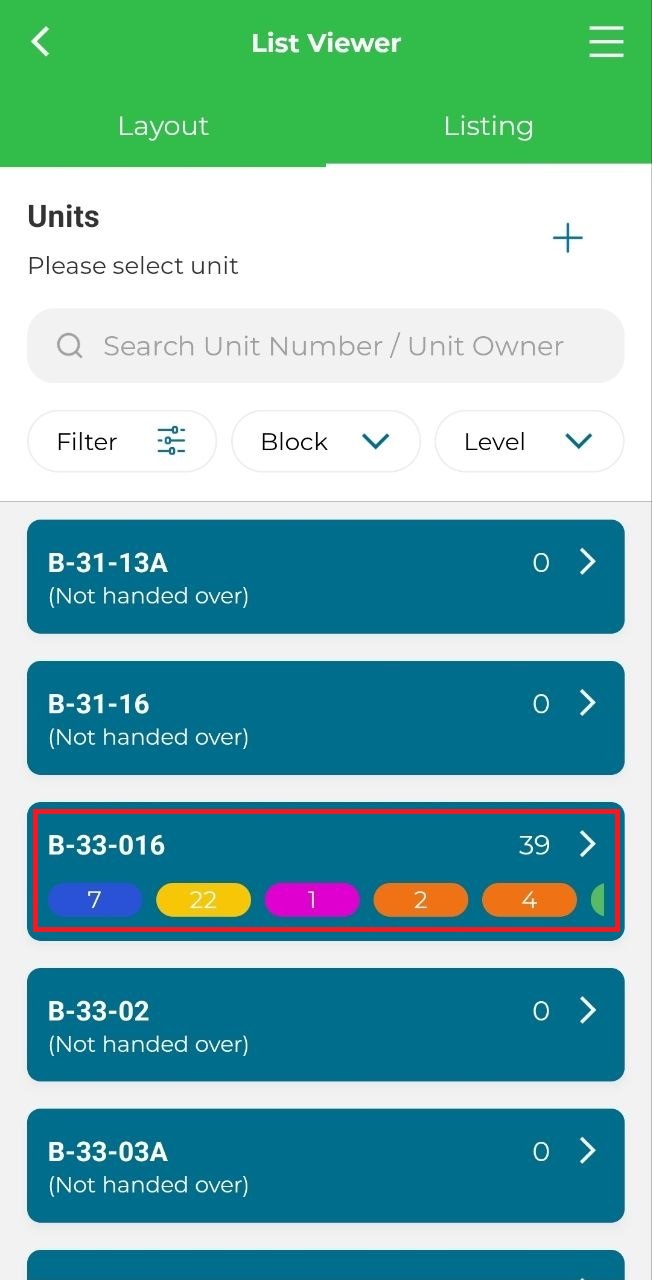
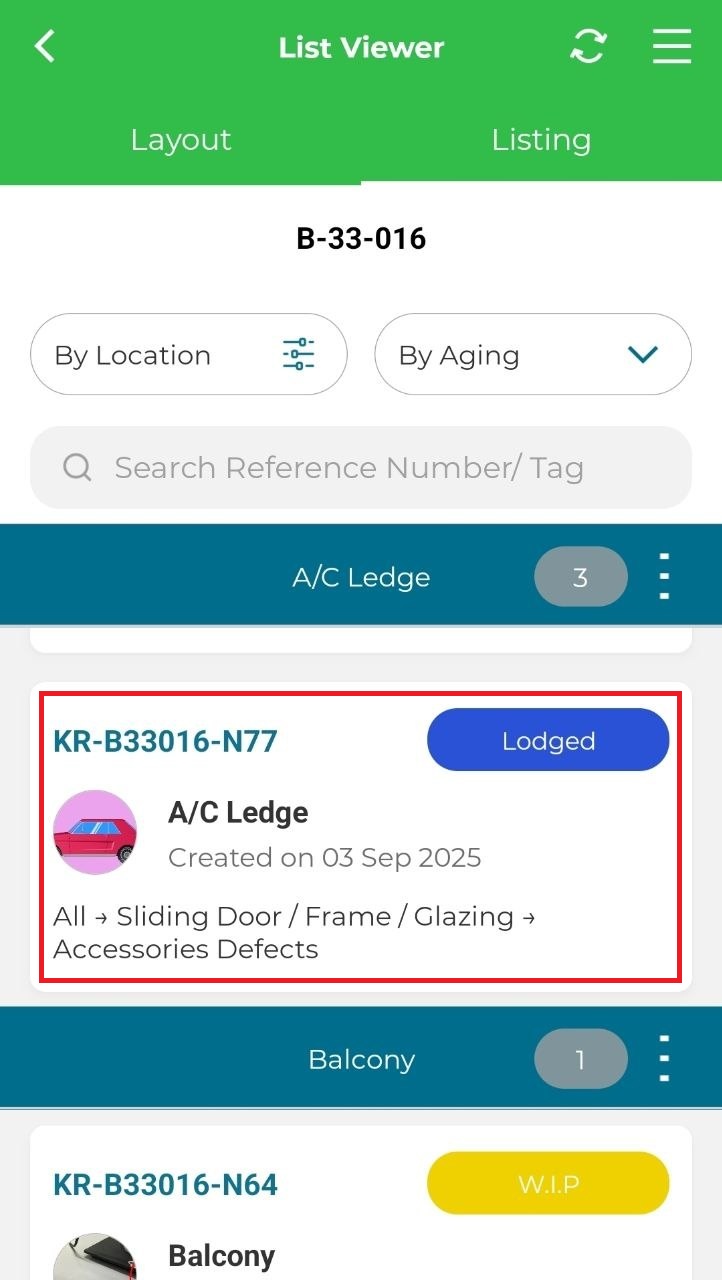
5. Select an issue.
6. Click 'Edit Details'.
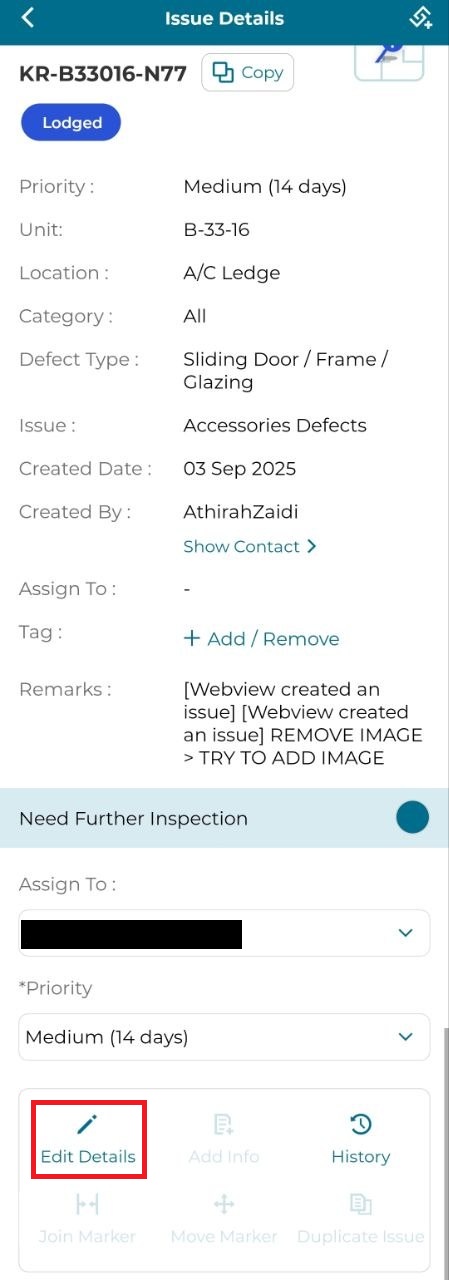
7. Edit the Type, Issue, Contractor and Priority from the dropdown menus and using the Image Upload to attach a photo (either Take Photo or Choose from Library). Select 'Submit'.